Google Calendar for stream sessions
Operators used to learn their shifts by opening the Scheduling Hub. With the Google Calendar integration, each stream session they're staffed on also lands on their own Google Calendar. The event moves when the session moves, follows a cover to the substitute, and disappears when the session is cancelled.
This page has two audiences:
- SOT managers — the switch on each session, and the Settings tab in the Scheduling Hub. Start at For SOT managers.
- Whoever runs System Info — setting the integration up on a server, and the card on System Info → Integrations. Start at Setting it up.
How it works
- One event per session, on a shared calendar called SOT Streams, owned
by the
scheduling@arunatalent.commailbox. Nobody signs in as that mailbox — the app acts as it through a Google service account. - Who's invited:
- whoever is actually working each position, at their employee email:
- an uncovered position → the assigned operator;
- a full cover → the substitute only (the original is removed);
- a partial cover → both, with the substitute's window written in the event description;
- the model, at their Aruna email (set on the model's page, see Models → Aruna email). Never their OnlyFans account's email. A model with no Aruna email simply isn't invited;
- the session's calendar guests: any extra addresses, such as a manager or ops inbox (see Calendar guests).
- whoever is actually working each position, at their employee email:
- Changes follow the session. Moving or restaffing updates the same event; cancelling or deleting removes it; restoring puts it back. Saving a session without changing anything sends nothing.
- Past shifts are never sent. A session that has already ended never gets an event, so nobody is invited to a shift that's over.
- It never slows the Hub down. Changes go to Google in the background a few seconds after you save. If Google is down or throttling, the change is retried — for hours if Google has paused the mailbox's invites — and the Hub keeps working meanwhile.
- The Hub is the only organizer. An edit made to the event in Google Calendar is overwritten by the next change from the Hub.
What an operator actually receives
| Their employee email | What they see |
|---|---|
@arunatalent.com |
The event appears directly on their Google Calendar. |
| Anything else (Gmail, Yahoo, …) | An invitation email from scheduling@ with Accept / Decline and an .ics file, then update and cancellation emails as the session changes. |
Whether Google sends those emails is a per-server setting — see Invite emails. Outside production nobody is emailed by default, so outside addresses see nothing at all on a dev or staging server.
A blank or invalid email is skipped (and logged) — it never stops the rest of the session's invites.
For SOT managers
The switch on each session
The session form has an Add to Google Calendar switch. On, the session is put on the staffed operators' calendars; off, it isn't (and turning it off on a session that's already on the calendar removes the event).
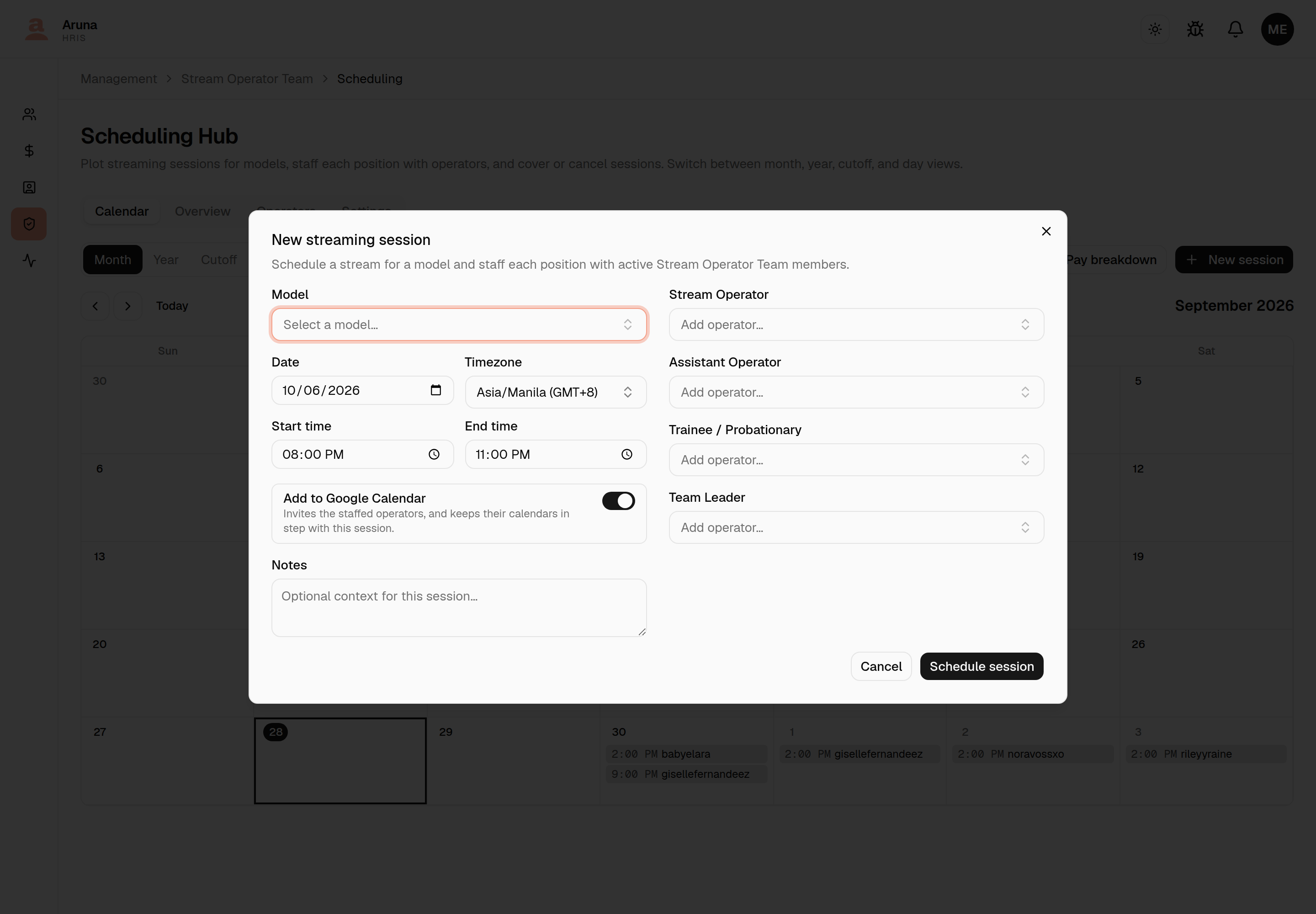
- A new session starts with the switch on — that's the Hub default, which you can change under Settings.
- Sessions that existed before the integration was added start off. Use Sync all upcoming to publish them in one go.
- The switch is greyed out, with the reason, when it can't do anything: the integration isn't set up on this server, sync is switched off, no calendar has been created yet, or the session has already ended.
Calendar guests
Under the switch, Calendar guests lists extra addresses invited to this session on top of the operators and the model. Type an address and add it, or remove one with its ×.
- A new session starts with the team's default guests; change them for this session as needed.
- Editing an existing session never re-applies the defaults. Its own list is kept.
- The note above the list shows the model's Aruna email, or "no email on file", so you can see whether the model is invited.
Once a session is on the calendar, its detail view says so:
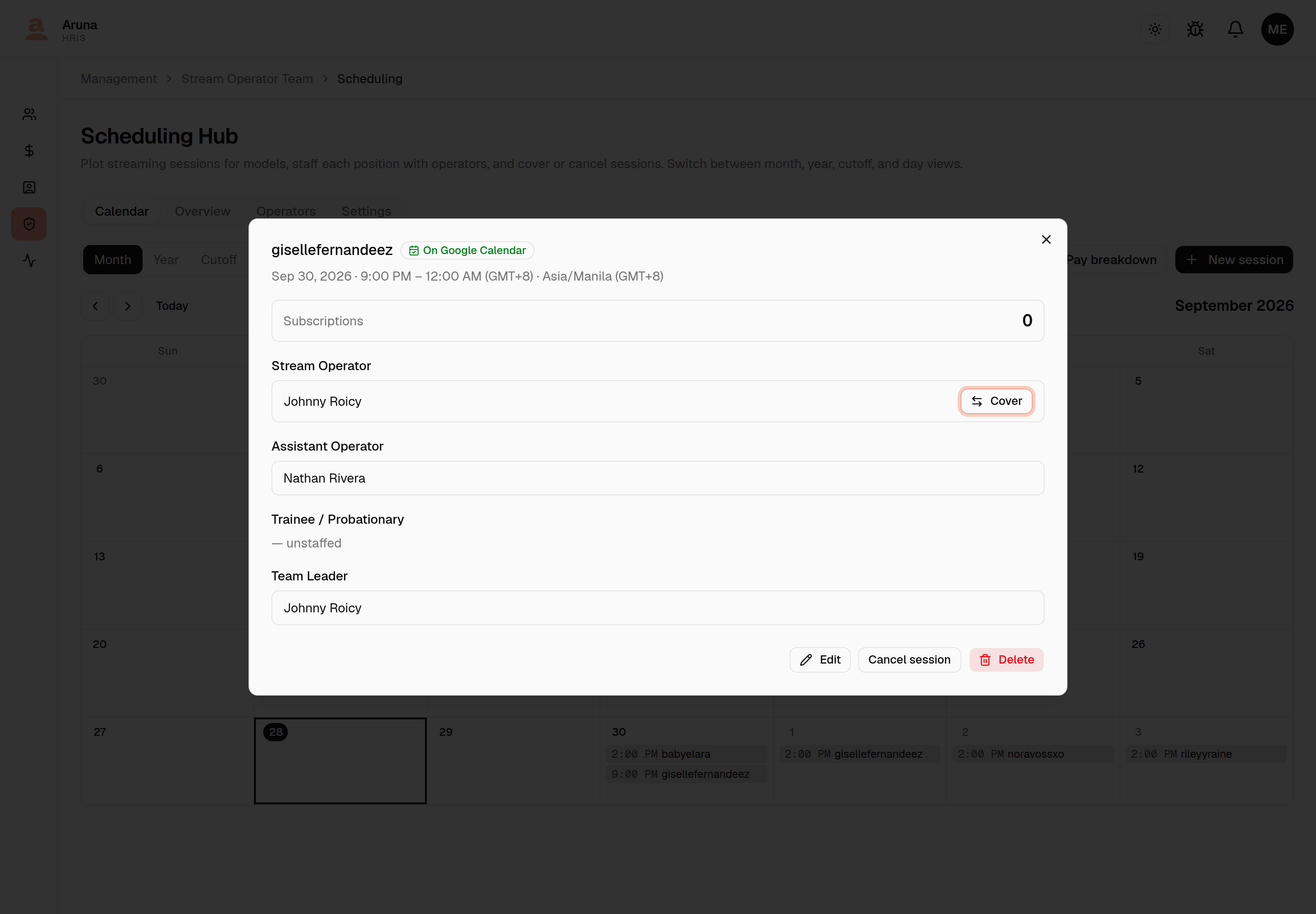
| Badge | Meaning |
|---|---|
| On Google Calendar | The event exists and matches the session. |
| Sending to Google Calendar | Just saved — it's on its way (usually seconds). |
| Google Calendar sync failed | Google refused it. The reason is listed under Settings → Failing. |
| Ended before it was sent | The switch is on, but the session finished before it was ever sent, so it won't be. |
| (no badge) | The switch is off. |
The same state shows as a small calendar icon on each session in the Day and Cutoff views.
Who gets emailed about a change
Every change that touches the calendar (saving a session, covering or uncovering, cancelling, restoring, deleting) shows who Google will email before you click, and the button says it too: Save changes · emails 2, Cover position · no emails.
The Notify choice next to the list decides it:
| Notify | Who is emailed |
|---|---|
| People affected (default) | Only the people the change is about. Someone added gets an invite, someone taken off gets a cancellation, and everyone else hears nothing. If the shift's time or model changes, that affects everyone, so everyone gets the update. Cancel, restore and delete affect everyone on the session. |
| Everyone on the session | Everyone on the event, including people whose part didn't change. Use it to announce a change the default keeps quiet. |
| No one | The calendar updates silently. |
A few examples of the default:
- Cover a whole shift: the substitute gets an invite and the original operator a cancellation.
- Cover part of a shift: only the substitute is emailed; the original still works the rest.
- Uncover: the substitute gets a cancellation and the original operator an invite.
- Change only the notes, or a name in the staffing list: no one.
If the session isn't on Google Calendar, no one is emailed and the list says so. On a server that doesn't send invites (dev or staging), the list still shows who would be emailed, so the flow can be checked.
The Settings tab
Scheduling Hub → Settings holds the calendar controls for the whole team.
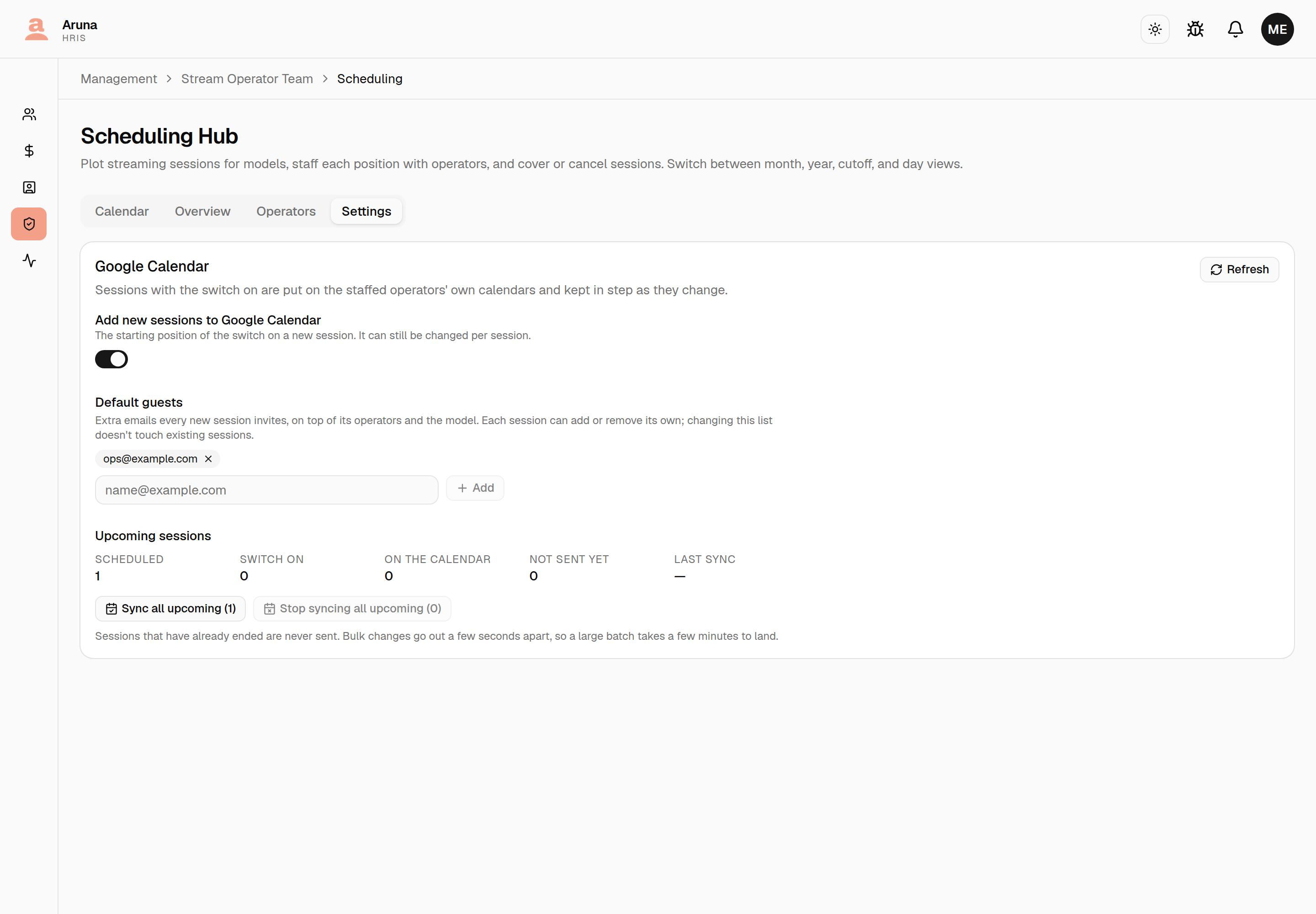
- Add new sessions to Google Calendar — where the switch starts on a new session. On by default.
- Default guests — addresses every new session starts with as calendar guests (for example a manager who wants every shift on their calendar). Changing the list affects sessions created afterwards, not existing ones.
- Upcoming sessions — of the scheduled sessions that haven't ended: how many have the switch on, how many are on the calendar, how many are still waiting, and when the last sync happened.
- Sync all upcoming — turns the switch on for every upcoming session that has it off. Stop syncing all upcoming — the reverse, which removes their events. Both skip past sessions, and both ask first, showing exactly what they'll touch:
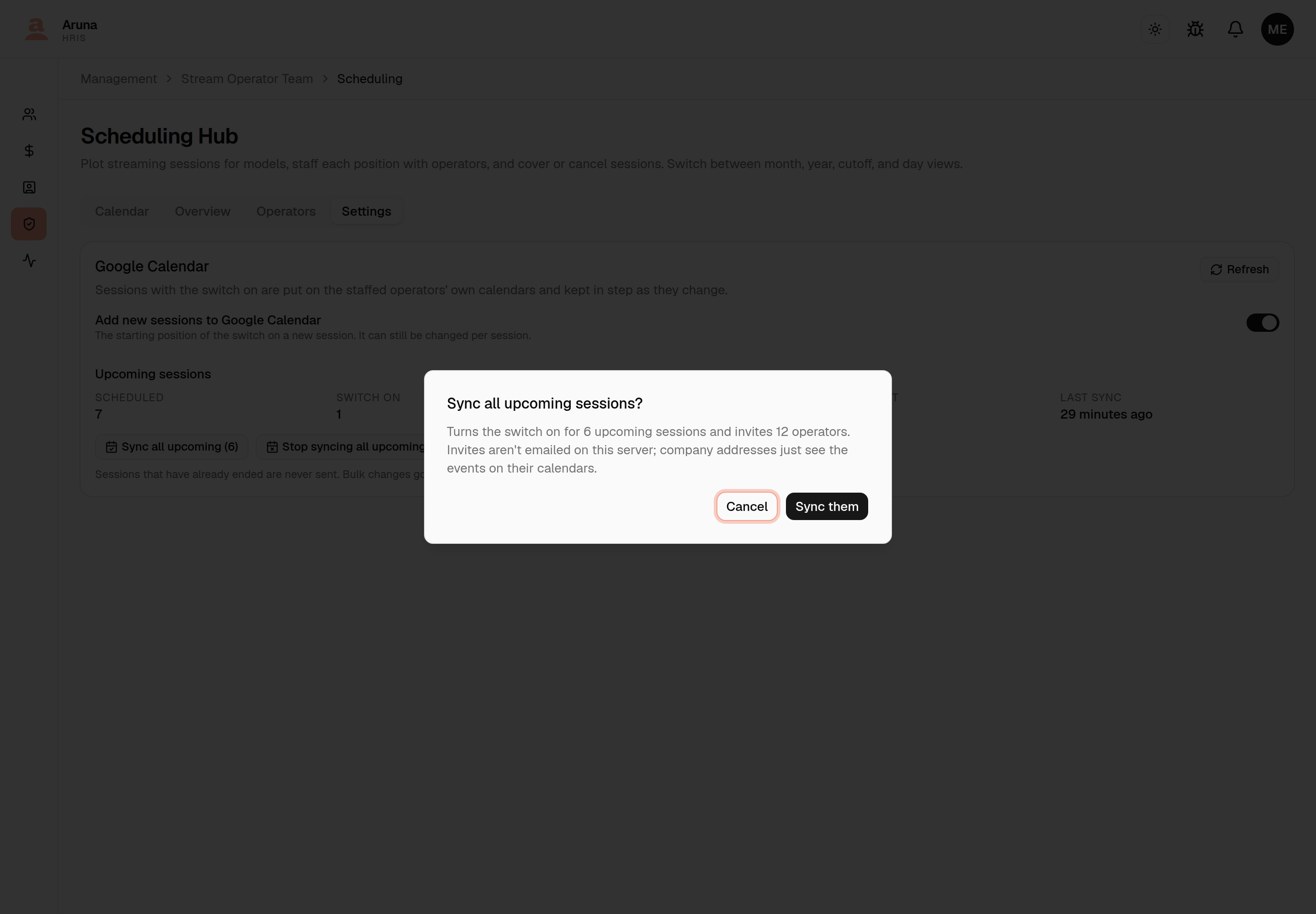
Bulk changes are sent a few seconds apart (all invites come from one mailbox, and a burst is what trips Google's limits), so a large batch takes a few minutes to land. - Failing — appears only when something failed: each session with Google's reason, and a Retry failed button.
Want every shift on your own calendar? Add yourself under Default guests and each new session invites you. Sharing the whole SOT Streams calendar with managers isn't available yet.
Setting it up (System Info)
What a server needs
These live in the backend environment. The key is a secret — mount it as a file, never commit it.
GOOGLE_CALENDAR_CREDENTIALS    path to the service-account JSON key, as the process sees it
GOOGLE_CALENDAR_IMPERSONATE    scheduling@arunatalent.com
GOOGLE_CALENDAR_SYNC_ENABLED   false until you're ready (see below)
GOOGLE_CALENDAR_SEND_INVITES   leave empty (see Invite emails)
There is no calendar-id variable. The calendar is created from the app (next
step) and its id is stored in the database, so every server gets its own — a
.env copied from production can't point staging at the real calendar.
Behind this sits a one-time Google Workspace setup: a service account with
domain-wide delegation for the https://www.googleapis.com/auth/calendar
scope, authorized by a Workspace super-admin. Without it the card below reports
Not authorized.
Turning it on, in order
- Deploy (the database migrations run with it).
- Mount the key and set the variables above, with
SYNC_ENABLED=false. - Open System Info → Integrations and check the Google Calendar card says Connected.
- Click Create calendar. It creates SOT Streams (tagged with the
environment outside production, e.g.
SOT Streams [STAGING]) on the scheduling mailbox. If one with that name already exists it's reused, not duplicated. - Set
GOOGLE_CALENDAR_SYNC_ENABLED=true. - Let SOT managers publish sessions — per session, or Sync all upcoming in the Hub's Settings tab.
The Integrations card
![Google Calendar integration card on System Info: Connected and Sync on pills; acting as scheduling@arunatalent.com, environment local, invites "Not emailed — non-production default"; calendar SOT Streams [DEV] with its created time and calendar id; Upcoming sessions counts; and a collapsed How it works section.](../screenshots/info-01-google-calendar-card.png)
- Connected / Not authorized / Error / Not configured — a live check that the app can act as the scheduling mailbox. Not authorized almost always means the domain-wide delegation entry is missing or hasn't taken effect yet (a new one can take a while). Refresh re-checks.
- Sync on / Sync off — the
GOOGLE_CALENDAR_SYNC_ENABLEDswitch. While it's off, nothing reaches Google no matter what managers toggle; the card says so and how to turn it on. - Invites — whether Google emails attendees here, and whether that came
from the environment or from
GOOGLE_CALENDAR_SEND_INVITES. - Calendar — this server's calendar and who created it when, or a Create calendar button if there isn't one yet.
- Upcoming sessions — the same counts managers see, plus the failing sessions and their errors.
Invite emails
By default Google emails attendees only in production (ENVIRONMENT=production).
GOOGLE_CALENDAR_SEND_INVITES overrides that either way:
GOOGLE_CALENDAR_SEND_INVITES |
Google emails attendees? |
|---|---|
| (empty) | Follows the environment — production yes, everything else no. |
false |
Never, even in production — e.g. a quiet launch where events land on calendars first. |
true |
Yes, outside production too — e.g. testing real invites on staging against its own calendar, with your own addresses. |
Event titles are always tagged outside production ([DEV] Stream · Giselle),
whatever this is set to.
Command-line helpers
# Prove the Google side works: check access, (optionally) create the calendar,
# put one throwaway event on it, then delete it.
python manage.py sot_calendar_smoke [--create-calendar] [--invite you@example.com --send-email] [--keep]

# Send every upcoming, switched-on session that isn't on the calendar yet.
python manage.py sot_calendar_backfill [--dry-run]
--invite adds one attendee; only --send-email makes Google email them.
Use your own address.
Troubleshooting
- "Not authorized" on the card. The service account can't act as the mailbox — the delegation entry is missing, has the wrong client id, or hasn't propagated. It's a Workspace admin fix, not an app one.
- An operator says they got nothing. Check the session's badge first. If it's On Google Calendar: a company address should see it on their calendar; an outside address only gets an email where invites are emailed (production by default) — and should check spam. Then check their employee email is right.
- "Google Calendar sync failed". The reason is on the Settings tab (and the Info card). Fix the cause, then Retry failed.
- "Gave up after 8 retries". Google was down or had paused the mailbox's invites for longer than the retries lasted (usually after a very large batch). Retry failed once it has lifted.
- A dev or staging event showed up on a real calendar. That's a
company-domain attendee on a non-production server: events still land on
@arunatalent.comcalendars even though nobody is emailed. KeepGOOGLE_CALENDAR_SYNC_ENABLED=falseon servers whose data has real people's addresses.