Finance¶
Who this is for: Finance staff who run payroll, manage cutoffs, and clear approvals. Time: ~15 minutes. You'll need: the Finance module (the $ icon in the left nav).
Finance drives every pay run: opening and closing cutoff periods, pulling employees into a period, adjusting individual invoices, clearing time/reimbursement/dispute/quiz/referral approvals, then processing and sending payslips.
1. The Finance home¶
Open Finance. The hub summarises what needs attention and links to every sub-area.
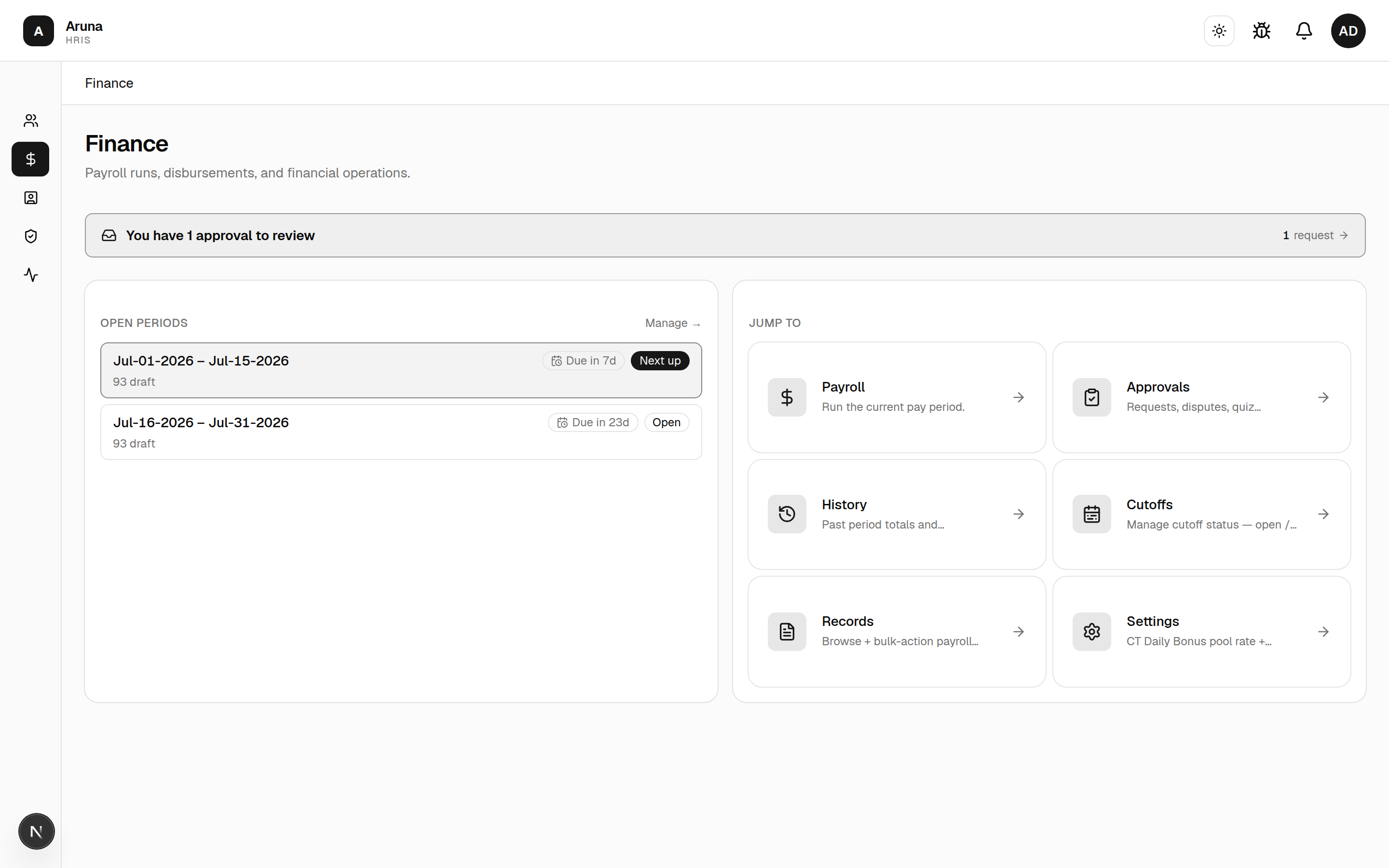
- The banner tells you whether anything is pending Finance review.
- Open periods shows the current and next cutoff with their due dates.
- Jump to cards: Payroll, Approvals, History, Cutoffs, Records, Settings.
2. Cutoffs — the period lifecycle¶
Open Finance → Cutoffs.
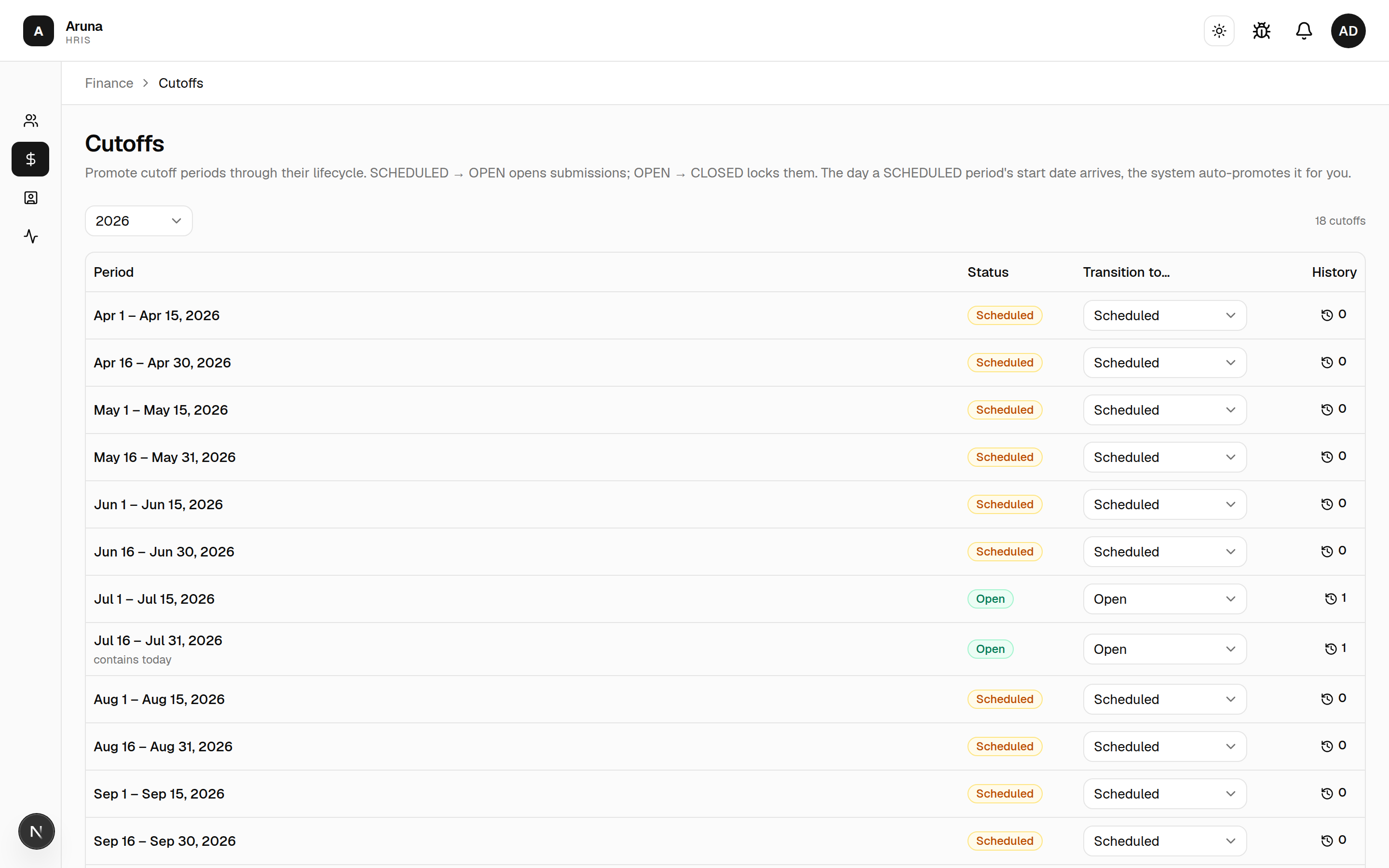
Each period moves through a lifecycle:
SCHEDULED → OPEN → CLOSED
- SCHEDULED → OPEN opens submissions for that period.
- OPEN → CLOSED locks it.
- The day a SCHEDULED period's start date arrives, the system auto-promotes it to OPEN for you.
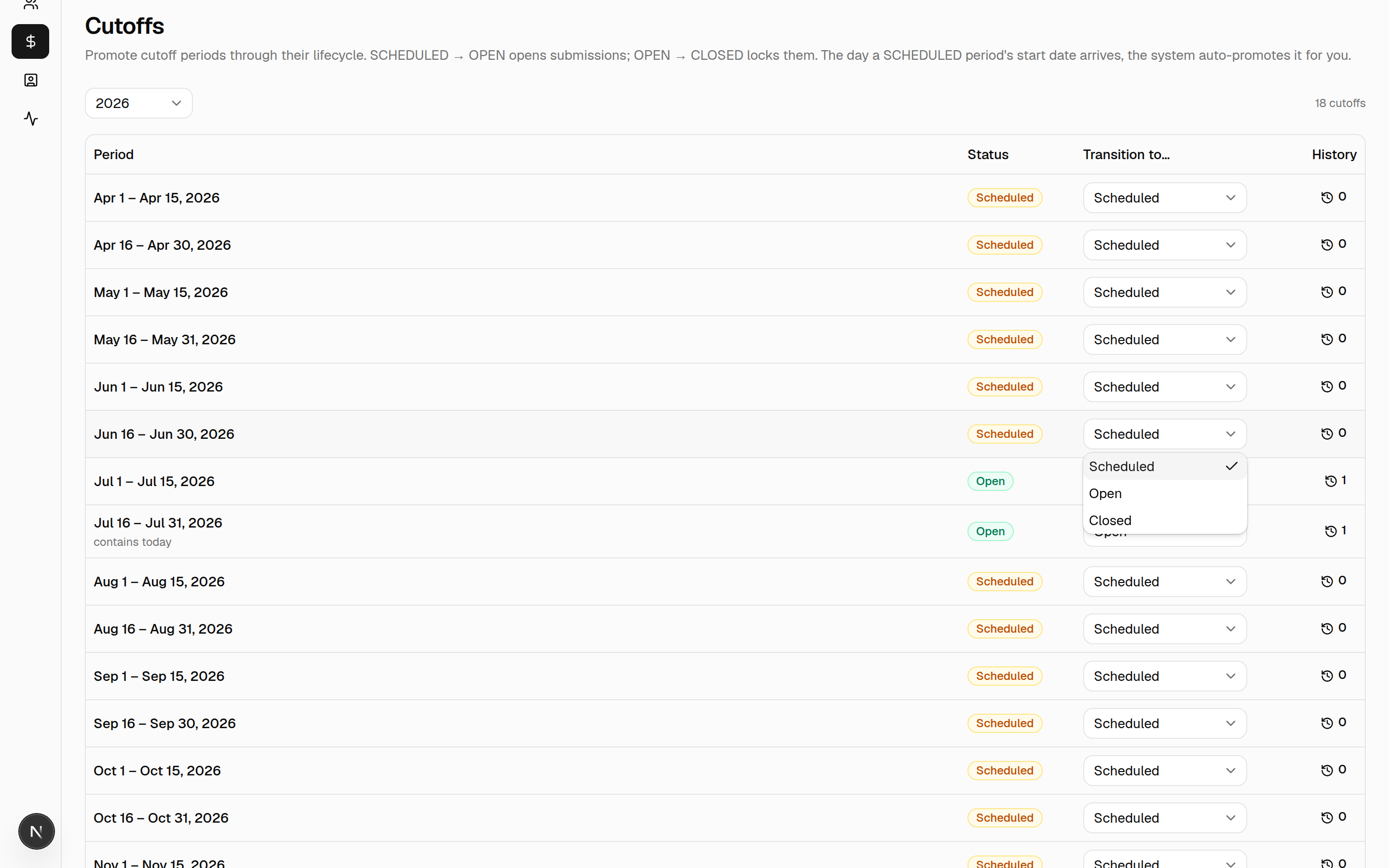
- The period containing today is flagged. Use the Transition to… dropdown to move a period manually between Scheduled, Open, and Closed.
3. Payroll records — running a period¶
Open Finance → Records (Payroll). Everything for a pay run lives here, on one per-period surface.
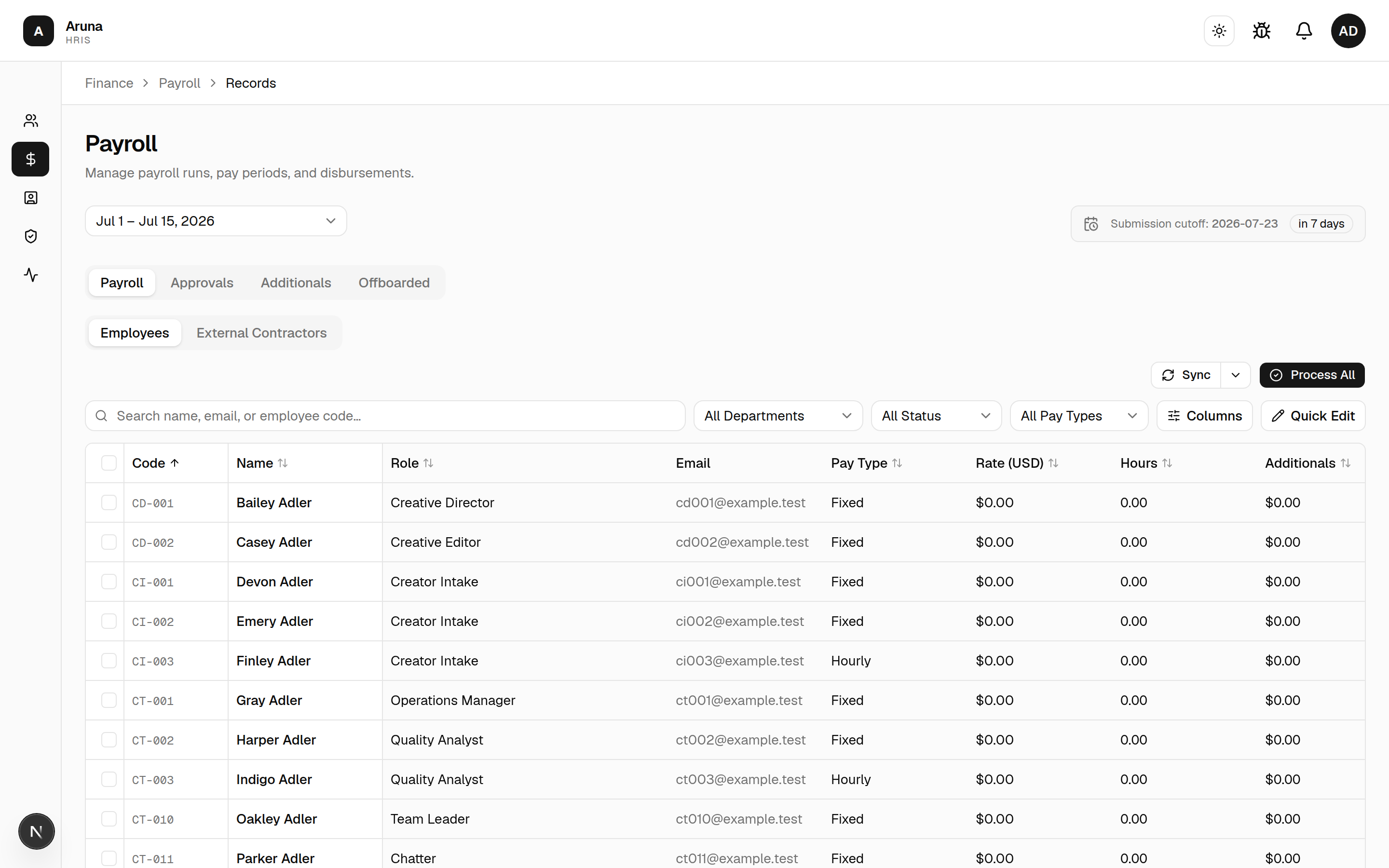
- Pick the period (top-left); the submission cutoff countdown is on the right.
- Pull Employees loads all active employees into the period so their tracked hours and pay populate. It confirms first — it creates a draft payroll record for every active employee who doesn't already have one (anyone without an active assignment or rate is skipped).
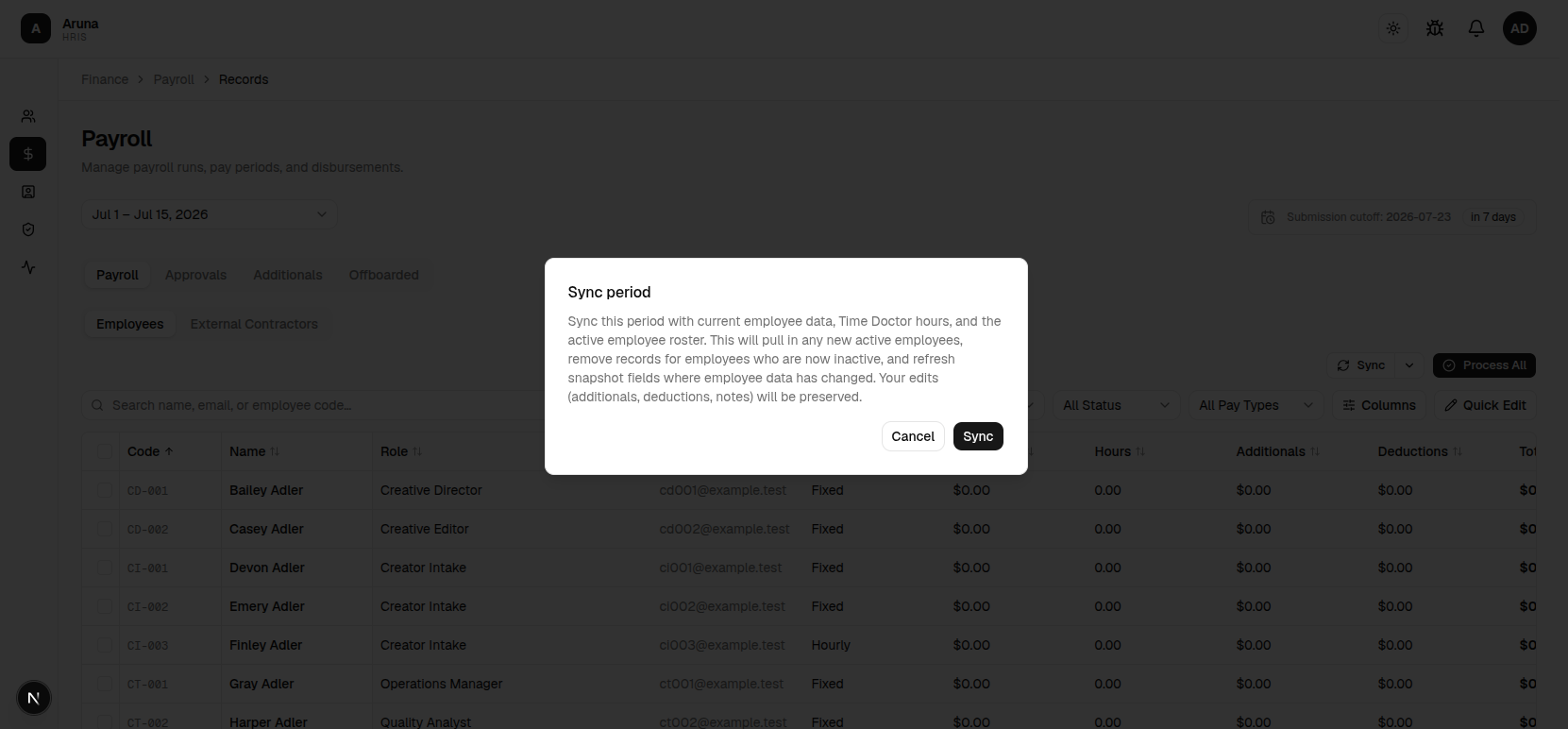
Pull runs in the background. It kicks off a job and the button stays busy while it works — the page keeps responding and a toast lands when it finishes. (The Time-Doctor fetch is slow on large periods; running it inline used to time out.) The same applies to Sync and Reset below.
- Top-level tabs: Payroll (the main run), Approvals, Additionals (the CT/SOT/TMT calculated breakdowns), and Offboarded (final-pay review).
- Inside Payroll, toggle Employees vs External Contractors (a contractor only appears once they have a payout for the period — an affiliate commission from a Sync, a fixed rate, or a manual line item). The contractor roster itself is managed under People & Culture → External Contractors.
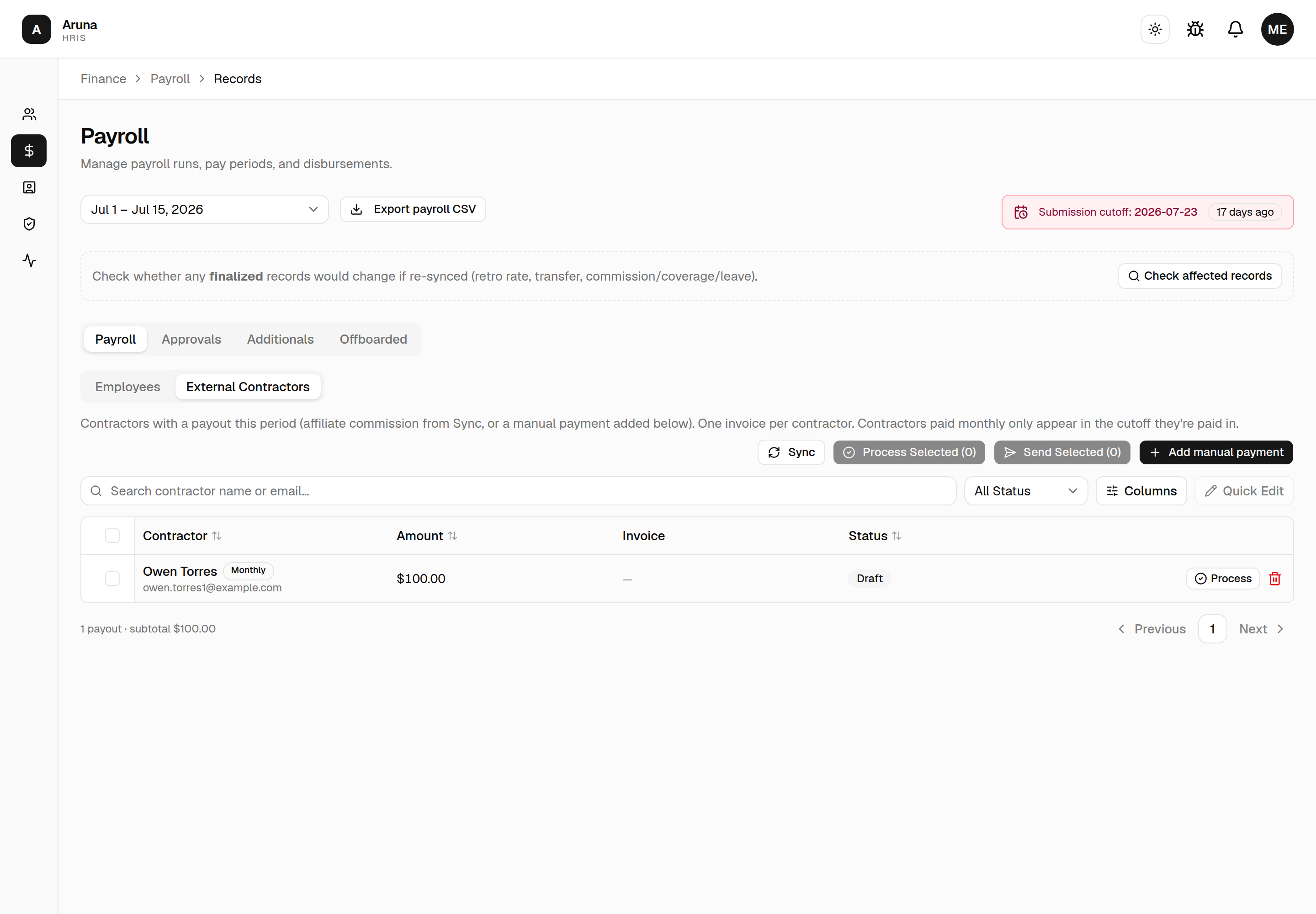
The tab has its own Sync / Process Selected / Send Selected / Add manual payment row — contractor payouts are materialized by this Sync, not the employee one. A row badged Monthly belongs to a contractor paid once a calendar month rather than per cutoff, so the amount is a full month's pay. Those contractors appear in one cutoff a month only — the one P&C nominated on their profile — so if someone you expect is missing, check their pay schedule before assuming the Sync failed. Add manual payment still works for them in their off cutoff.
Employees paid monthly¶
A fixed-salary employee can also be on a monthly schedule (P&C sets it under Adjust Pay). Unlike a contractor, they still get a payslip in both cutoffs — but their salary is issued in one half only:
- On their nominated cutoff, base pay is the whole month's salary, and the
Rate column reads
/ month. - In the other cutoff, base pay is $0 and the record says why ("Monthly salary issued in the 2nd cutoff"). Their earnings still land and are still paid there — commission, bonuses, retainer, overtime and rewards all belong to the cutoff they were earned in.
- Salary deductions are the exception. Unpaid leave, absences and SOT partial-cover docks reduce the salary, so they're applied on the cutoff that pays it and cover the whole month. On a Sync, the payout cutoff re-derives them from both halves; the off cutoff books none. So an unpaid day in the first half of June shows up as a deduction on the June 16–30 payslip, not as a negative payslip in the first half.
- A row that ends up at $0 with nothing else on it is skipped by the ArunaPay push with the reason "Monthly employee — salary is issued in the 2nd cutoff", not the generic "Amount is not positive".
So an unexpectedly small payslip in the first half of a month is worth checking against the employee's pay schedule before treating it as a Sync problem.
Keeping a period fresh — Sync & Reset¶
Once employees are pulled, use the Sync split-button to re-materialize auto-calculated pay after any change (commission, coverage, retainers, leave, absences all re-compute on a Sync):
- Sync without Time Doctor — the fast path. Recomputes all the system-owned line items but keeps the hours already pulled.
- Reset (in the dropdown) — destructive: deletes every draft line item, clears notes, and re-pulls from scratch. Use only when a period is badly out of sync.
Sync and Reset also run in the background (same as Pull) — the button shows a busy state and a result toast lands when the job completes.
If a period drifts (a mapping or approval changed after the last Sync), a resync-needed banner appears prompting you to Sync.
The banner is per rail. Employees and external contractors are re-materialized by two different Sync buttons, so each tab shows only the drift its own Sync can clear, and each button clears only what its banner describes. A change that affects both — a model's earnings moving, say — raises it on both tabs and needs both Syncs.
Pull vs. Sync. On an empty period the two do the same thing (both add a draft row for every eligible employee). Once records exist they differ: Pull only adds anyone missing; Sync also refreshes the existing draft rows — re-pulls Time-Doctor hours, re-materializes commission/coverage/ retainer/leave, and drops now-inactive people — then adds anyone missing.
When something already finalized would change¶
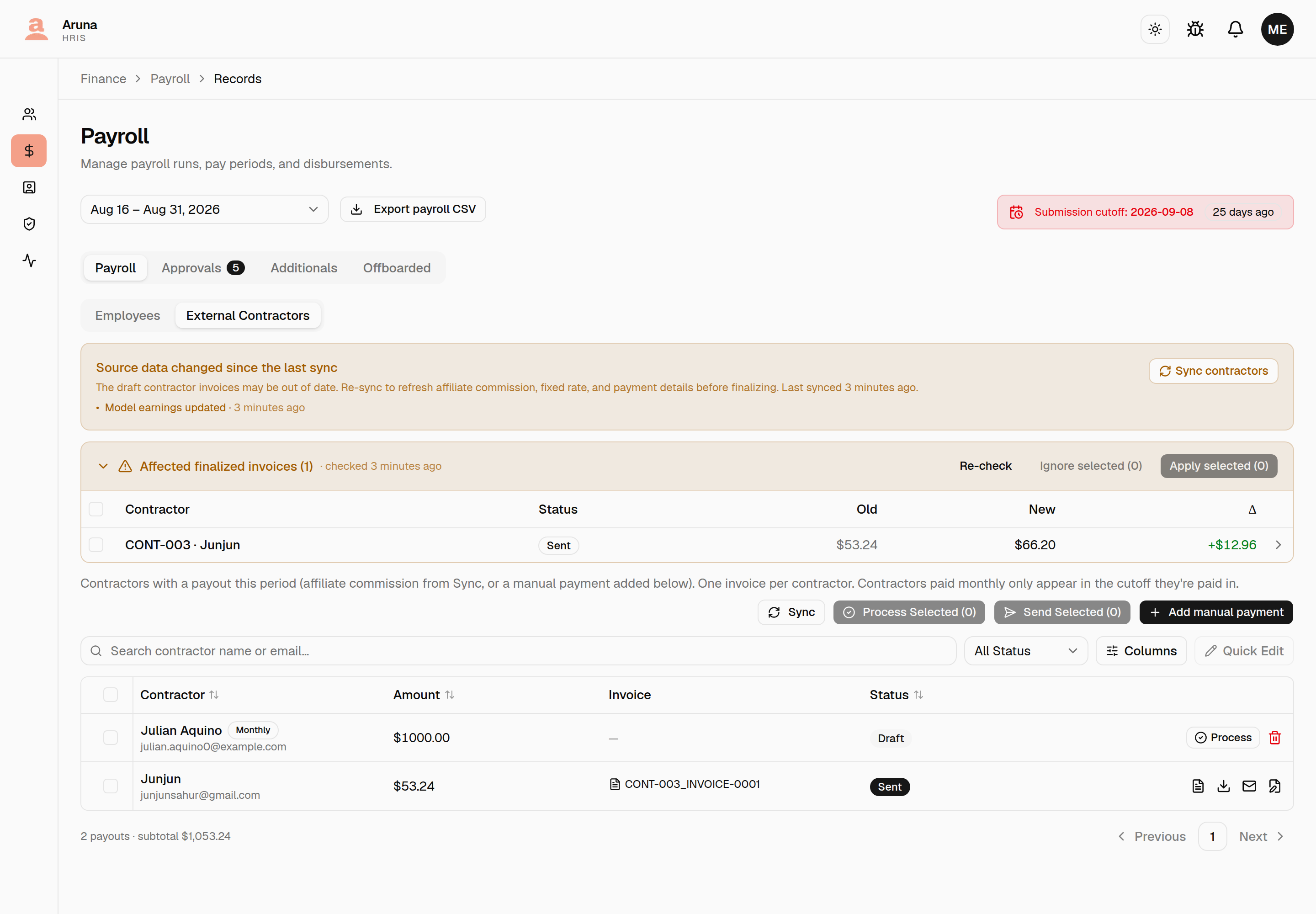
A Sync only touches draft rows. Processed and sent ones are frozen on purpose — but that means a retroactive change leaves them quietly wrong, with nothing on screen saying so. The most common cause is OnlyFans earnings: an affiliate commission is computed from a whole calendar month's Net OF, and the upstream keeps revising that month for days after the cutoff closes.
Check affected records (Employees) and Check affected invoices (External Contractors) answer "what would a Sync change, if it were allowed to touch these?" It runs the real Sync in a transaction that is rolled back afterwards, so nothing is written — you get an exact old → new figure before deciding anything.
Clicking a row opens the side-by-side invoice — what the finalized record holds now against what a re-sync would make it, grouped by line item. For a contractor affiliate line it also shows the Net OF the commission was computed from, which is usually the thing that actually moved; the commission is just 2.5% of it.
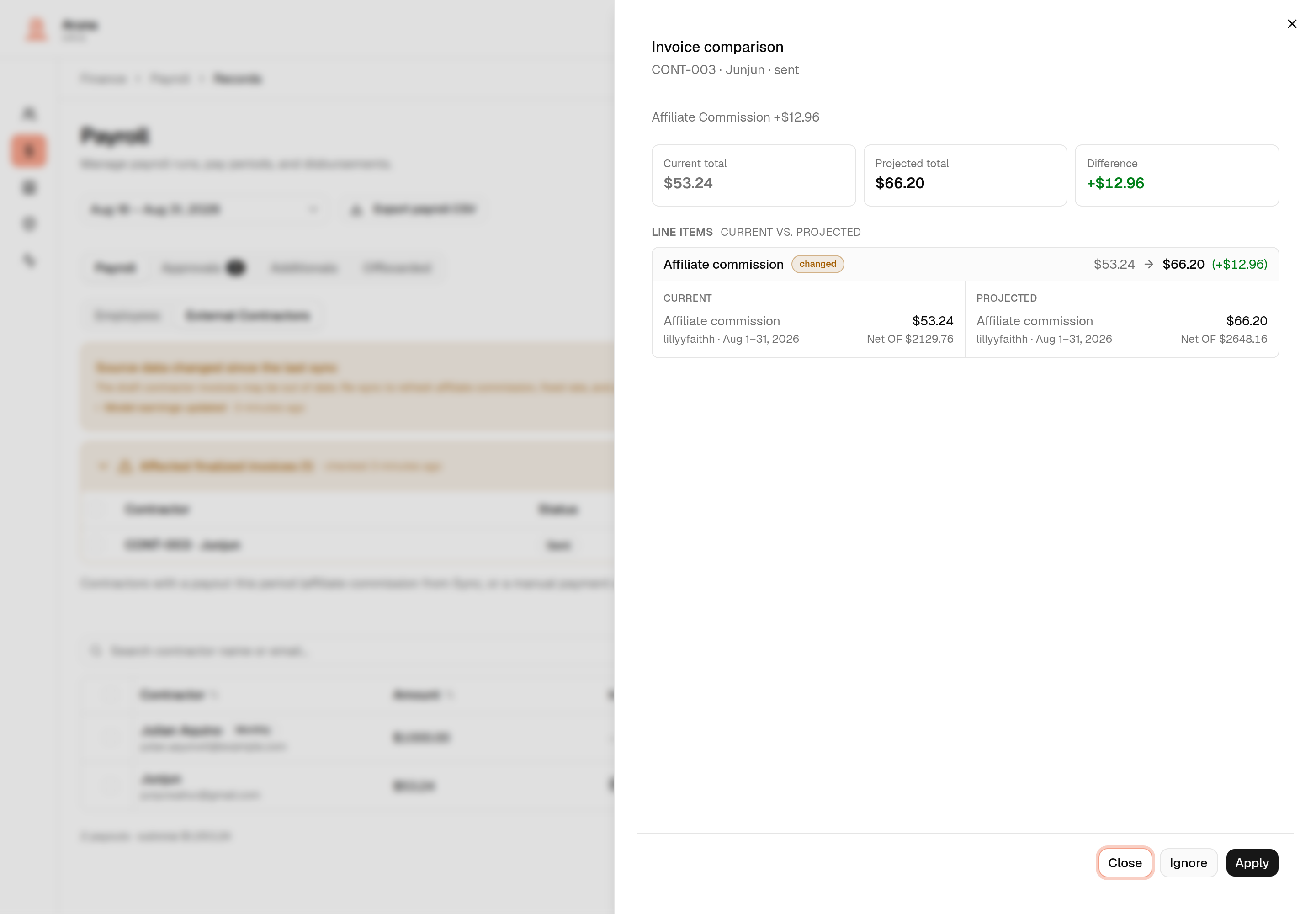
Then decide, per row or for a selection:
- Apply — reopens the record to draft and re-materializes it, so the new amount sticks. The invoice keeps its original number. Rows tied to a live ArunaPay batch are shown but cannot be applied: that money is already moving, so settle or cancel the batch first.
- Ignore — keeps the record as-is. This is an ignore, not a permanent dismissal: it is keyed to the exact projection you were shown, so if the figures move again the row comes back for a fresh decision.
The employee tab has the same check over payslips, with the same Apply / Ignore choice.
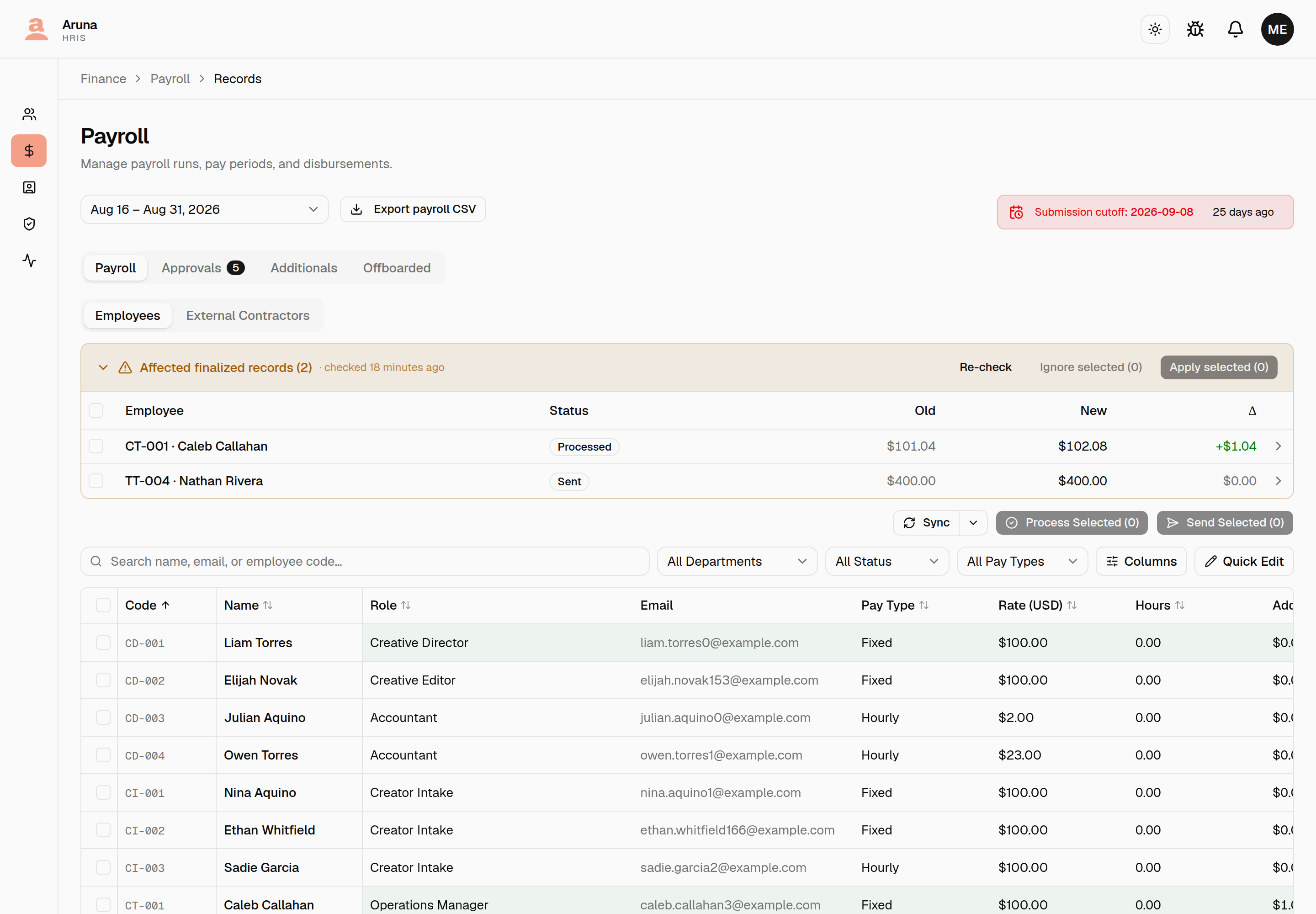
A zero difference is still worth reading. A row can appear with no change in total because its line items moved and happened to net out. The side-by-side shows which ones.
Export the whole period to CSV¶
The Export payroll CSV button (next to the period selector) downloads every payroll on the cutoff in one file — employee payrolls and external contractor payouts, distinguished by a Type column. Employee rows carry the full snapshot (code, department, role, pay type, rate, hours, additionals, deductions, total, status, invoice id); contractor rows carry name/email and the payout total. Like Pull/Sync, it runs as a background job — the button shows a busy state and the download starts when the file is ready. (The Additionals-tab breakdown views have their own per-breakdown Export CSV too; those run the same way.)
The payroll table¶
Each row is one employee's payroll for the period, with a status (see §7), hours, rate, additionals, deductions, and the invoice total. You can:
- Search / filter by status, pay type, or department, and sort any column.
- Select rows (checkboxes) for batch process/send.
- Quick-edit mode (toolbar toggle) makes the Additionals/Deductions and Note cells editable inline for draft rows without opening each record.
- Click a row to open that person's full payroll detail (next section).
4. A single person's payroll & invoice¶
Click any payroll row to open the detail page — one employee's full invoice for the period. This is where you audit and adjust an individual's pay.
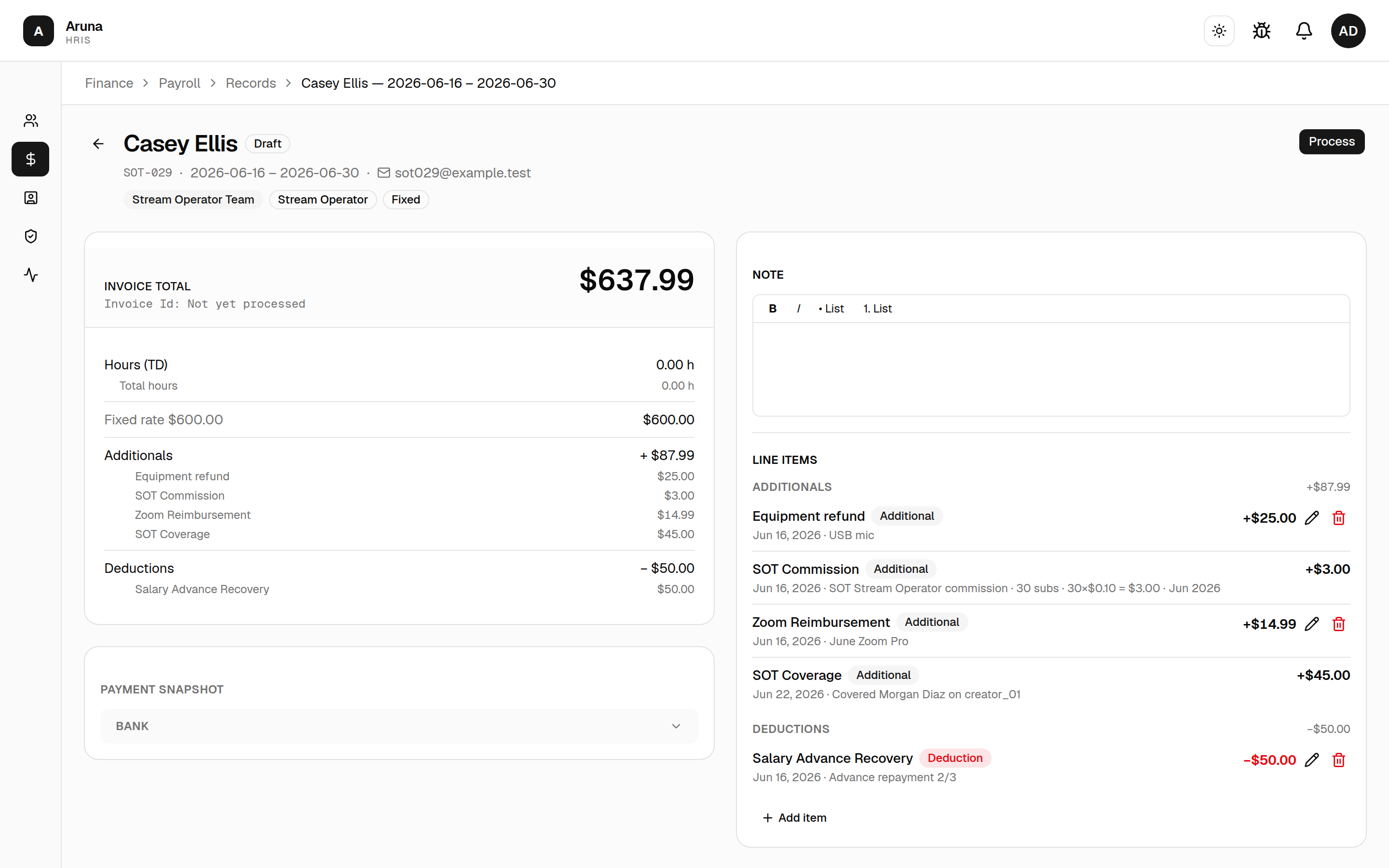
The page has:
- Header — name, employee code, period, email, department / role / pay-type badges, and a status badge (Draft / Processing / Executed / Sent).
- Invoice summary card (left) — the invoice total, the Invoice Id
(shows "Not yet processed" until you process it), an hours breakdown
(Time-Doctor hours + any extra hours line items → total hours), the base
(hourly =
hours × rate; fixed = the fixed rate), then Additionals and Deductions grouped by type. Multi-item groups (e.g. per-day commission or CT daily bonus) collapse into one line you can expand to the day level. - Payment snapshot (left) — the bank / crypto payout details captured for this run.
- Note (right) — a rich-text note on the invoice. Edits auto-save (you'll see "Saving…/Saved").
- Line items (right) — add / edit / delete manual additionals and deductions (next section).
- Requests and Disputes (bottom) — the time-adjustment / zoom / quiz requests and any payslip disputes tied to this person, decided inline.
Viewing & downloading the invoice PDF¶
- Once a record is processed, a View Invoice File button (and an eye icon in the table) opens the invoice PDF inline in a new tab.
- Once sent, you also get Download PDF.
A processed record renders live; a sent record shows you the copy that was emailed. That's deliberate — once something has gone out, what Finance opens should be the document the employee is holding, because that's what a dispute is about.
So a sent record's PDF carries an ARCHIVED COPY band across the top of every page, with the date and time it went out. If you've just corrected a payslip and the band is there, the correction isn't in what you're looking at — re-process and the band is gone, because the record is rendering live again.
Sent invoices (under History) is the exception: it serves each archived PDF completely untouched, with no band. That view exists to answer "what exactly did we send her?", so nothing is added to it.
The detail page is editable only while the record is a draft. After it's processed or sent it becomes read-only — to change anything you must Convert to draft first (see §7).
5. Line items — manual additionals & deductions¶
On the detail page's Line items panel, click Add item to add a manual adjustment to someone's pay. Each line item is either an Additional (adds to the total) or a Deduction (subtracts).
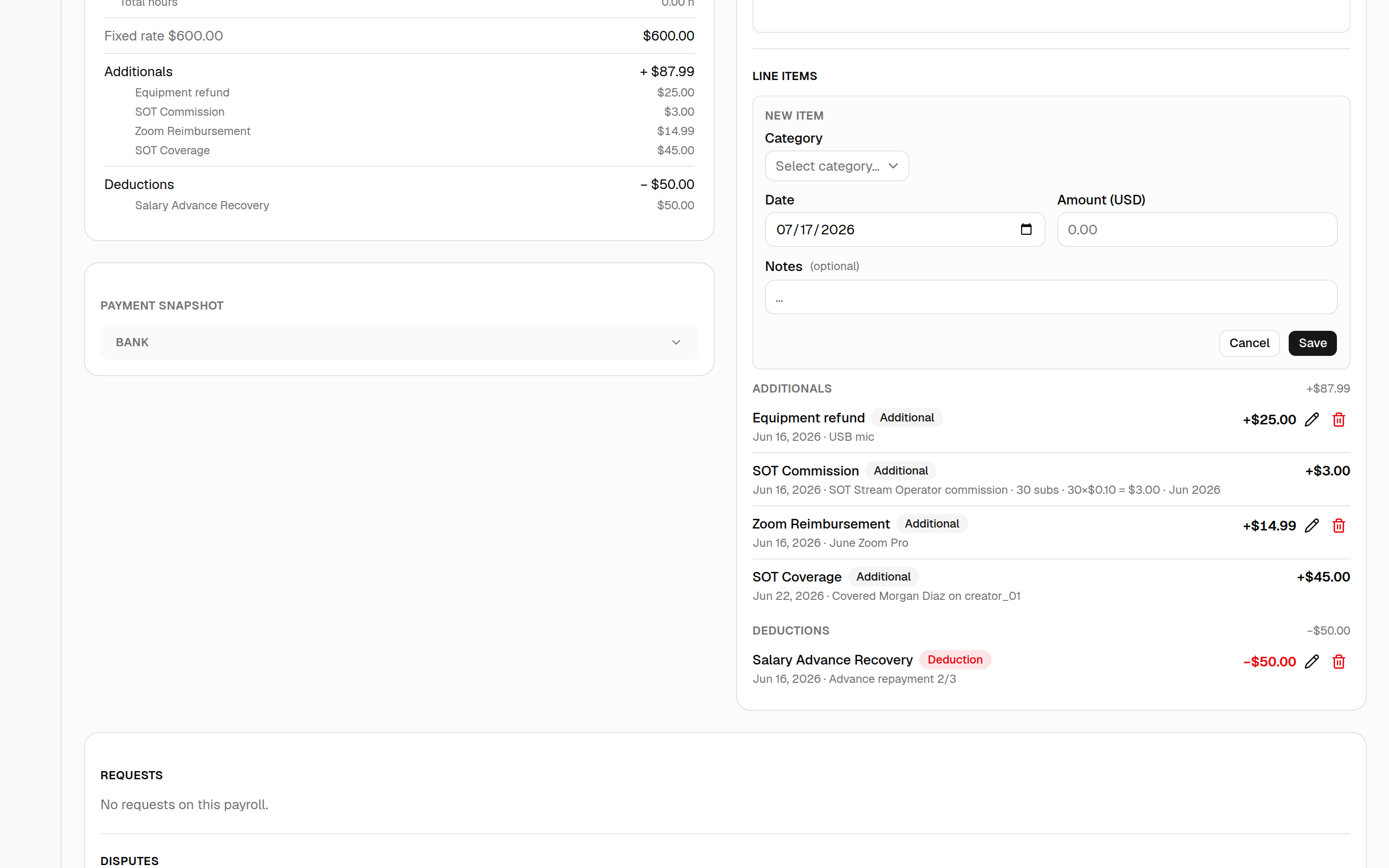
The form:
- Category — grouped into:
- Additionals: Zoom Reimbursement, Quiz Reward, Referral Bonus, Cover Shift Bonus, Additional Hours.
- Deductions: Absent Deduction, Salary Advance Recovery, Offboarding Proration.
- Other: Custom (free-text) — you type the label and pick the direction (Additional or Deduction) yourself.
- Date — defaults to today.
- Amount (USD) — except for Additional Hours, where you instead enter Hours and the amount auto-computes at the employee's implied hourly rate.
- Notes — optional.
Edit or delete a line item with the pencil / trash icons; deleting warns that it recalculates the payroll total.
System-owned rows can't be hand-edited. Auto-calculated categories — Commission, CT Daily Bonus, SOT commission/coverage, Retainer Fee, Affiliate Commission, and anything created by an approved request/dispute/leave — are owned by the system. They're wiped and rewritten on each Sync, so the category dropdown deliberately omits them and their rows show no edit control. To change those, fix the underlying source (the mapping, the approval, the Time-Doctor hours) and Sync — don't try to patch the line item.
6. Approvals¶
Under Records → Approvals, clear everything that affects a payslip before you process it. Most tabs are scoped to the period you picked above. Two are not — Tracking Links and CT Quarterly Bonus — because a sheet or a quarter nobody has decided is still owed after its period closes, and a queue that vanished with the period selector is how that gets forgotten.
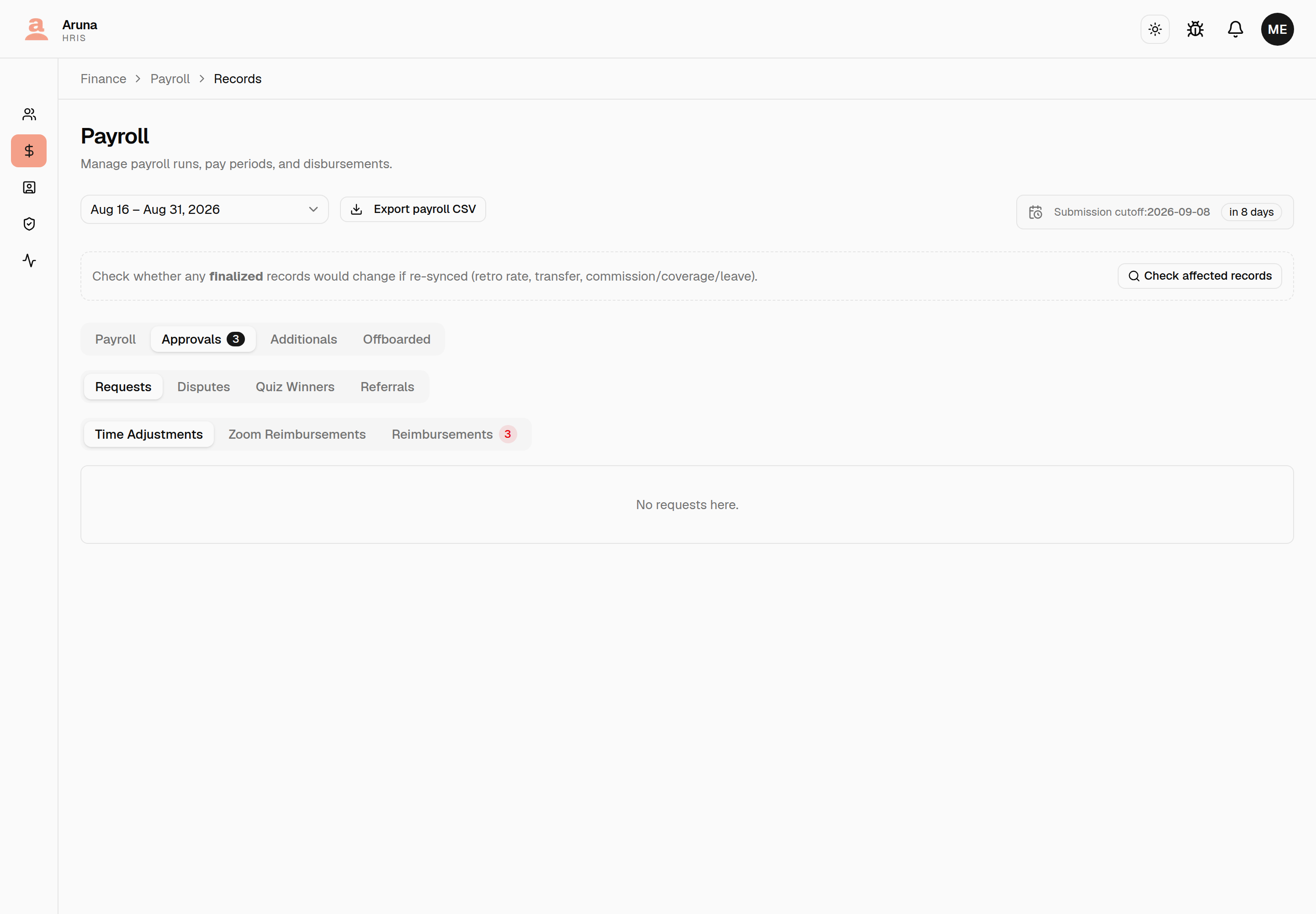
Pending-count badges. The Approvals view tab shows a badge with the total number of items waiting on Finance, and each sub-tab (Requests, Disputes, Quiz Winners, Referrals) shows its own count — so nothing gets forgotten. The counts are only "needs-your-action" items; already-decided rows aren't counted.
Each row opens a decision dialog — the button reads Decide when it's your turn to act, or View when it's already settled or waiting on someone else.
- Requests → Time Adjustments — an employee's claim to correct tracked hours. The row shows the date, the claimed window, and the net hours. Finance approves or rejects at the validator-approved amount — it doesn't adjust the hours (the validator owns that number). Approving flows the approved hours into that person's pay. Once Finance approves, the request is locked (no re-edit); a rejected one can still be revisited.
- Requests → Zoom Reimbursements — shows the local amount + currency and the USD amount; approving adds a Zoom Reimbursement to the payroll. Finance can override the USD amount on approval — the override is recorded on the request, so the reimbursement data (and the row's USD) then show the amount actually paid, not just the original FX figure (which is kept for audit).
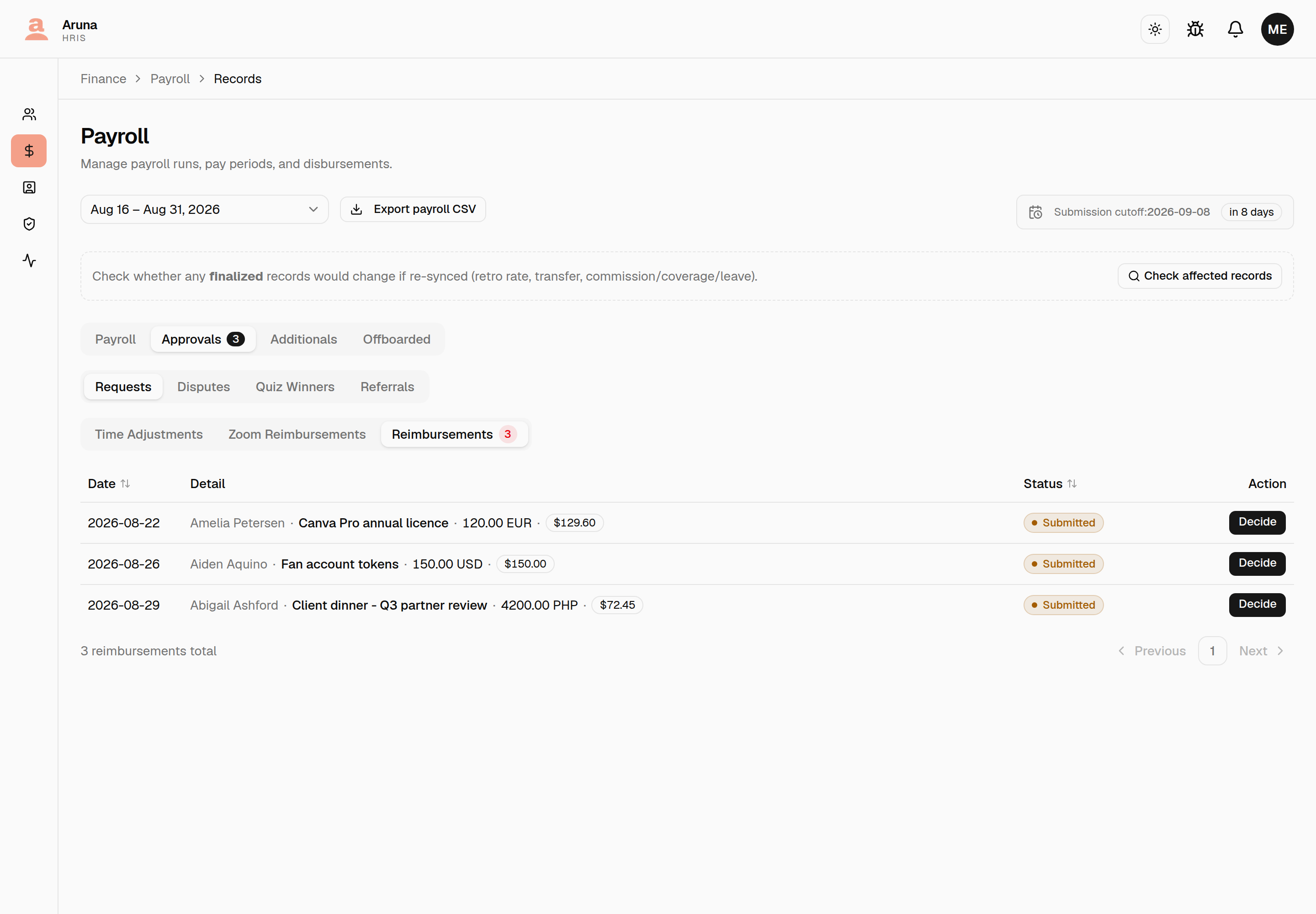
- Requests → Reimbursements — every other out-of-pocket claim: a client dinner, tokens, a licence. The row leads with the employee's subject, since that's the only thing telling two claims apart, then the local amount and USD. Finance is the only approver — there's no manager step, same as Zoom. Approving books the claim on the payslip with the subject in the line's notes. The USD override works exactly as it does for Zoom.
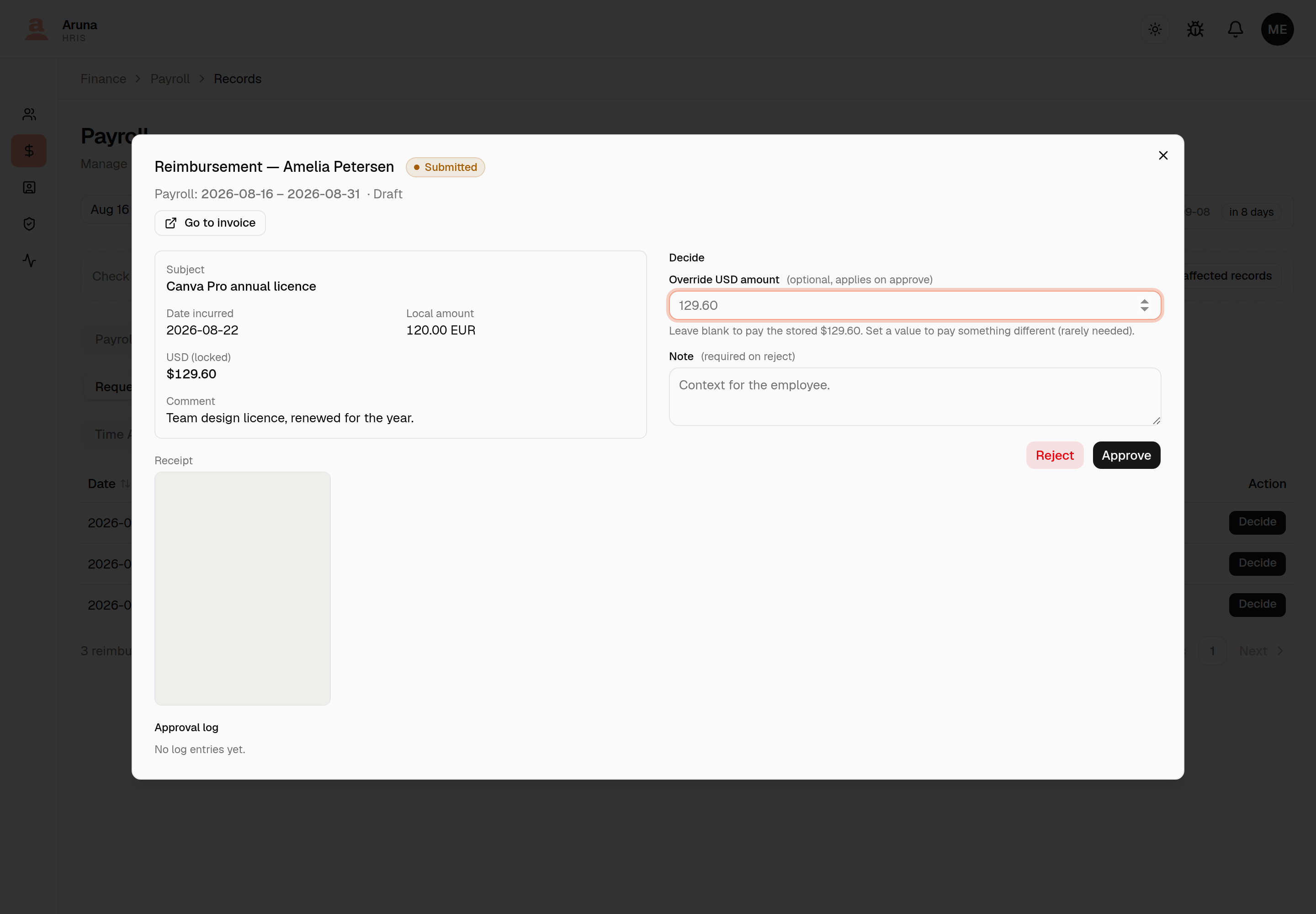
A rejection needs a note. That note is what the employee sees, and it's what lets them correct the claim and resubmit — a duplicate claim is not auto-rejected here (two client dinners on the same day for the same amount are both plausible), so it's on Finance to spot a genuine double. - Disputes — payslip disputes; see §8. - Quiz Winners — CT/SOT quiz-win payouts submitted by managers; the row shows the win date and quiz kind. Approving adds the prize to the winner's payroll. - Referrals — referral-bonus payouts. Referrals are two-stage: P&C approves first, then it reaches Finance ("awaiting finance"). The dialog states the fixed $100, paid to the referrer 6 months after the referee's hire date; the Finance action is "Approve as Finance · create line item". The bonus posts onto the referrer's payroll for the cutoff the referee hit six months in — not whichever period happens to be open when you click. So a referee qualifying on the 12th pays on that month's 1–15 payslip even if you approve it on the 18th with 16–30 already running. Past that cutoff's submission deadline (the 23rd, or the 8th of the next month for a second-half cutoff), or once its payslip has been sent, it rolls onto the current cutoff and the row is tagged Late submission so the slip is on the record.
- CT Quarterly Bonus — a whole quarter's chatter bonus, approved in one go. See below.
Approved requests/quiz/referrals materialize as system-owned line items on the relevant payroll — you won't hand-edit them; re-open the request to change a decision.
The CT Quarterly Bonus¶
Every model earns its own pool — 0.3% of what is left of that model's quarter Net OF after the chatting team has already been paid on her. Net OF is everything OnlyFans paid for her, subscriptions included; the daily bonus and the commissions are then subtracted, because those come out of the same revenue during the quarter and a share of the gross figure would pay the team twice on one dollar. Each pool is then divided over only the days that model had someone on it, and each day's rate is shared between the people who worked it.
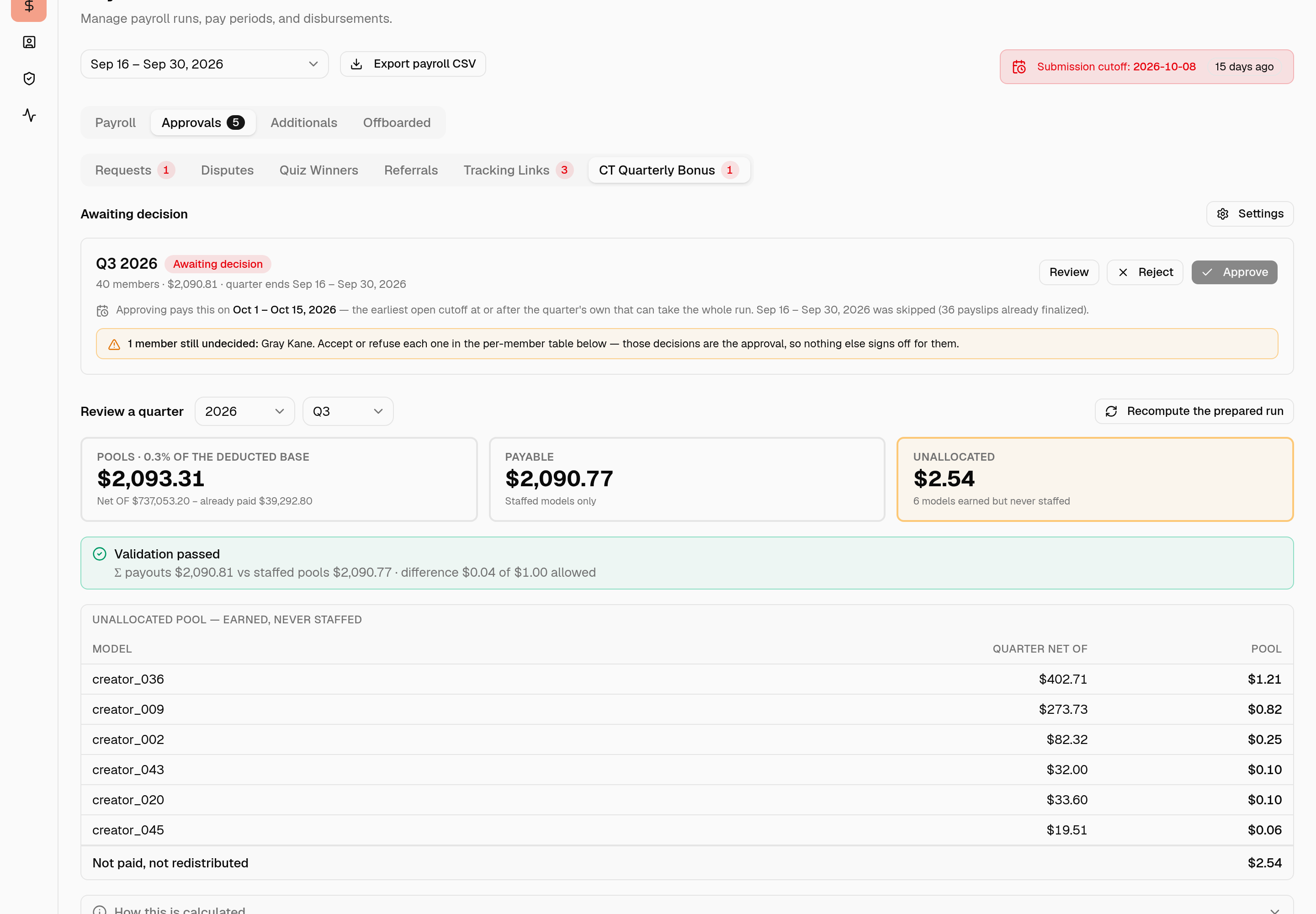
Prepare the quarter first. Prepare Q3 2026 computes the quarter and freezes it onto a run, which is what then appears under Awaiting decision. Freezing matters because the quarter is already over: nothing a later recompute could discover, and the figures you approved are the figures that get paid, however many cutoffs later that happens. If a mapping was wrong, fix it and press Recompute the prepared run.
The three tiles are the whole story.
- Pools — every model's 0.3%, added up. The small print under it is the working: the quarter's Net OF, then what the team was already paid out of it.
- Payable — the part that can actually reach somebody: the staffed models.
- Unallocated — a model that earned but was never staffed all quarter. Its pool has no days to divide by, so it cannot reach anyone. It is dropped rather than shared out among the others, and listed by name underneath. An unallocated pool is almost always a model mapping somebody forgot — fix the mapping, recompute, and it disappears.
Validation holds the sum of every payout against the staffed pools, within $1.00. It counts the refused members too — a refusal zeroes the payment, not the calculation, and their pools are still in the total — so what it ties out is accepted + refused. A cent or two of difference is normal — the per-day rates round to four decimals and a quarter is 92 of them. A run outside the tolerance is held: the Approve button stays disabled until the figures reconcile.
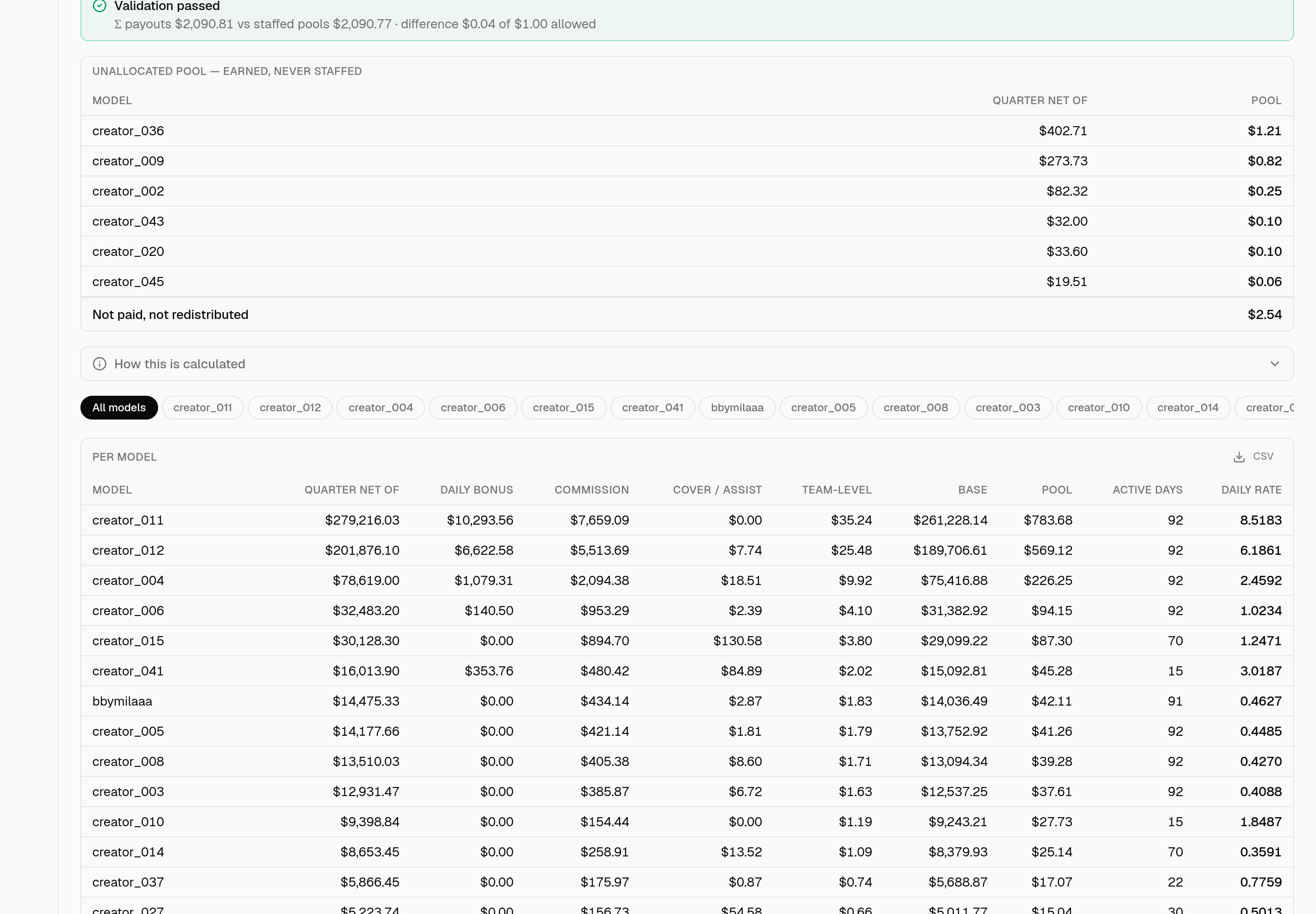
The per-model table shows the whole subtraction, so the base can be checked rather than taken on trust: quarter Net OF, then Daily bonus, Commission, Cover / assist and Team-level, then the Base the pool is 0.3% of.
Most models only have the commission come off. The daily bonus is tiered — a model under $10,000 in a half-month earns none at all — so in a typical quarter it reaches only the few biggest creators, and everyone else's base is about 3% under their Net OF rather than the 5% the quarter totals suggest.
Team-level is the one figure that is not measured on that model. Moving support is paid out of a shared pool where one chatter's share depends on what everybody else sold, so there is no model behind any part of it; it is spread across the quarter's models in proportion to revenue, and kept in its own column rather than folded into the others.
A model whose payouts came to more than she earned shows a base of $0.00 · floored and no pool. It never goes negative — nobody owes the agency money back.
Read the active days column next to the daily rate. A model staffed for the whole quarter divides its pool by 92; one staffed for a fortnight divides the same whole pool by 15, so its daily rate is much higher. That is deliberate — Finance accepted it for Q3 — but it is worth knowing that a fortnight of cover on a small model can pay better per day than a quarter on a big one.
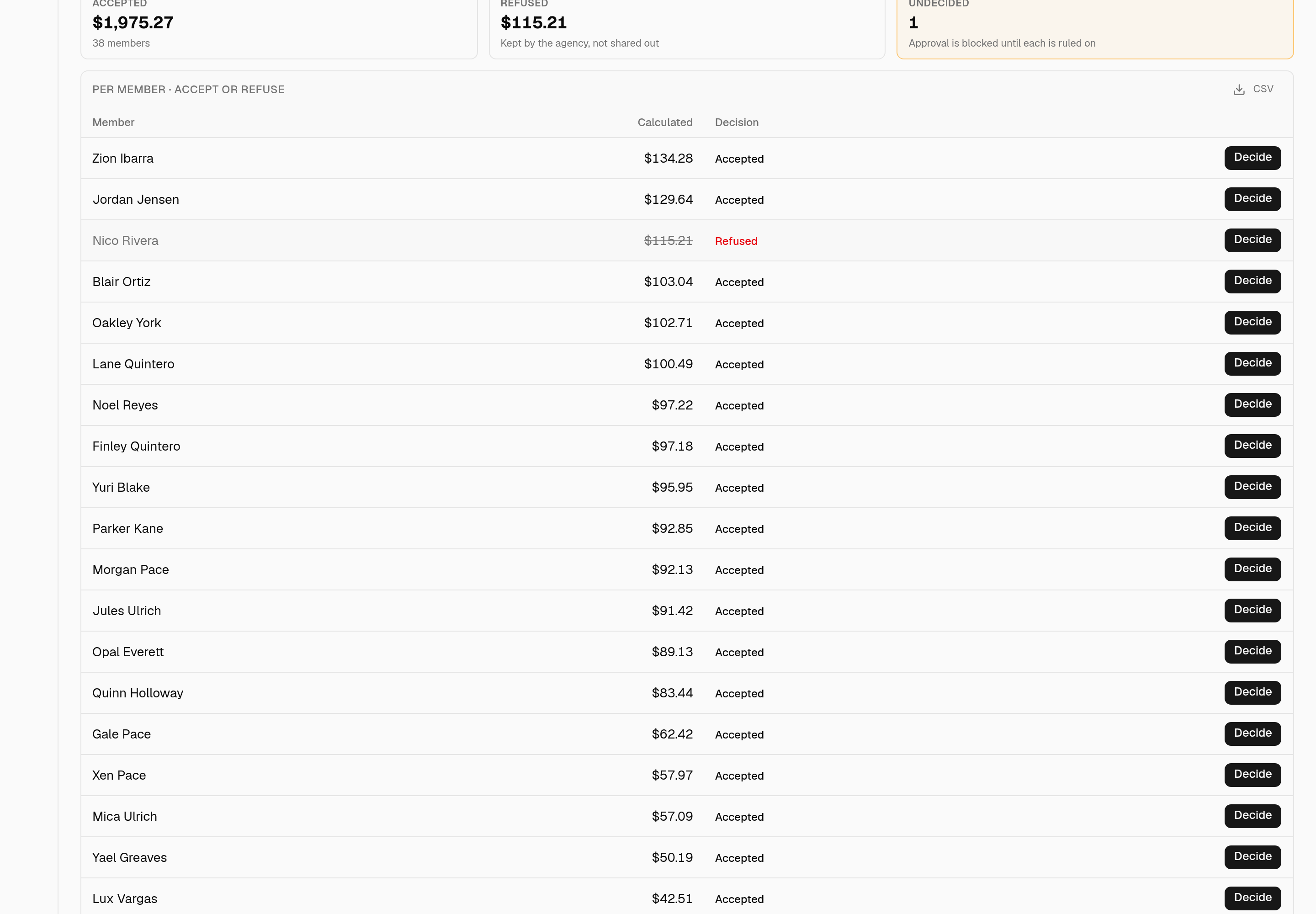
Accepting or refusing each member¶
The eligibility gates — the sales-volume floor and the attendance threshold — are decided by CT management, outside HRIS. This table is where the outcome is recorded, and those decisions are the approval: there is no further sign-off behind them.
Decide on the right of a member's row opens the decision.
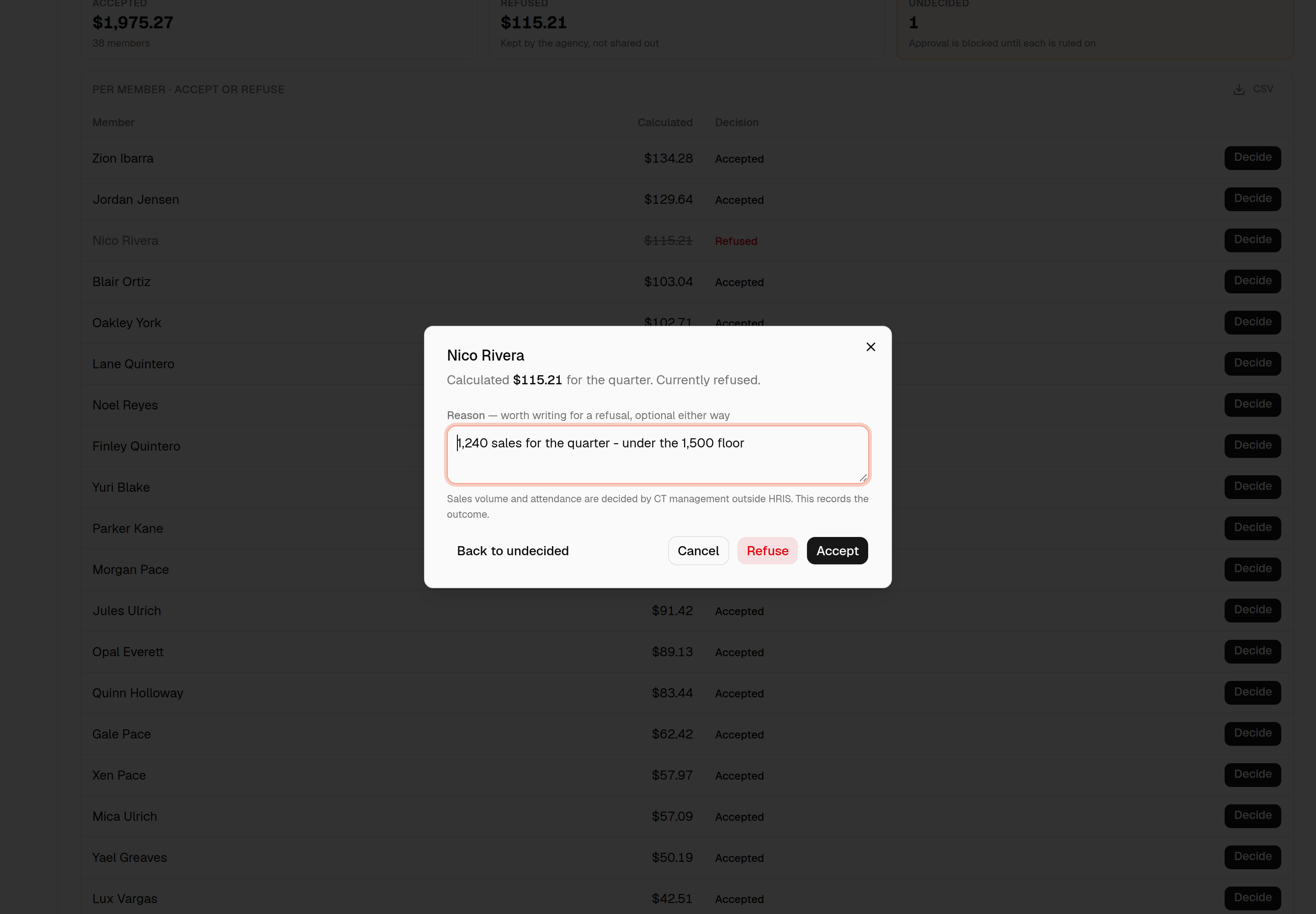
- Accept and Refuse are the two decisions — there is no separate save. The reason is typed first and goes with whichever you press. Cancel backs out without recording anything. They are the same three buttons, in the same order and the same colours, as approving a time adjustment.
- The reason is optional, including on a refusal. It is worth writing anyway: it is the only record of why, and next quarter nobody will reconstruct it. It is kept in the export.
- Accepting discards whatever is in the reason box. There is no reason somebody was paid what they earned, and keeping one would leave text on the record that no decision was made against.
- Approve stays disabled until every member has been ruled on, and the card names who is left. Nothing decides for the ones you skip — a member still to rule on is the only one whose Decide button is outlined, so the row that needs you is the one that stands out.
- A refused member is paid nothing and keeps their calculated figure on the record — useful next quarter, and it is what makes the validation add up.
- A refusal is not shared out among the others. That money stays with the agency; nobody's share goes up because somebody was refused.
- Back to undecided, at the bottom left of the dialog, clears a decision and blocks approving again.
Decisions survive Recompute the prepared run — refreshing the figures does not discard a table of rulings.
A member's weight on a day is 1 ÷ the models they worked that day — two
models means half a share on each, three means exactly a third. Team Leaders and
Quality Analysts share one slot: two TLs on a model on the same day count as
one active member between them and split that share equally, so four chatters
plus two TLs is five active members, not six. Which roles behave this way is
configurable — see §10.
Taking the figures away¶
Each of the two tables has a small CSV button in its caption bar — one file for the per-model figures, one for the per-member ones.
Both open with a line naming the quarter, its dates, the pool rate, and whether the figures are live or a prepared run's frozen ones. That last part matters once two spreadsheets are sitting on a desktop: a live read and a prepared run look identical otherwise, and only one of them is what an approval will pay.
The download ignores the model filter
Filtering to one model narrows the per-member table on screen and its Σ total. It does not change the file. Both downloads always carry every model and every member for the quarter.
This is deliberate — the filter is for reading, the file is a record, and a file holding one model's slice while named after the quarter is how a partial figure ends up being treated as the whole one. If you need a single model's numbers, read them on screen.
Two small differences from what you see on screen, both so the file behaves in a spreadsheet: staffed is its own column rather than being appended to the model's name, and the daily rate keeps four decimals.
The per-member file carries each decision: a Calculated column, the Decision, what was actually Paid (zero for a refusal), and the Refusal note. Both the calculated and the paid figures are there because only their sum reconciles against the pools.
You choose which cutoff each member's bonus pays on.
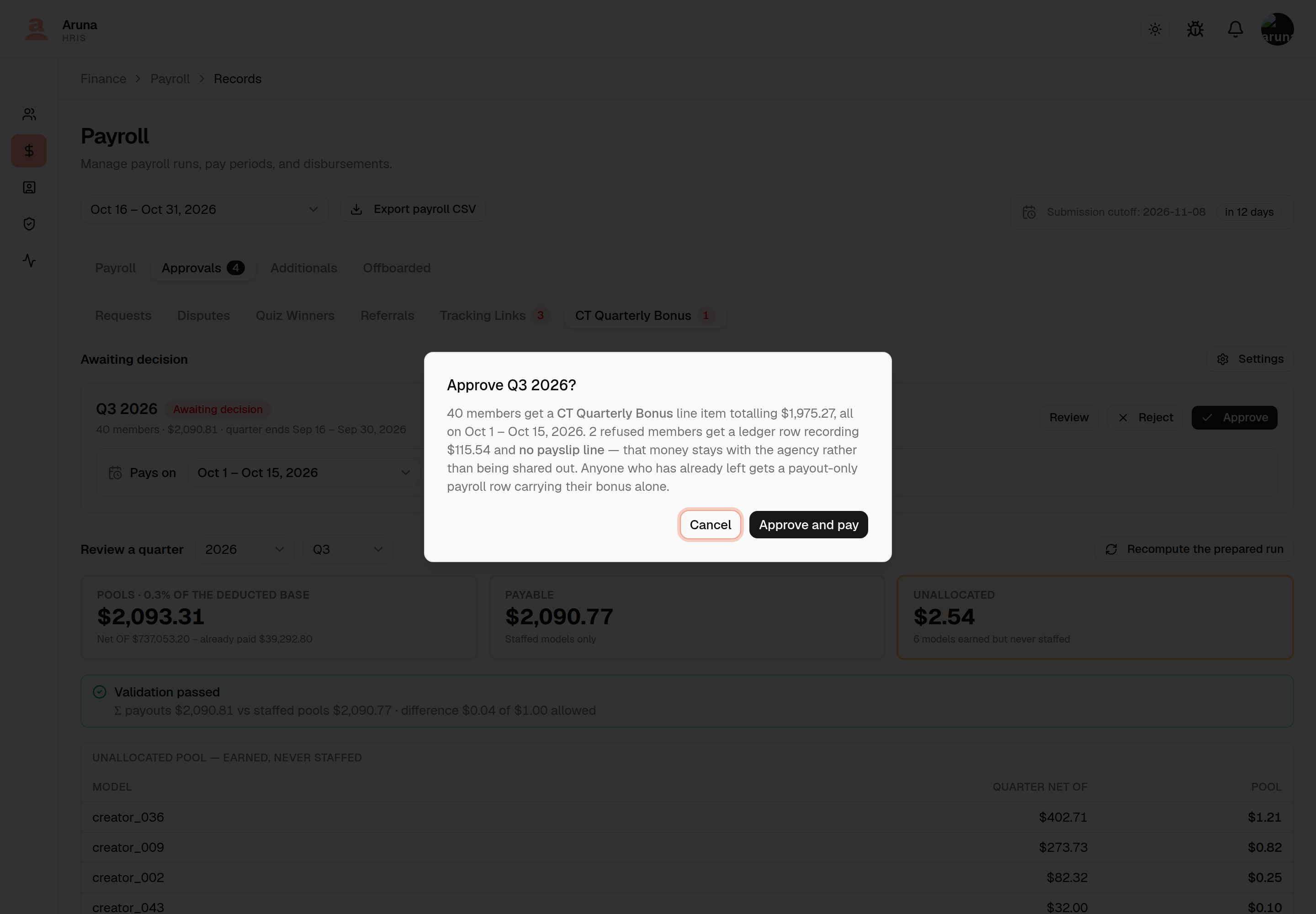
Pays on, on the run card, is the control. It starts on the quarter's own last cutoff — Q3 pays on Sep 16–30 — because that is where a quarter's money belongs, and the dropdown lists every open cutoff from that one onwards. Change it and the whole quarter moves.
You cannot pick a cutoff before the quarter's own — those payslips went out before the quarter even ended — and you cannot pick a closed one, because a closed period cannot take a line item at all. If the quarter's own cutoff has already closed, Pays on starts on the earliest open cutoff after it instead.
Your choice survives a Recompute, in the same way the per-member decisions do: refreshing the figures is not meant to undo a judgement you already made.
Sending one person somewhere else¶
Occasionally one member should be paid on a different cutoff from the rest. Open their Decide dialog and change Pays on there — it offers Same as the run plus the same list of open cutoffs.
Same as the run is not the same as picking today's date explicitly: a member left on it moves whenever you change the run's Pays on, while one pointed at a specific cutoff stays there. Anyone moved individually is named in the per-member table's caption, so the exceptions are visible without a column of forty identical dates.
Approving can reopen payslips that have already been sent
A payslip that is already processed or sent cannot take a new line, so approving reopens it — back to Draft — to add the bonus.
You will see the count before you approve, both on the run card and above the per-member table, with the names. Each one is then your work: re-process it and re-send it. Nothing re-sends automatically, and until you do, that person is holding an invoice with no bonus on it and a payslip sitting unfinalised.
Their original invoice is not altered. It stays in the archive exactly as it was emailed, and the copy HRIS shows you carries the ARCHIVED COPY band naming the date it was sent.
This is the trade: previously one person's sent payslip pushed the whole quarter to a later cutoff, so forty people were paid late because of one. Now only that person's payslip is touched.
A few other things worth knowing:
- Somebody who has already left still gets what they accrued up to their last day. They have no payslip in the paying cutoff and the Sync will never build them one, so approving creates a payout-only row carrying the bonus alone — no base pay, nothing else.
- If no cutoff at or after the quarter is open at all, nothing can be paid — open one, and the quarter is still there waiting.
- A refused member is never paid, so no cutoff is recorded against them and
no payslip of theirs is reopened. Their Pays on cell reads
—. - Rejecting pays nothing and asks for a reason. The quarter can be prepared again once whatever was wrong with it is fixed; the data isn't going anywhere.
7. Processing & sending payslips¶
A payroll record moves through Draft → Processing → Processed → Sent (with a Failed state if PDF generation errors — use Retry).
- Draft — editable; hours, notes, and manual line items can all change.
- Processing — transient while the invoice PDF generates.
- Processed ("Executed") — locked, invoice PDF + Invoice Id generated, no email sent yet.
- Sent — the invoice email has gone to the employee.
Bulk (tick the rows you mean)¶
Both bulk actions work off the checkboxes, on the Employees and External Contractors tabs alike — there is no "process everything" button. These lock invoices and send real emails, so the selection is the record of what you intended.
- Process Selected (n) — locks the ticked draft records and generates their invoice PDFs. No emails are sent; you can review before sending. Runs in the background and the table shows live progress.
- Send Selected (n) — emails the invoice to the ticked processed records.
Both stay visible but greyed out until the selection contains something they
apply to. The counts are status-aware: Process Selected (3) next to
Send Selected (5) means your selection holds 3 drafts and 5 processed records,
and each button touches only its own. So you can tick a mixed set — or the
header checkbox for everything on screen — and each row gets the operation that
fits it.
The header checkbox covers the rows currently loaded
It ticks everything on the current page (200 rows), not the period as a whole. Periods sit well under that today, so in practice it's everything — but on a period larger than one page, work through the pages.
Per person (detail page or row)¶
- Draft → Process.
- Processed → View Invoice File, Send invoice, or Convert to draft.
- Sent → View, Download PDF, Resend email, or Convert to draft.
Convert to draft (fixing after the fact)¶
Convert to draft unlocks a processed/sent record so you can edit it again. If it was already sent, you're warned that re-processing sends a revised invoice under the same invoice number. This is the normal path when a late approval or dispute changes someone's total.
Processing locks the record. Draft edits (line items, notes) are disabled once processed/sent — Convert to draft to reopen. There's no hard gate that forces every approval to be cleared before sending, but a pending-disputes banner and the Disputes column flag anything outstanding, and approving a dispute forces the record back to draft anyway.
8. Disputes¶
An employee can dispute a payslip within its dispute window. Finance settles disputes in two places — the Approvals → Disputes tab (the cross-period queue) and the Disputes section on a person's detail page. Both open the same decision dialog.
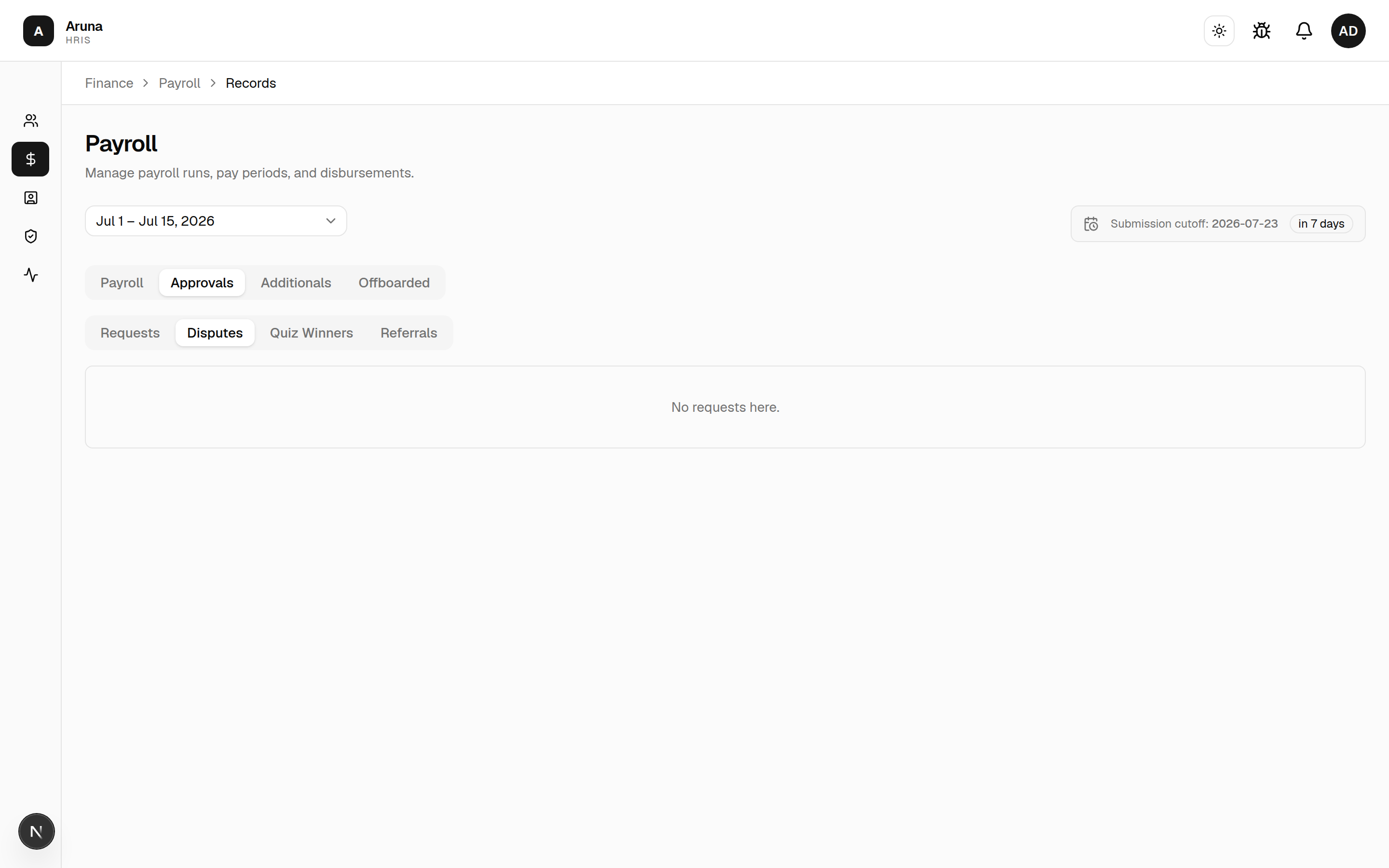
A dispute shows the amount in question, the employee's discrepancy details, any attachments, and its status: Open → Approved / Approved with adjustments / Rejected.
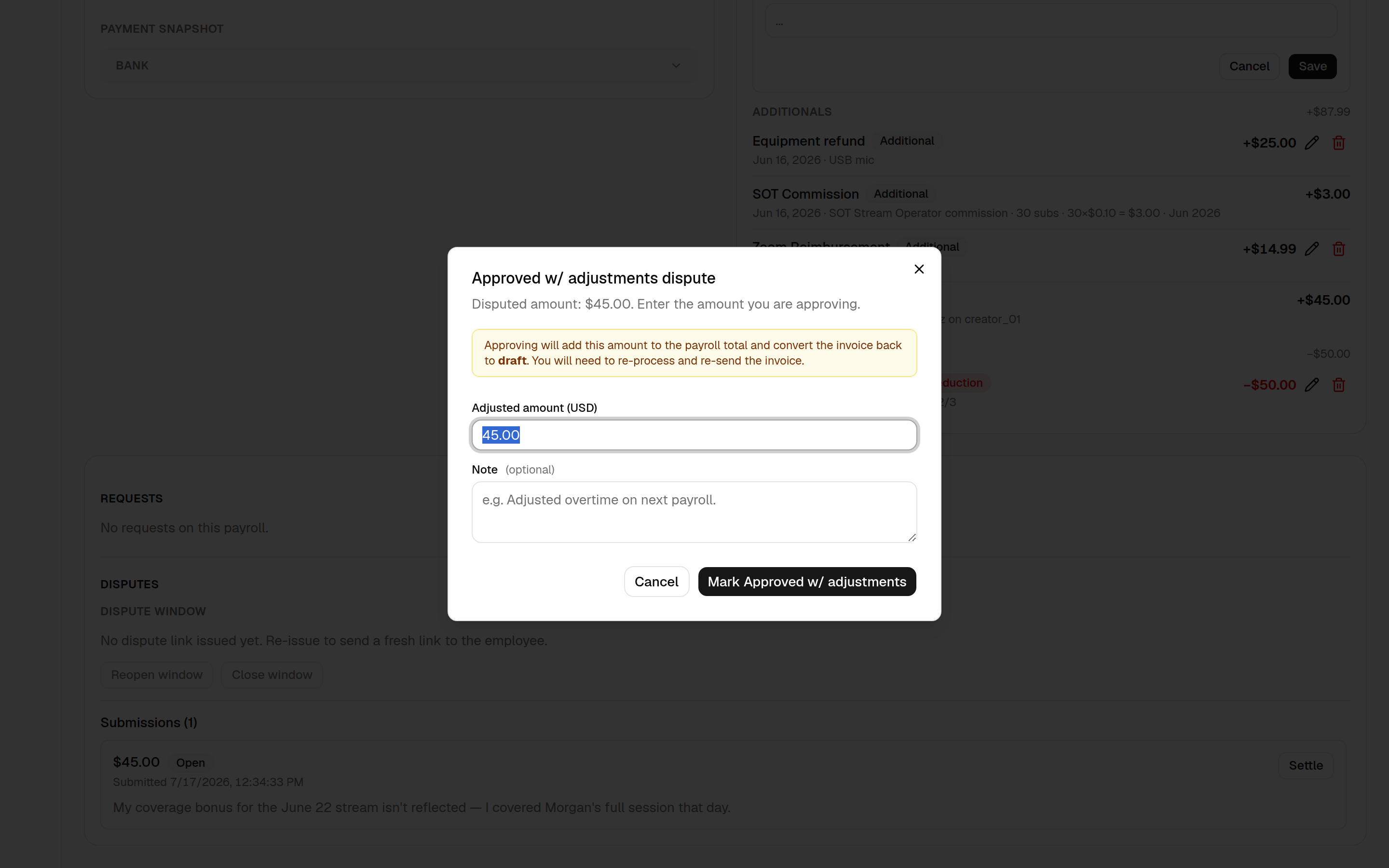
Settling an open dispute — pick one:
- Approve — accept the disputed amount in full.
- Approve with adjustments — enter a different Adjusted amount (USD) (prefilled to the disputed amount; must be > 0).
- Reject — decline it. You can add a note for HR/payroll context (the employee doesn't see it).
Approving converts the invoice back to draft. Both approve outcomes add the settled amount to the payroll total and revert the record to draft — you then re-process and re-send. Rejecting doesn't change pay. A settled dispute can be reopened if you need to redo the decision.
Marking a dispute as being worked on. Each open dispute has a Processing toggle. Tick it and a Processing badge appears on the row — a purely visual cue for the Finance team that someone's already on it, so two people don't pick up the same dispute. It changes nothing about the settlement and sends no notification or email; untick it any time.
The dispute window¶
On the detail page you also control the dispute window itself — its status (Active / Expired / Closed / Revoked), expiry, and reopen count. Use Reopen window to let an employee (re)submit after it closed, or Close window to end the dispute period early.
9. Offboarded employees¶
The Offboarded tab lists people who left mid-cutoff, with their last working day and net total, and a Review invoice shortcut into each record.
Final pay for an offboarded fixed-salary employee is not auto-prorated — the banner tells you to open each invoice and add an Offboarding Proration deduction manually (it's a selectable deduction category on the line-item form). Prorate the salary down to the days actually worked, then process and send as usual.
10. History & settings¶
- Finance → History — the ledger of processed payroll, for reconciliation and lookups. Three tabs, one scope each: Periods (a cutoff), By Payee (one person across cutoffs — employees and external contractors alike), and Invoices Sent (the archive of what was emailed).
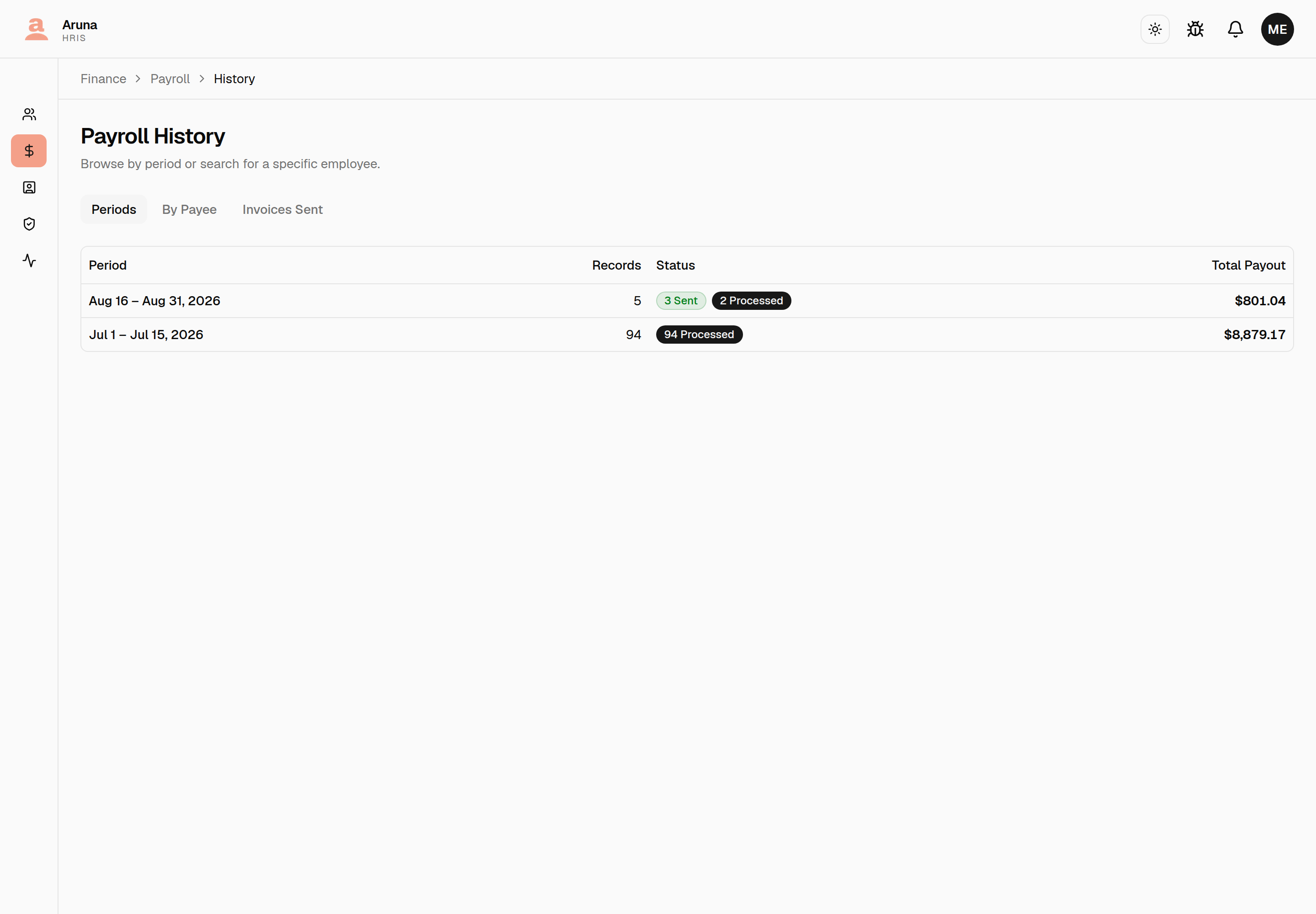
A record joins history the moment it's processed — drafts are still in flight and don't appear, so a period with nothing processed isn't listed at all. Every row opens the payslip read-only: its line items, send history, and activity log, with none of the buttons that would change it.
- Finance → Settings — the CT Daily Bonus pool rate, validation tolerance, shared roles, and the retainer fee per model (the TMT $150 default lives here).
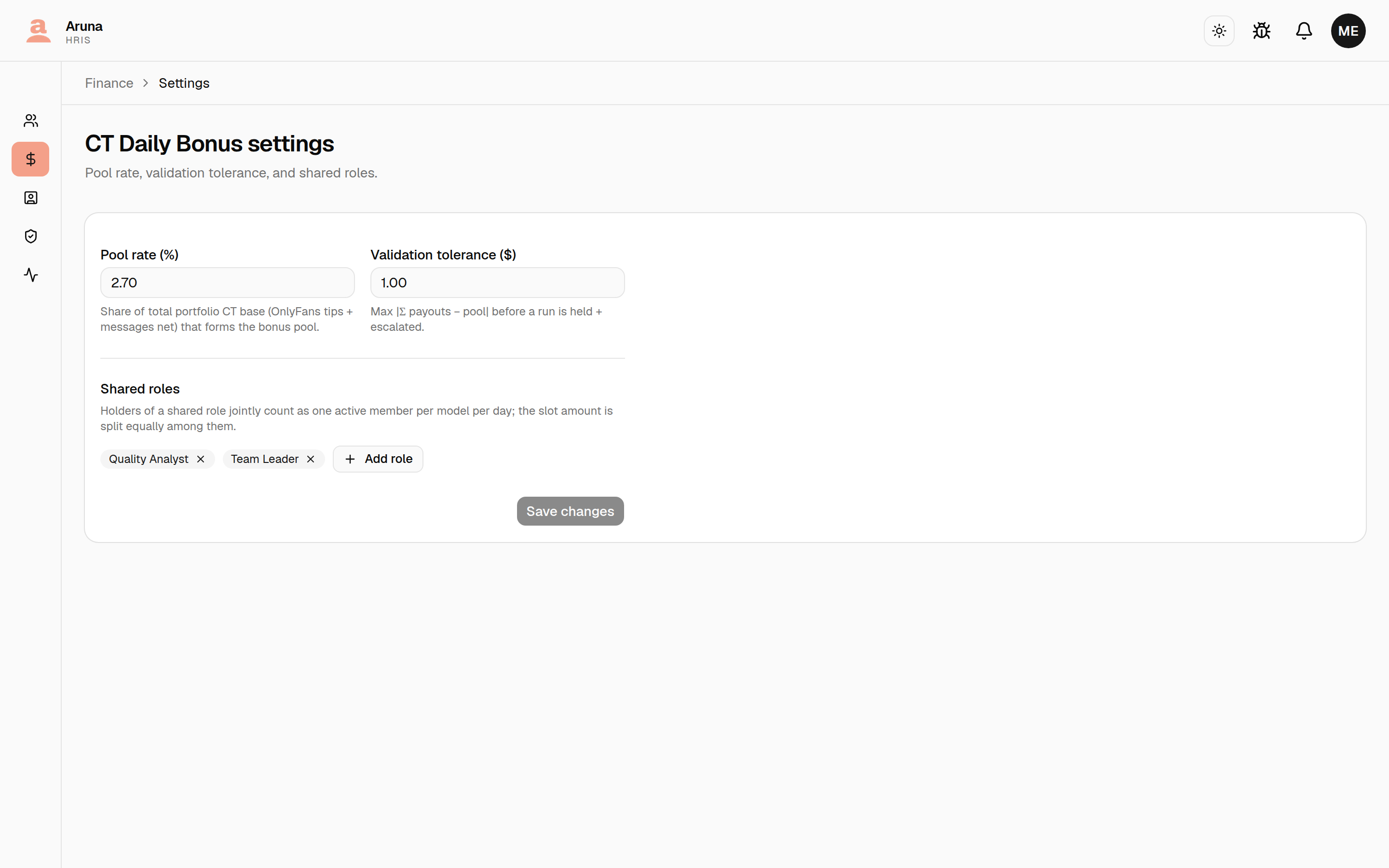
Shared roles — holders of a shared role jointly count as one active member per model per day, splitting that slot's amount. Use Add role to pick one.
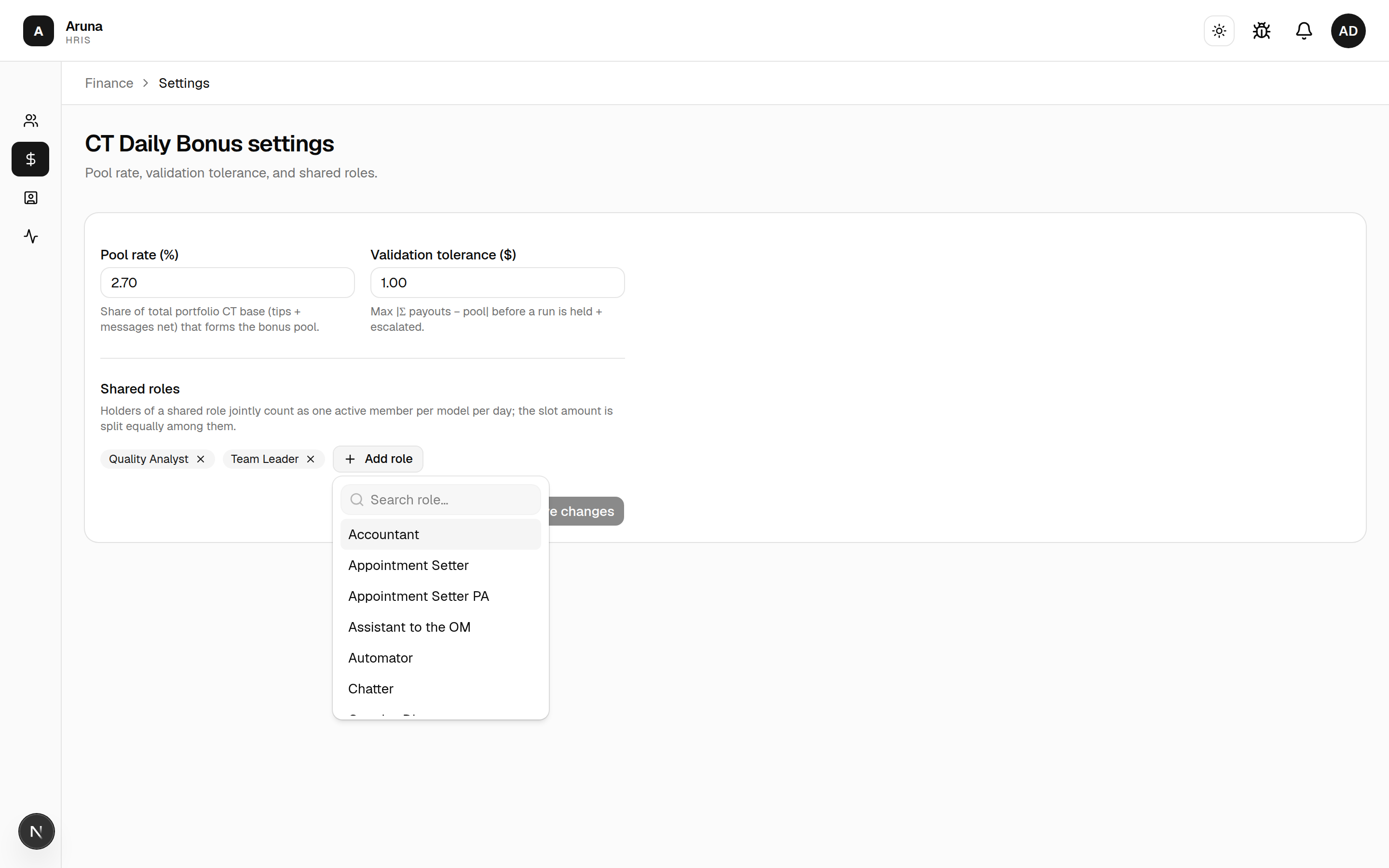
The CT Quarterly Bonus has its own block below it, deliberately not shared with the daily one: the two bonuses pay on different bases, and a role can be eligible for one and not the other, so a single set of settings would make every change to one a silent change to the other.
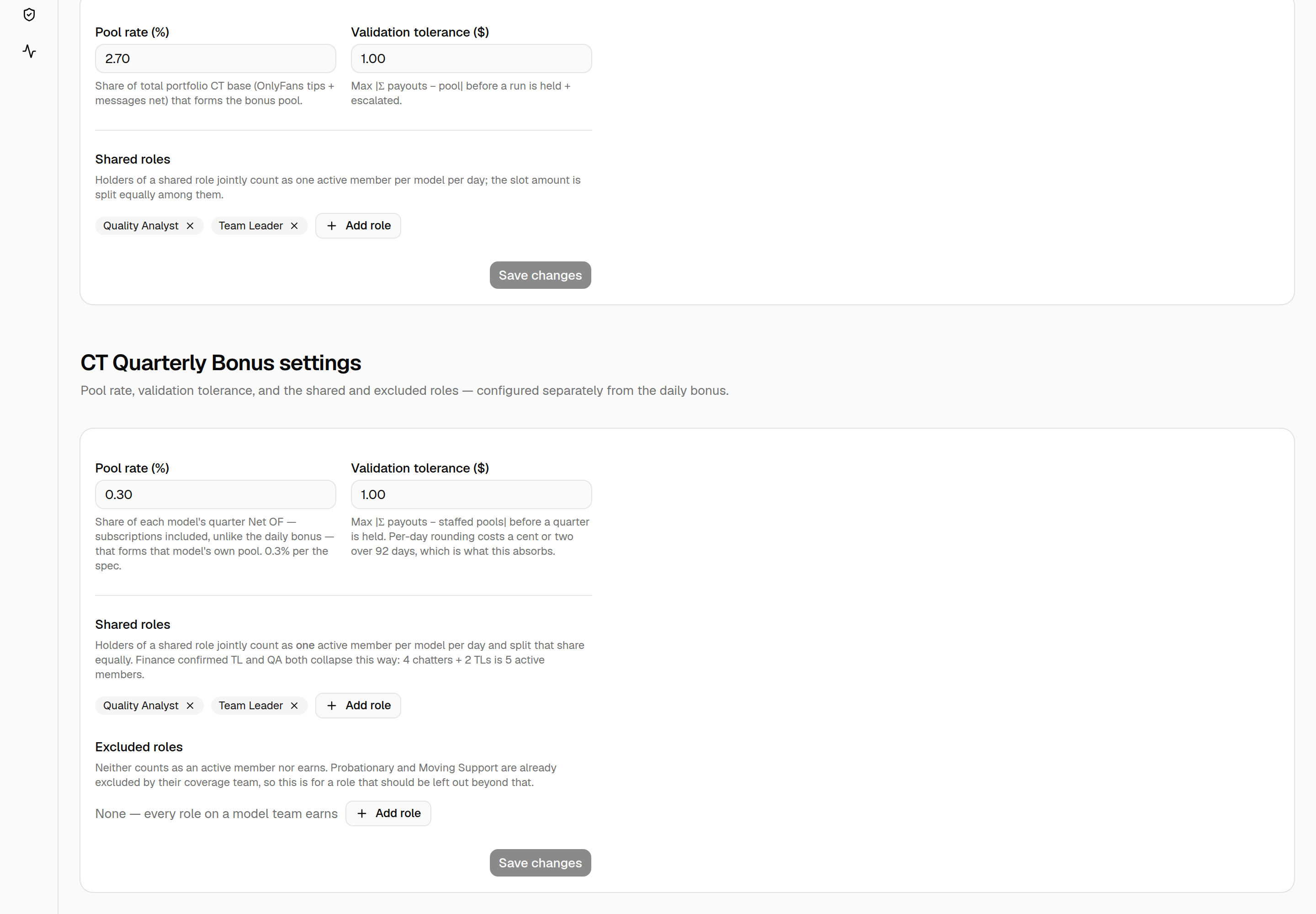
- Pool rate — the share of each model's quarter Net OF. 0.3% as specified.
- Validation tolerance — how far the sum of payouts may sit from the staffed pools before a quarter is held. The default $1.00 absorbs the cent or two that per-day rounding costs over 92 days.
- Shared roles — who collapses into one slot. Team Leader and Quality Analyst ship switched on.
- Excluded roles — who neither counts as an active member nor earns. Empty by default: Probationary and Moving Support are already excluded by their coverage team, so this is only for a role you want left out on top of that.
Troubleshooting¶
| Problem | What to do |
|---|---|
| Period won't accept submissions | It's still Scheduled — transition it to Open in Cutoffs |
| Payroll table is empty | Click Pull Employees for that period |
| Someone's hours are missing | Confirm P&C mapped them to a Time Doctor user, then Sync |
| Commission / retainer / bonus looks off | Fix the source mapping, then Sync — those rows are system-owned and rewritten on sync |
| "Resync needed" banner is showing | Something changed since the last sync — click Sync to re-materialize |
| Can't edit a line item | It's system-owned (auto-calculated) — change the source and sync instead |
| Can't edit an invoice at all | It's processed/sent and read-only — Convert to draft first |
| Approved a dispute, now the invoice is draft | Expected — approving adds the amount and reverts to draft; re-process and re-send |
| Offboarded person's final pay is wrong | Open their invoice and add an Offboarding Proration deduction manually |
| Payslip email didn't arrive | Re-open the sent record and use Resend email |
| The exported CSV has more rows than the table | Expected — the download always carries the whole quarter, even when a model filter is narrowing what you see. The Σ beside the table follows the filter; the file never does |
| Quarterly bonus Approve button is disabled | Either the run is held (payouts outside the $1.00 tolerance — fix the mapping and recompute), somebody is still undecided, or no cutoff at or after the quarter is open — open one |
| A model shows under Unallocated pool | It earned but was never staffed, so its pool can't reach anyone — fix its model mapping for the quarter and recompute |
| Quarterly bonus paid on the "wrong" cutoff | Check Pays on on the run card. If one person differs, the per-member caption names them |
| A payslip went back to Draft after approving a quarter | Expected — it was already sent, so it had to reopen to take the bonus. Re-process and re-send it; the names are on the run card |
Tracking Link Affiliate¶
Talent managers file a cutoff sheet of Fanmetrics lifetime-revenue snapshots for their tracking links. Revenue attributable to a link earns 15%, split 10% to the manager and 5% to an external affiliate.
Your acceptance is the gate. Nothing on a sheet reaches a payslip or a contractor invoice until you accept it — and accepting writes the money immediately, not on the next Pull/Sync.
The queue¶
Payroll → Approvals → Tracking Links. The tab badge counts sheets awaiting a decision.
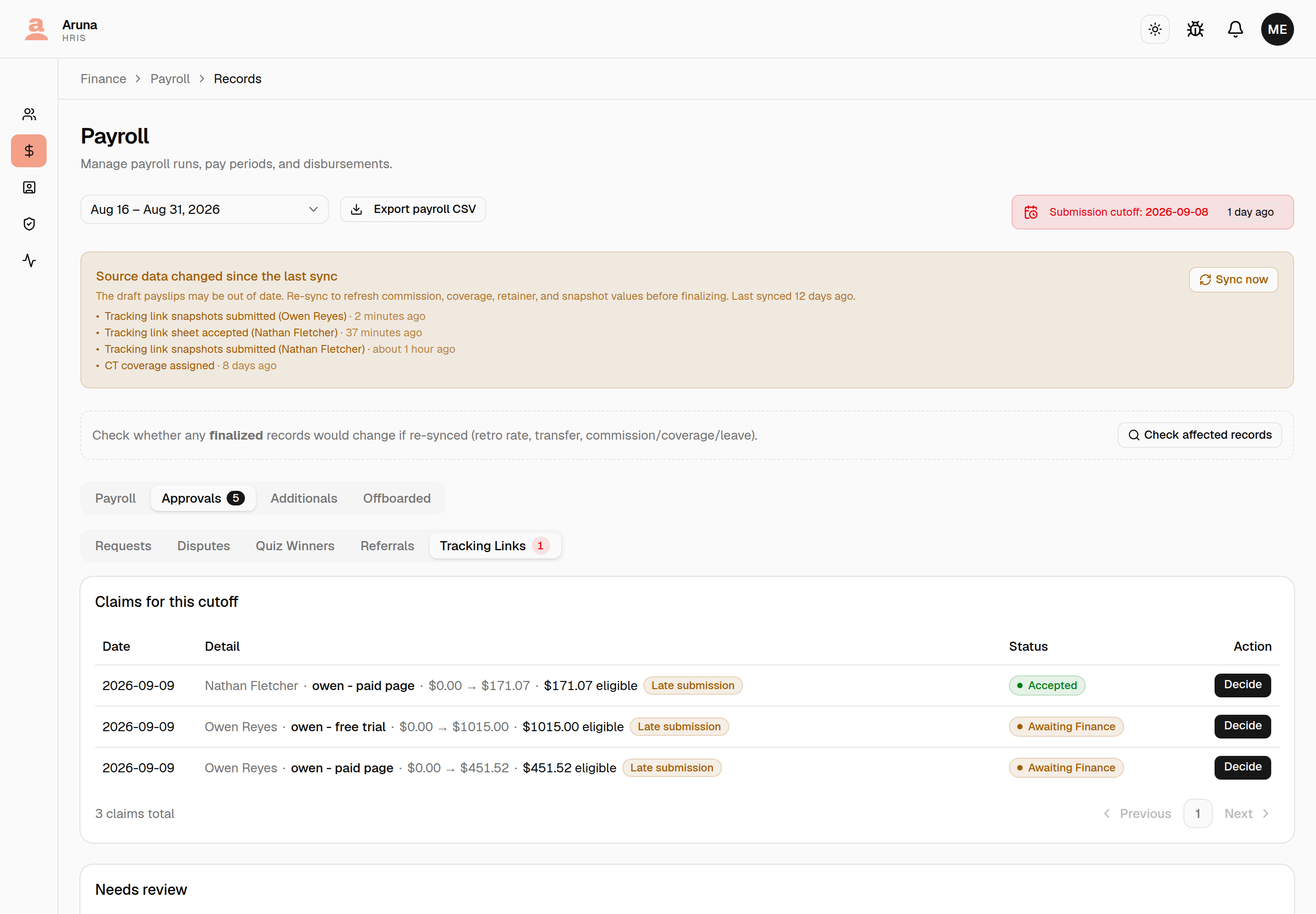
One row is one sheet — one manager, one cutoff — because that is what you accept or reject. Each row shows the manager, how many links are on the sheet, what it is worth, whether evidence is attached, and whether any row is flagged. Opening a row takes you to the sheet.
Three lists, and they answer different questions:
- Sheets for this cutoff — everything filed for the selected period, whatever its status. The record for that cutoff.
- Awaiting your decision — every undecided sheet in any period, longest wait first. This is what the tab badge counts, so an old sheet can't go quiet when you change the period selector. Undecided sheets also sort to the top of the list above.
- Flagged rows — rows that cannot pay, which means chargebacks: lifetime revenue fell. A record, not a queue. Rows are never decided one at a time, so open one to see the figures and go to the sheet it sits on.
Deciding a sheet¶
One manager, one cutoff, every row with its split — and the evidence.
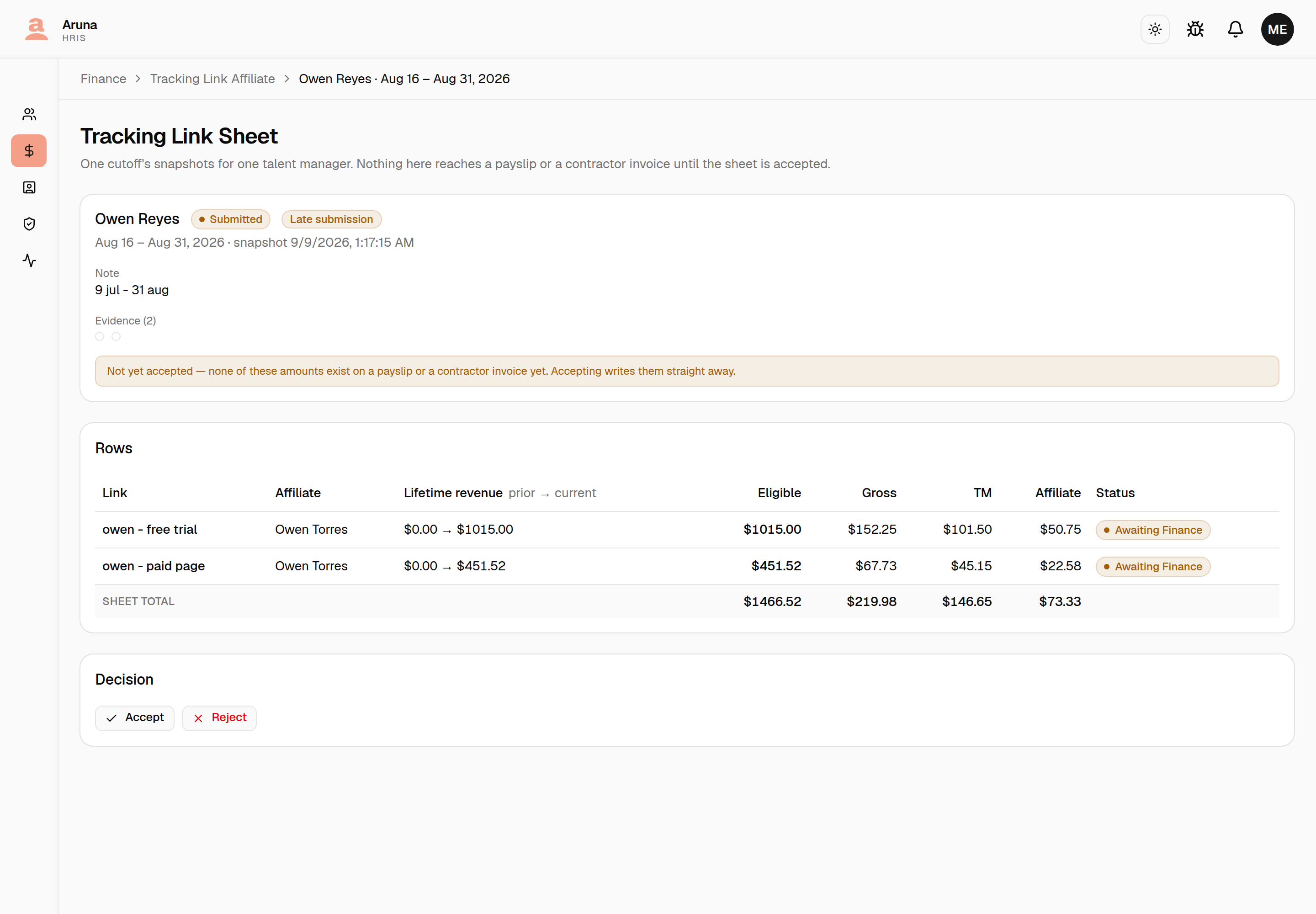
Check the evidence against the typed figures before accepting — that is the only real control here, and it is not a formality. The revenue is hand-entered from a Fanmetrics dashboard, there is no API behind it, and nothing compares the screenshots to anything: your reading of the picture against the numbers is the check.
Then:
- Accept — writes the money at once. The 10% lands on the manager's draft payslip; each affiliate's 5% is released if their balance with that manager has reached the threshold, otherwise it carries forward.
- Reject — keeps it off both rails, and requires a note. That note is the only thing the manager has to work from, so say what's wrong.
Rejection is reversible: you can accept a rejected sheet later if you change your mind. The one exception is a sheet whose affiliate payment has already settled — that money moved on-chain, and the system refuses the rejection rather than leave an invoice stranded.
Two things follow from a rejection, and they matter:
- Its figures stop counting. The manager's next cutoff measures from the last sheet you didn't reject. A rejected figure never sets the baseline.
- The manager can then withdraw it and re-file that cutoff. That is the only way a wrong figure gets fixed — nothing on a filed sheet is editable, so your rejection note is what tells them what to change. They can also withdraw a sheet before you decide, so one may disappear from your queue on its own.
Accepting touches nothing but the sheet. A row has no status of its own to reconcile: whether it pays is arithmetic. A chargeback row records revenue going down, so it carries no money and stays that way after acceptance — there is nothing to pay a percentage of.
Held balances¶
The 5% is held per (manager, affiliate) pair until it reaches $10, then releases in full.
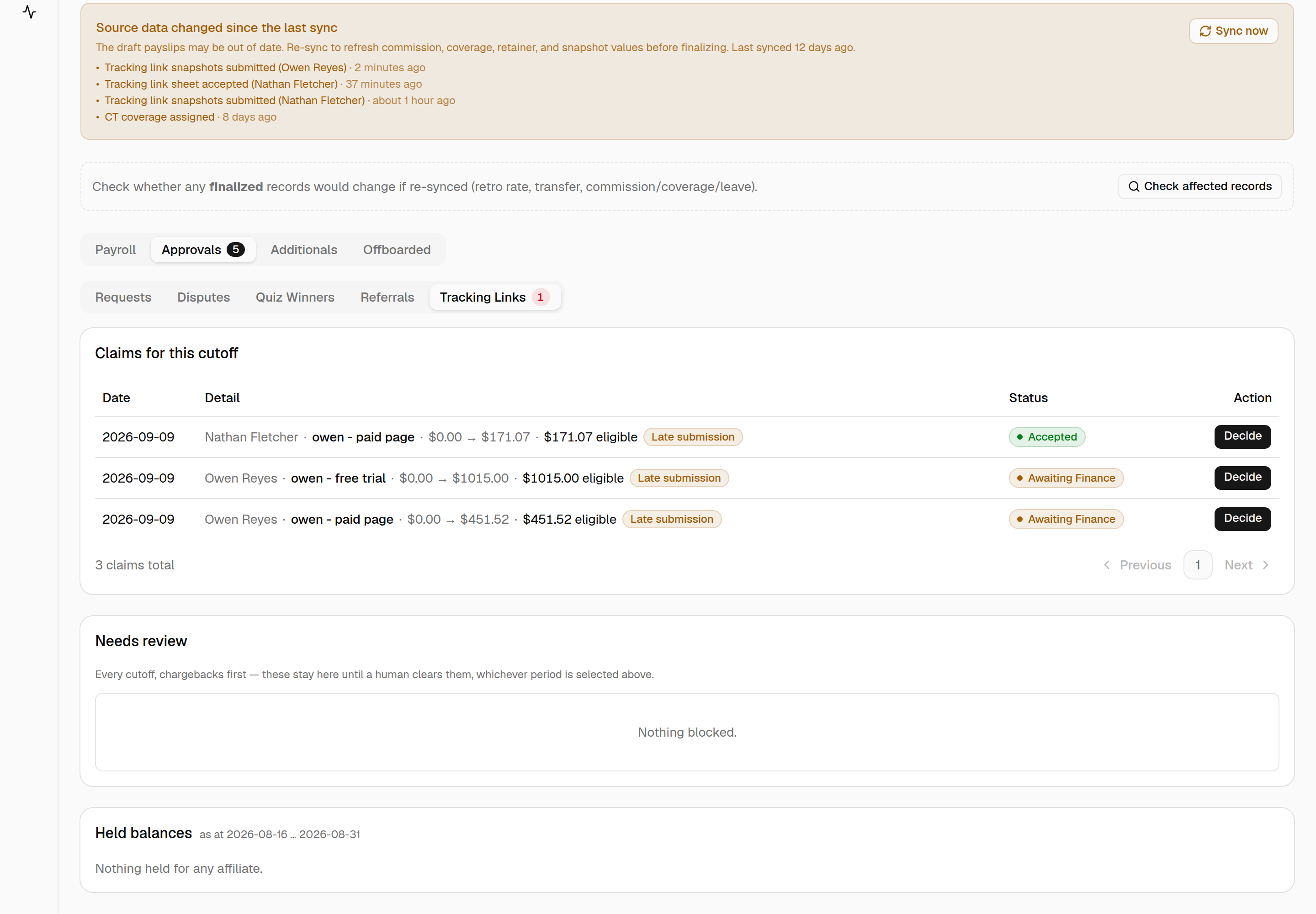
Two things worth knowing:
- Pooling is per manager. One affiliate's paid-page and free-trial links under the same manager add up together. The same affiliate working with two managers keeps two balances — so they can be owed $12 across two managers and be paid nothing.
- Figures are cumulative to the selected cutoff, not that cutoff's own activity. Picking an earlier period shows a smaller liability rather than money having gone missing.
An inactive affiliate is shown but never written a release — their payment would be skipped by the payout batch while the invoice claimed otherwise.
Both cases — inactive, and a balance that will never reach $10 because the pairing is over — are settled from the manager's own board, which carries a Release now action per pair. It writes an ordinary release on the open cutoff and records who forced it, so a balance released that way appears here paid, not stuck.
Each cutoff releases on its own. An earlier cutoff's payout that hasn't been processed yet doesn't hold up a later one: syncing the later cutoff releases only what built up since, onto that cutoff's invoice, and the earlier invoice keeps its own line. No amount is released twice — once a release takes a figure, no other cutoff can.
After acceptance¶
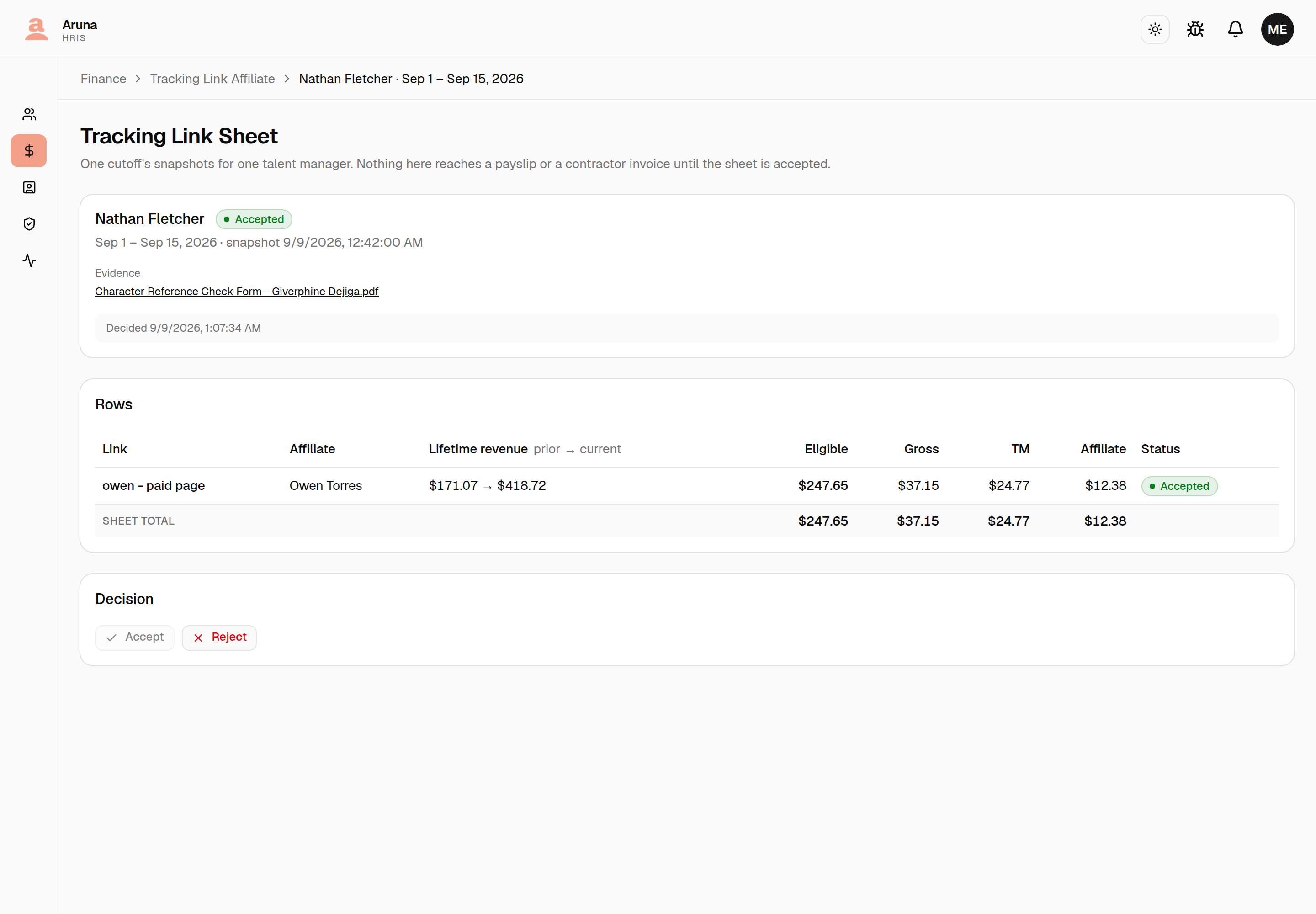
The manager's 10% appears as a Tracking Link Commission line item on their draft payslip for the cutoff the revenue belongs to — including a monthly-paid manager's off half, because it's an earning, not a salary adjustment.
Each released 5% appears as a Tracking Link Affiliate line on the affiliate's contractor payout, labelled with the manager it came from, with a breakdown naming each link. Two managers releasing to one affiliate in the same cutoff produce two lines on the one invoice.
Both are system-owned: they re-derive on every Pull/Sync and can't be hand-edited.
Troubleshooting¶
| Problem | What to do |
|---|---|
| Accepted a sheet but the payslip is unchanged | It writes immediately — check the manager has a draft payroll row for that cutoff |
| Need to undo an acceptance | Reject the sheet; it comes off both rails at once |
| "cannot be rejected — the money has moved" | The affiliate's payout has settled. Rejection can't recall it |
| An affiliate is never paid | Their balance with that manager hasn't reached $10, or they're inactive |
| Held balance didn't appear on this cutoff's invoice | Run contractor Sync for that cutoff. An earlier invoice still in draft doesn't block it — if the line is still missing, the balance built up since that earlier release is under $10 |
| A row reads Chargeback | Lifetime revenue fell. It records the drop, pays nothing, and always will — there is no positive revenue to pay on |
| A manager filed a wrong figure | Reject the sheet with a note saying what's wrong. They withdraw it and re-file; you can't edit it for them |
| A sheet reads Withdrawn | The manager replaced it after your rejection. It's kept for the record and pays nothing |
| A manager says they can't file a cutoff | They've filed a later one. Reject that sheet and they can file in order |
| Held balance looks too small for a period | The figure is cumulative to the selected cutoff — pick a later one |
Expenses — accounts, vendors and the two ends of a row¶
The Expenses ledger records money out that payroll doesn't already pay: software, vendor invoices, creator payouts, bank fees. Everything here is written after the money moved — nothing on these screens sends a payment.
Every row has two ends, and they come from two different registries:
| Accounts | ours | the card, bank account, wallet or cash float the money left from |
| Vendors | theirs | the supplier, platform or person it went to |
They are deliberately separate lists. "Paid from" can only ever offer an account of ours, so the hundreds of vendors an import registers can never crowd out the handful of cards you actually pay with.
Accounts — where money leaves from¶
Expenses → Accounts (top right).
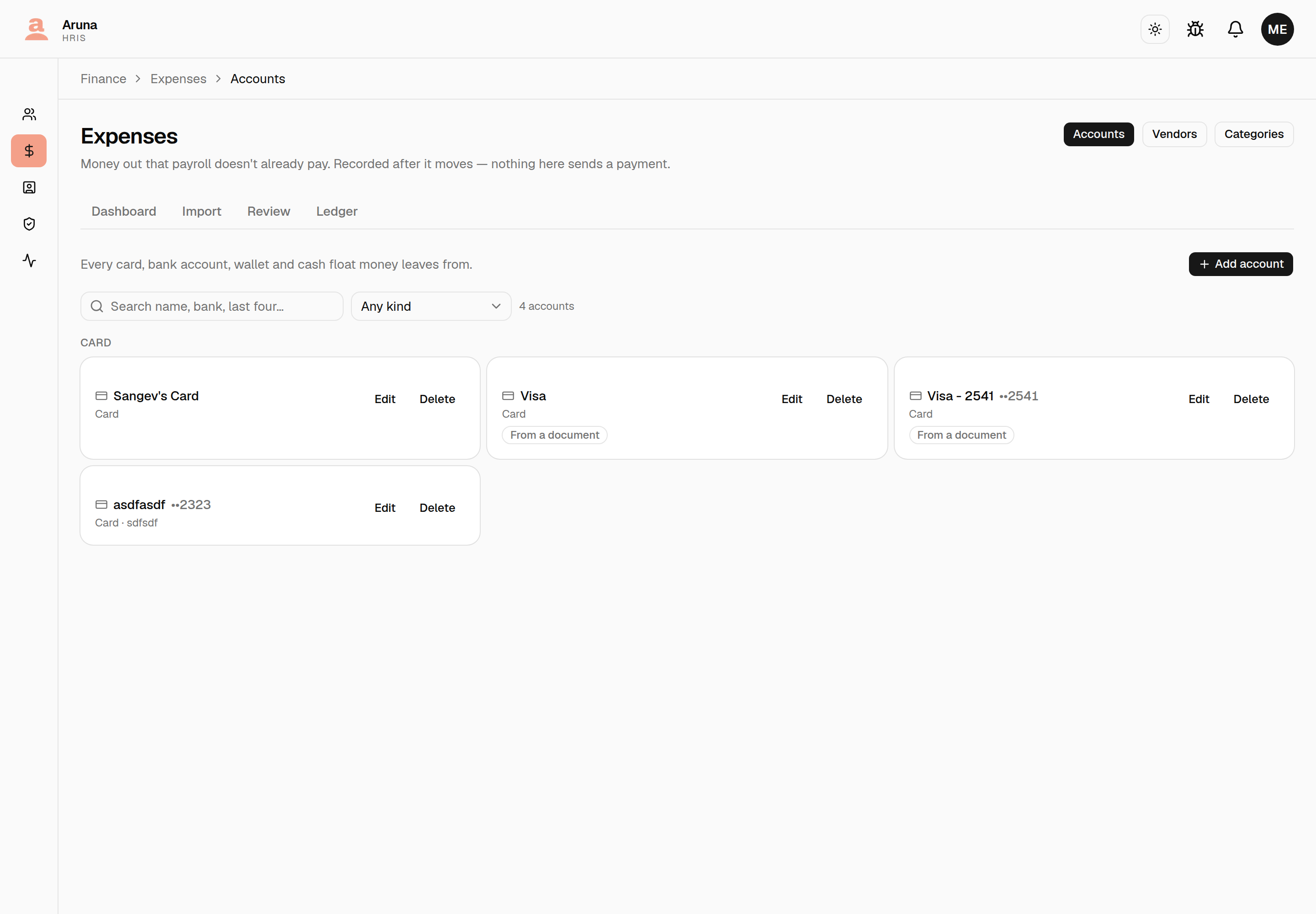
Grouped by kind — card, bank account, wallet, cash, other — because that's a closed set the system branches on, so a card is always under Card without anyone maintaining the grouping. Add account registers a new one; the identifier (a card's last four) is what lets an imported statement confirm which card it's describing.
A card marked From a document was added automatically when someone approved an imported row that named it. Rename it if the statement spelled it oddly.
Deleting is usually not what you want. An account with entries against it can't be deleted — the app offers Set inactive instead, which keeps its history and totals but stops offering it on new rows.
One account's history¶
Click an account to see what it spent over a window.
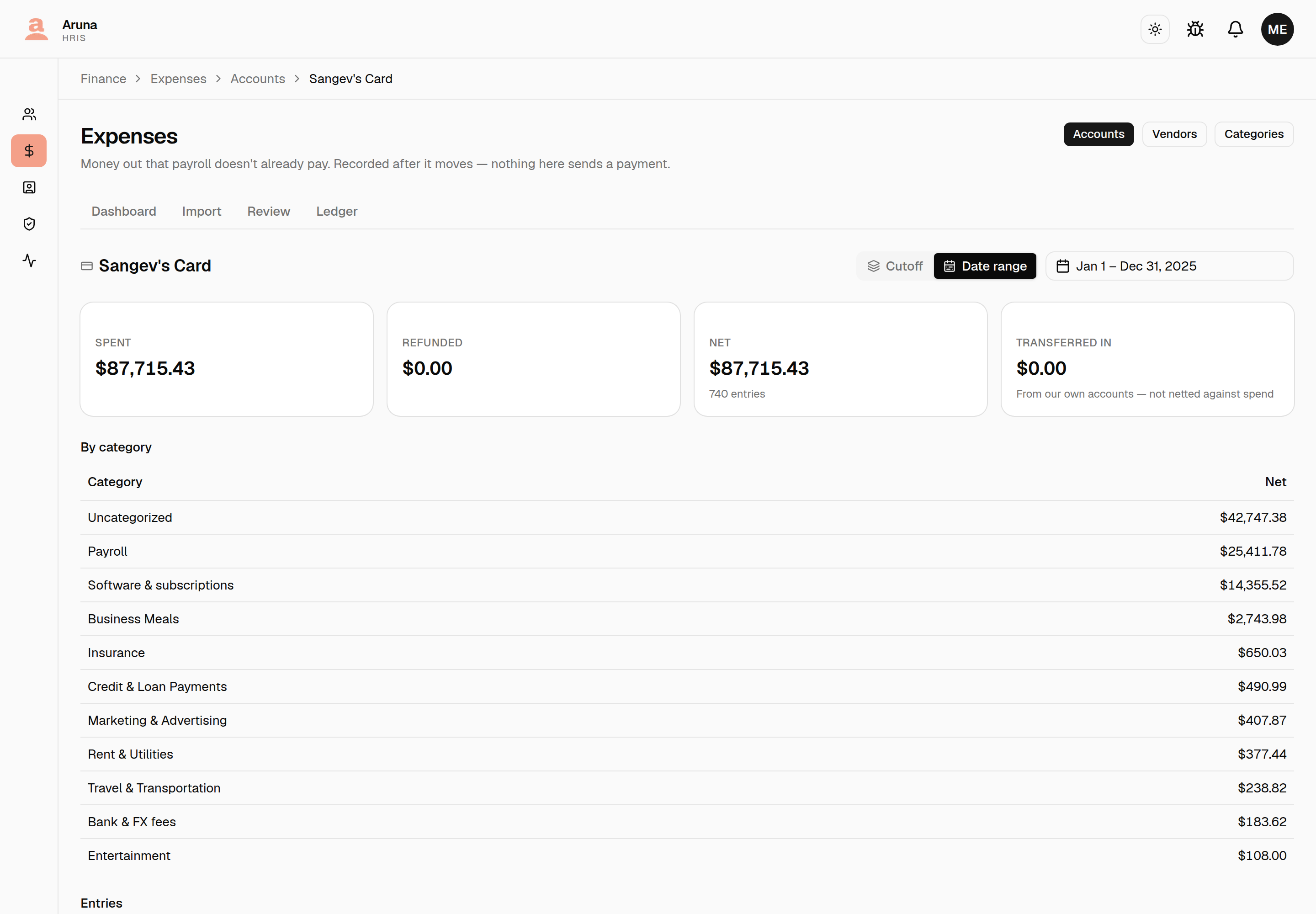
Transferred in is money moved here from another of our own accounts. It is reported beside the totals and deliberately not netted against spend — money arriving from our own pocket isn't income, and subtracting it from what this account spent would answer no question at all.
Vendors — where money goes¶
Expenses → Vendors.
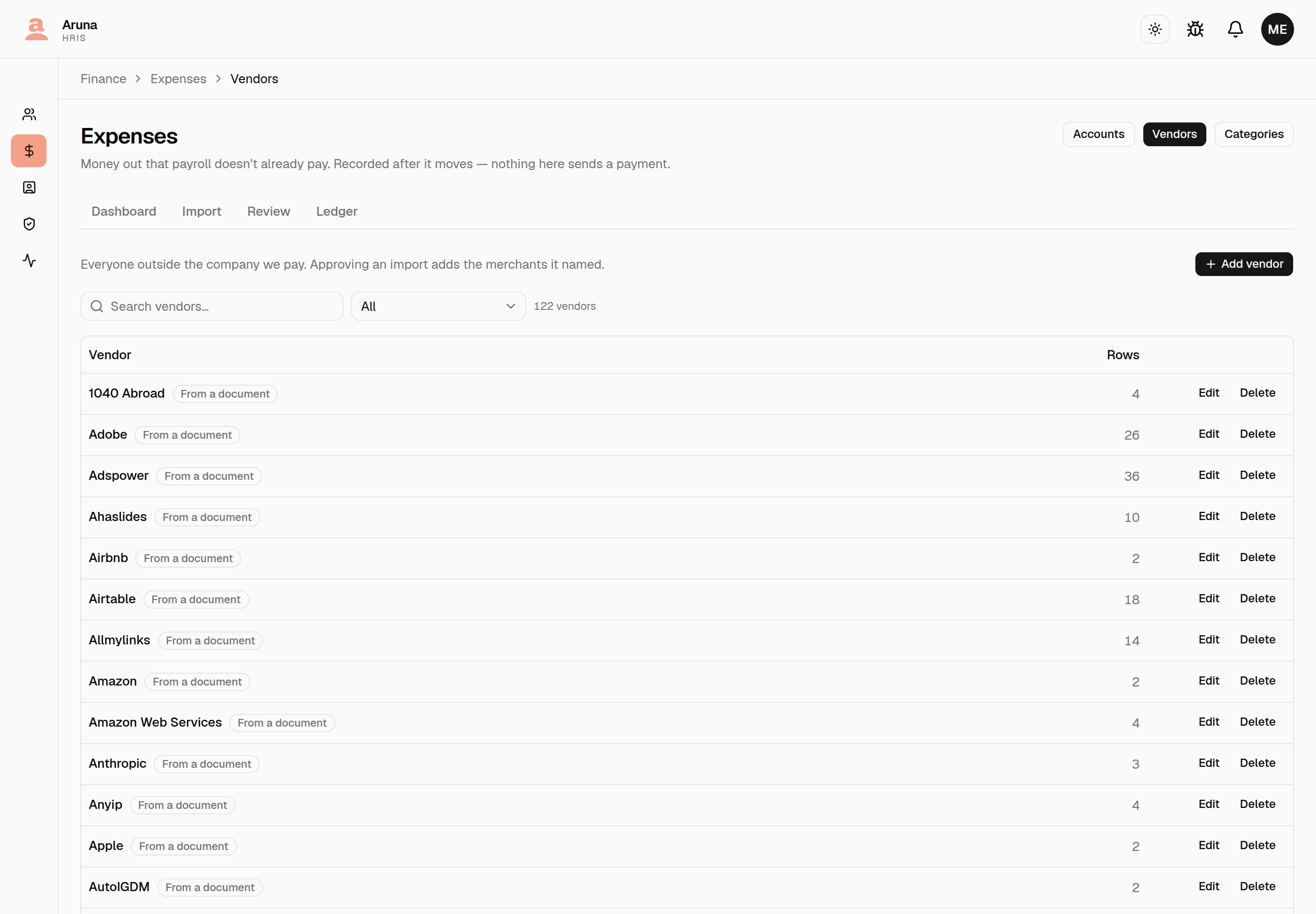
A vendor is a name and a note — this ledger records where money went, not how to send it, so there are no bank details here.
Most of this list writes itself. Approving an imported row registers the
merchant the document named, matching on a normalised name so ZOOM.US
888-799-9666, ZOOM.US*A1B2C3 and Zoom Video Communications all land on one
vendor instead of three. The Rows column and the From a document filter
are how you find the ones worth tidying.
One vendor's history¶
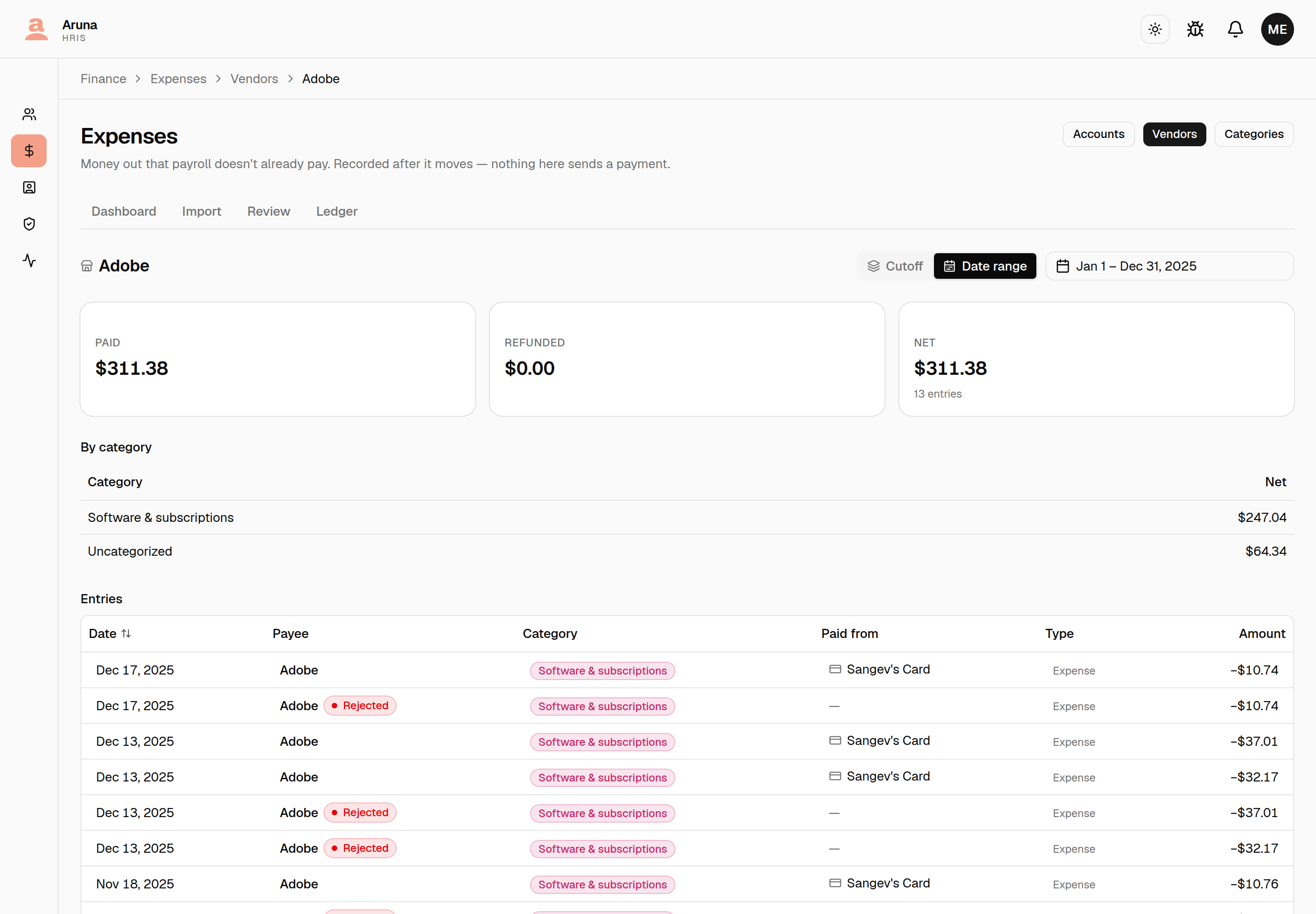
The entries table shows both ends of every row at once: the vendor as Payee and our account under Paid from.
Recording a row by hand¶
Ledger → Add expense.
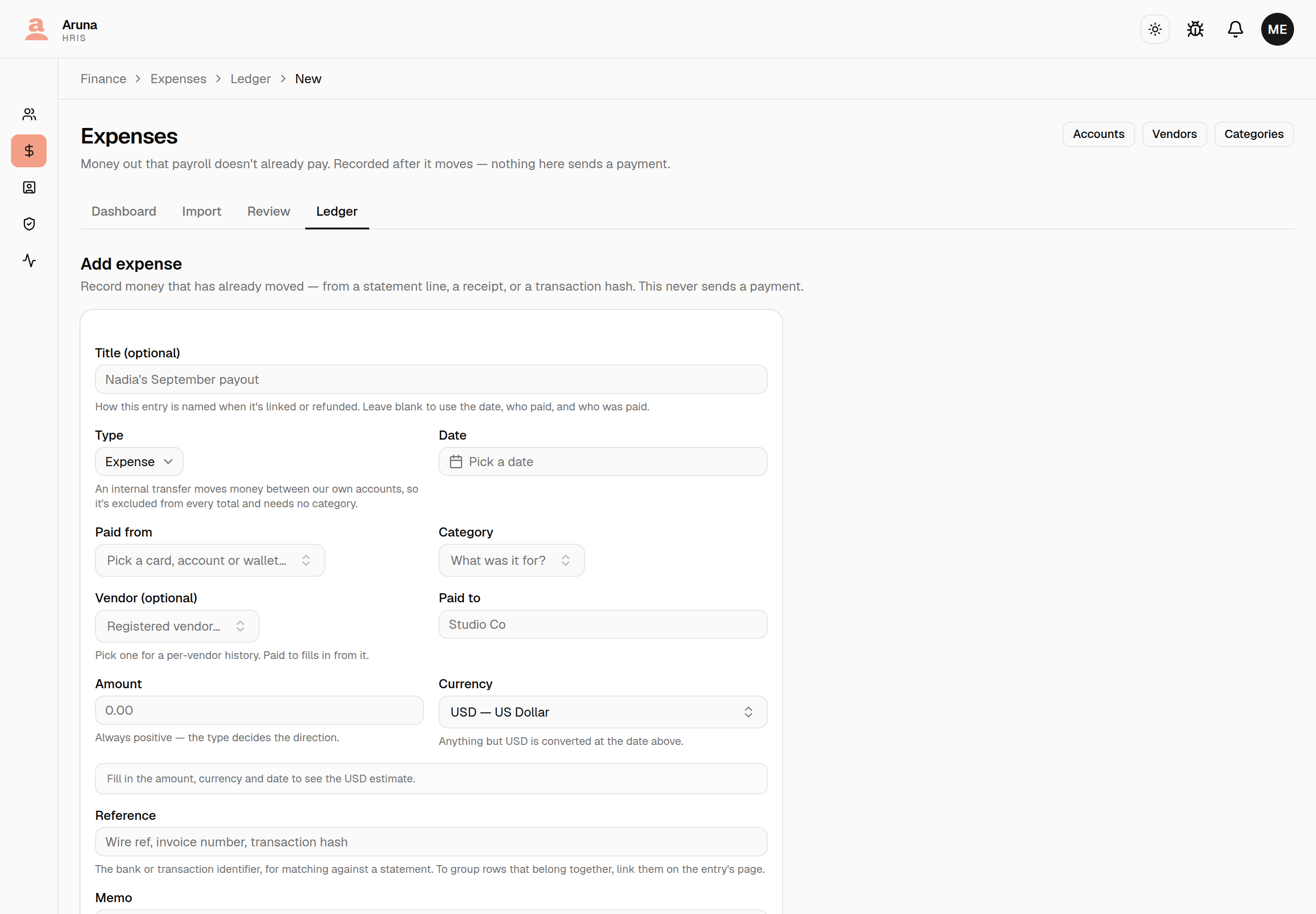
- Paid from — one of our accounts. Required on anything that counts.
- Vendor — optional, and only for a per-vendor history. Leave it blank and just type a name in Paid to for a one-off you'll never look up again.
- Amount is always positive. Type decides the direction, so a refund is entered as a positive number too.
Internal transfers¶
Choosing Internal transfer as the type changes the form: Vendor and Paid to are replaced by Moved to, which offers our own accounts.
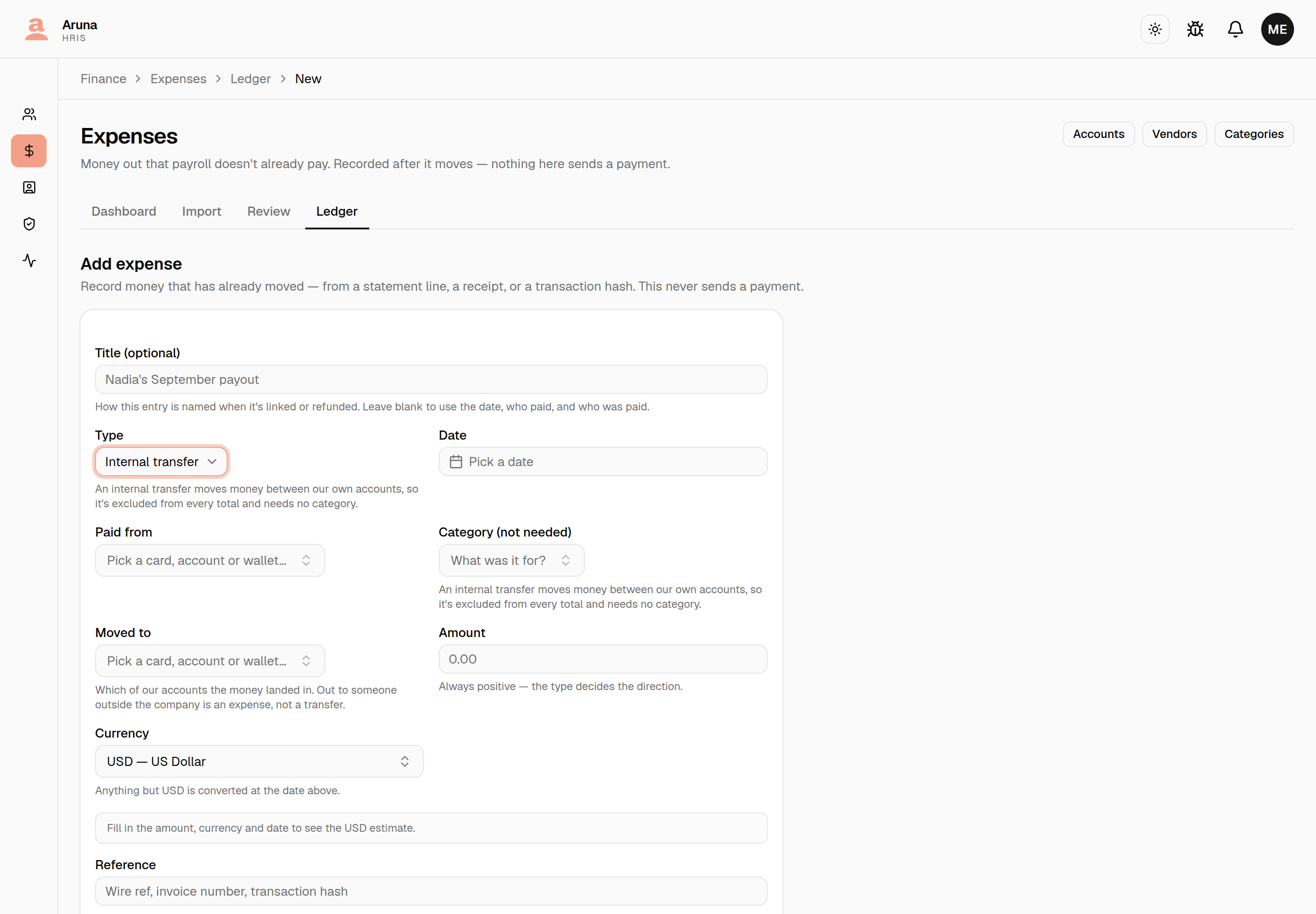
An internal transfer moves money between two accounts we control — Mercury to Amex, a float onto a team card. It is excluded from every total and needs no category, because nothing was spent: counting it would count the same money twice, once as the transfer and again as the charges it funded.
The form won't let you record one that goes to a vendor, or lands back in the account it left. Money out to someone outside the company is an expense, not a transfer — that distinction is the whole reason the type exists.
A transfer is only free if the other side is recorded
Excluding a transfer is correct provided the destination account's own spending reaches the ledger too — normally by importing its statement. If money moves to an account whose statements are never imported, whatever it later paid out is counted nowhere, and the expense total will read low.
When the system spots a transfer for you¶
Doing the above by hand, line by line, is fine for the odd row. A statement is not the odd row: one Mercury export here carried the same Kraken line 48 times. So imported rows are checked against the accounts you've registered, and the ones that look like money moving between them are offered as a group.
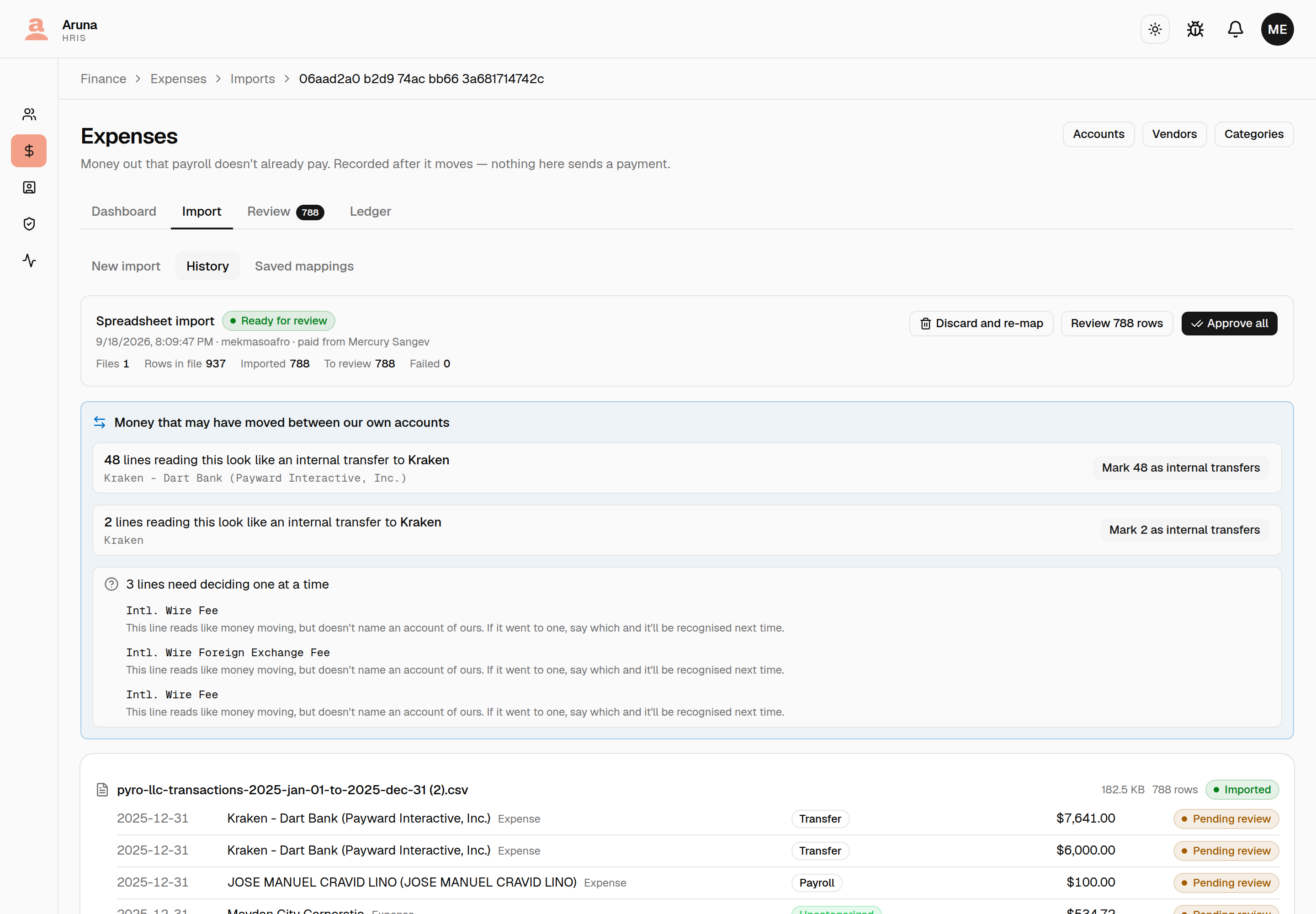
The same panel sits at the top of the review queue, where drafts from every import land together.
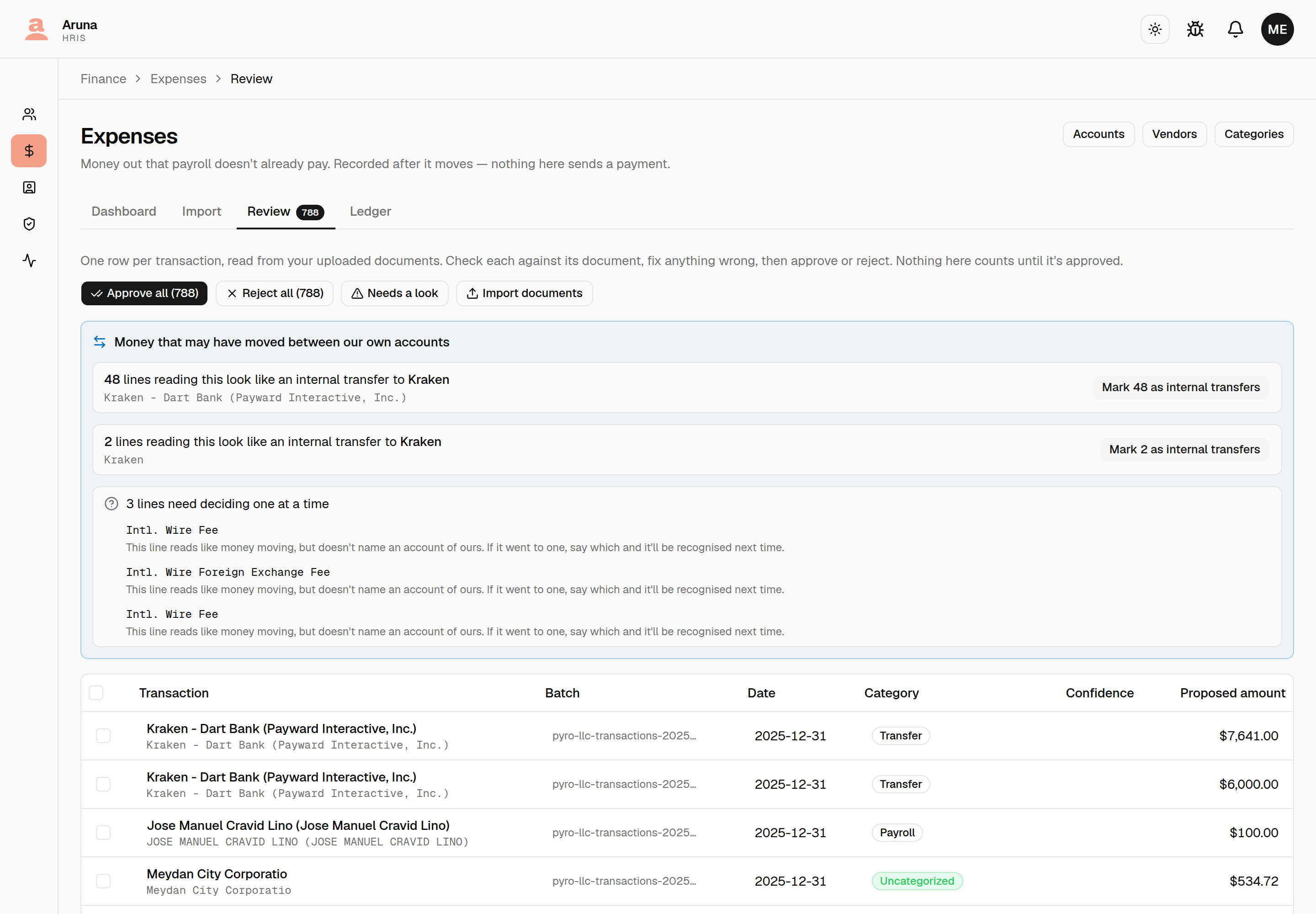
Marking is not approving. The rows stay drafts, counting for nothing, until you approve them like any other row.
How a line is recognised¶
Three ways, tried in that order. The first one that answers, wins.
| What it reads | What it does | |
|---|---|---|
| A line you confirmed before | The exact text, normalised | Marks the row on approval, on its own |
| Digits | Last four, in the description or a mapped card column | Offers it; you click |
| A distinctive word | A word only one of your accounts goes by | Offers it; you click |
Only the first marks anything by itself, and it exists because you confirmed that exact line once already. Confirming a line is what teaches it — next month's statement matches the same descriptor with no guessing, and no clicking.
The other two only ever propose, because neither identifies an account:
- A word names an institution. A contractor cashing out through Kraken and our own Kraken wallet both put "Kraken" on the statement.
- Four digits name a number. Someone else's account can end in the same four as ours.
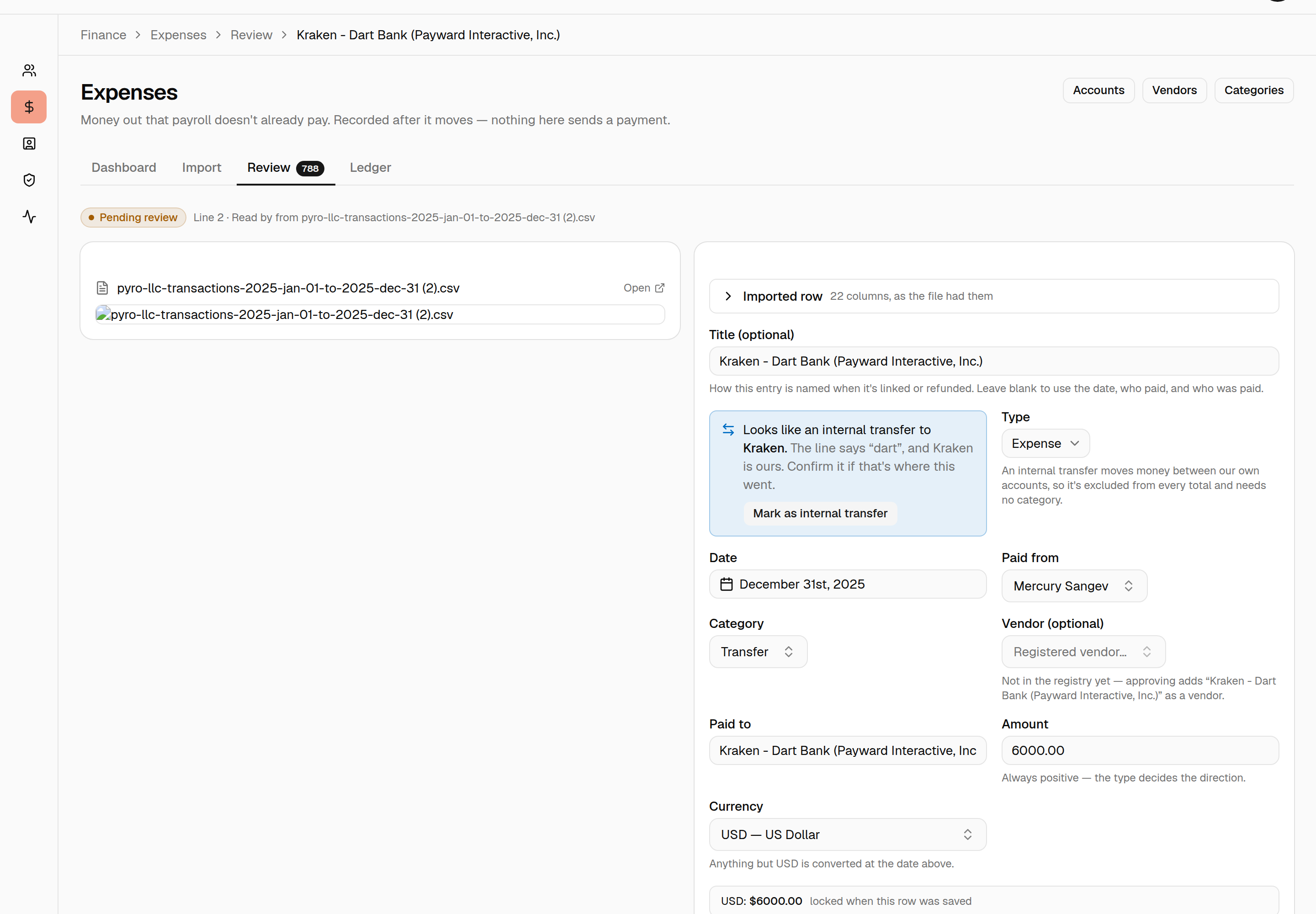
What it refuses to do¶
The refusals are the point, and they are all the same refusal: it never guesses which of your accounts, because a wrong guess is invisible. A missed transfer counts money twice and the total looks wrong; a false transfer is excluded from every total and looks like nothing at all.
- A group is one line, repeated — never "every row naming that account". A line that reads differently is a different group, and gets its own decision.
- Two accounts ending in the same four digits settle nothing. Both are offered; you pick.
- A word two accounts share stops identifying either the moment the second one is registered. Register a "Kraken" and a "Kraken - Mitch" and a bare "Kraken" line starts asking instead of answering.
- A bare four-digit number in a description is ignored unless the line also says money moved. "1040 Abroad" is a tax firm, not our card ending 1040.
- A row that doesn't say which account paid is warned about and can't be marked in bulk: the whole check rests on ruling out the account the money came from, and with no payer there is nothing to rule out. Set the import's account first.
If your export names the account in a column¶
Some banks put the last four in a column of their own instead of in the narrative. Map it as Card / account and those digits are read too.
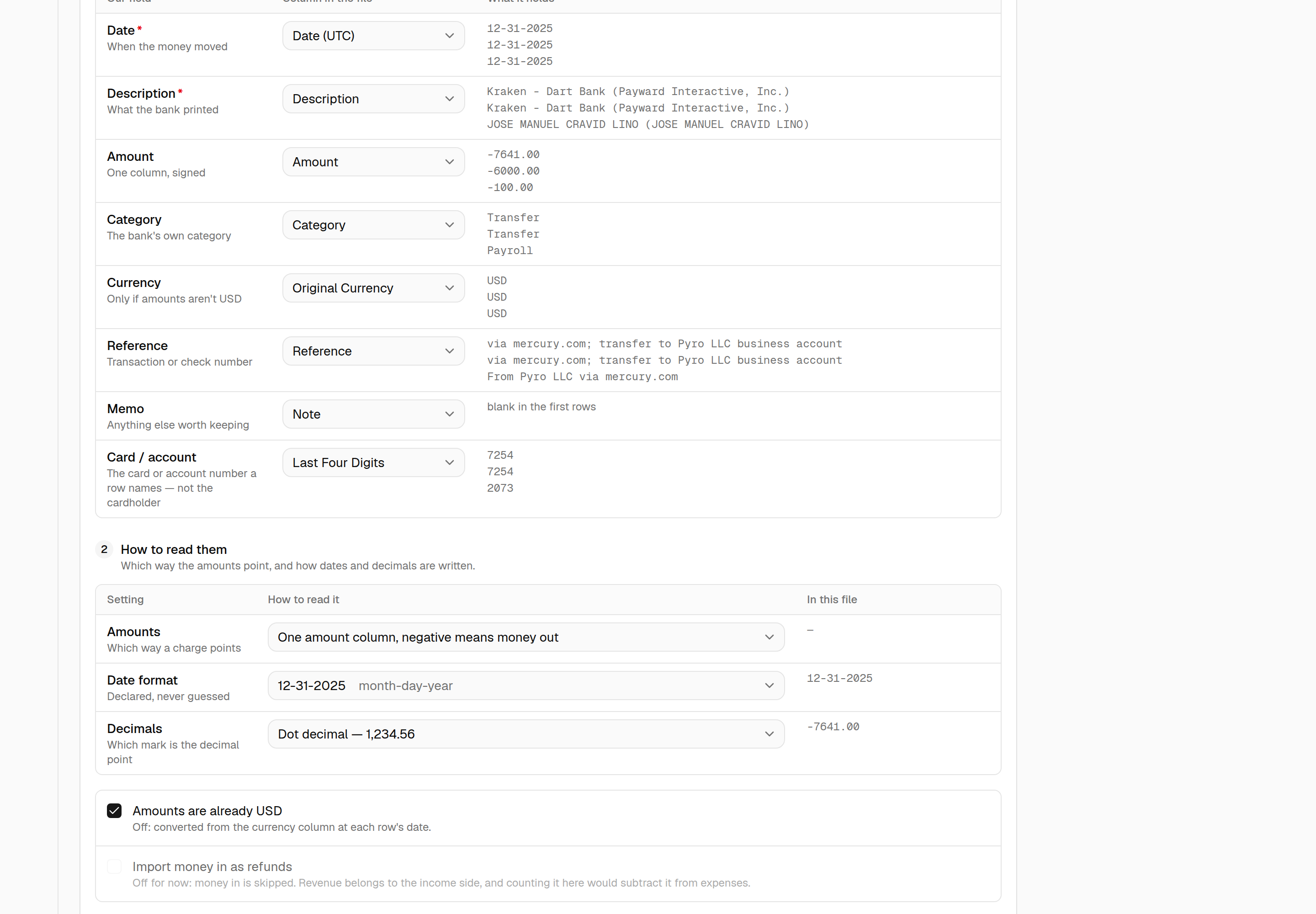
Map the column holding the number, not the cardholder — "Name On Card" holds a person and tells the matcher nothing. Digits in this column count without the line having to say "transfer": the column is the label.
Nothing else on the row is searched for account numbers. A reference or tracking column is full of four-digit runs that aren't accounts, and reading them would be how a real expense quietly stops counting.
Undoing things¶
A rejected row can be reopened. Rejecting is how most people react to an import that came in wrong, so it isn't a one-way door: a rejected draft carries Reopen for review, and an import with rejected rows offers Reopen N rejected beside Discard. The row goes back to the queue with its rejection reason still attached, so whoever looks next knows why it was thrown out.
This matters more than it sounds. A rejected row can't be approved, edited or deleted, and the importer remembers its line — so until it is reopened, or the whole file discarded, that transaction can't come back from any later import of the same account.
Discard and re-map is the other way back, for a mapping that was wrong across the board: it deletes the file's drafts, rejected ones included, and returns it to the mapping screen. It is refused once a row has been approved, because that money is counting.
A confirmed line can be forgotten. An account's page lists the statement lines it is known by, with how often each has been confirmed. Forget removes one. Rows already marked by it keep their decision — forgetting only changes what the next import does.
Amounts and currencies
Map a Currency column only when the amounts in the file really are in that currency. On most exports — Mercury, Amex, Wise — the amount is what hit the account and a column like "Original Currency" merely notes what the merchant billed in; pairing them converts every row down by the exchange rate. The preview says how many rows a mapping would convert, before it runs. If the amounts are already in your account's currency, tick Amounts are already USD and leave the currency column unmapped.
The dashboard — two tiles, each payment in exactly one of them¶
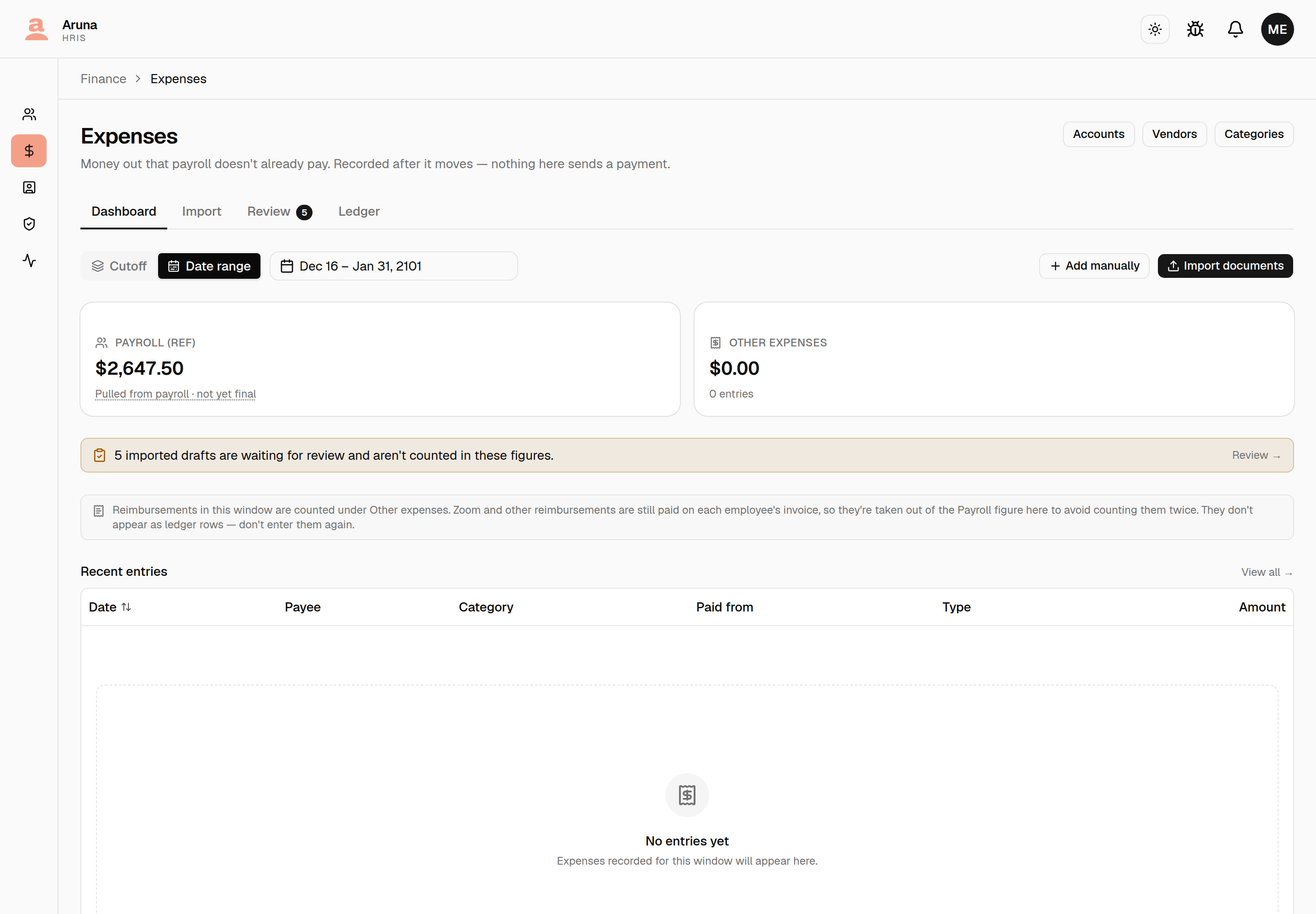
- Payroll (ref) — every salary and contractor invoice for the cutoffs the window touches. A reference figure read from the payroll record, not from ledger rows.
- Other expenses — the ledger: what the company spent on everything else.
Payroll counts every salary, on every rail. Whether someone is paid by bank transfer or in crypto, their pay is in the Payroll tile as soon as payroll is processed — no import has to happen first.
Drafts waiting for review are in neither figure, and the banner says how many, so a quiet month reads as "nothing reviewed yet" rather than "nothing spent".
When a salary shows up on the bank statement¶
A bank transfer to an employee lands on the company's statement, so importing that statement brings in a row for money the Payroll tile already counts. Left alone, the salary is counted twice.
Opening such a draft, the app says so:
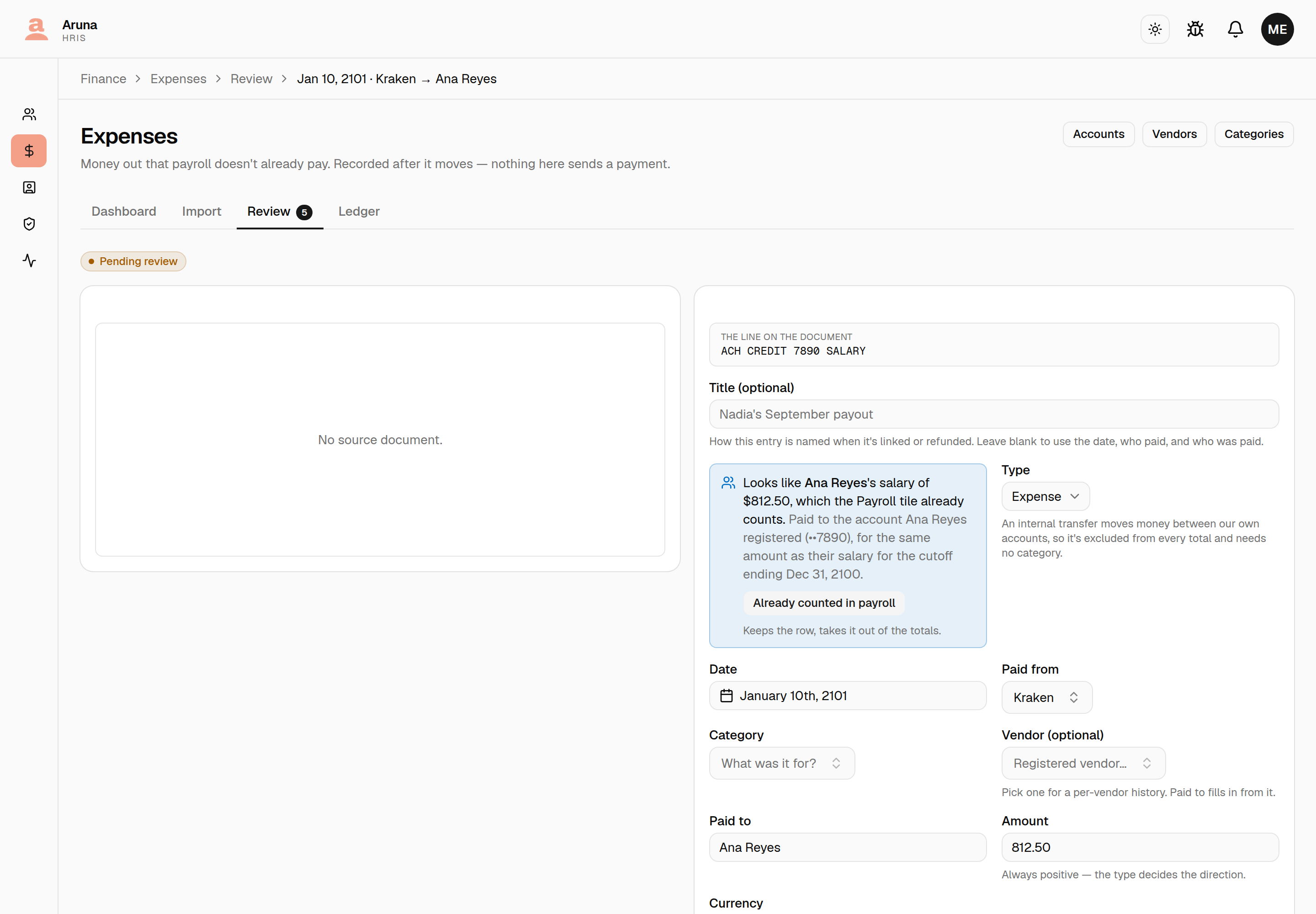
It recognises the payout three ways, strongest first:
| how it knows | |
|---|---|
| Account | the money went to the bank account that employee registered with us |
| Name | the employee's name is printed on the line |
| Amount | the amount and date fit exactly one payout — shown with a warning |
If two people earn the same salary and nothing on the line says which, it proposes nothing. That is deliberate: naming the wrong person takes a real expense out of every total, and nobody ever notices a number that is too small.
The third answer¶
Already counted in payroll is its own decision — not Approve, not Reject:
- Approve would count the salary a second time.
- Reject would say the payment never happened, when the money really did leave the bank. A rejected row is a lie in the ledger's own audit trail.
Marking keeps the row exactly as it is and takes it out of the totals. The summary reports how much was excluded that way, so a large exclusion is a visible number rather than a gap.
Doing a whole payroll run at once¶
A run is ninety-odd transfers twice a month, and clicking through them one at a time is what stops anyone doing it at all.
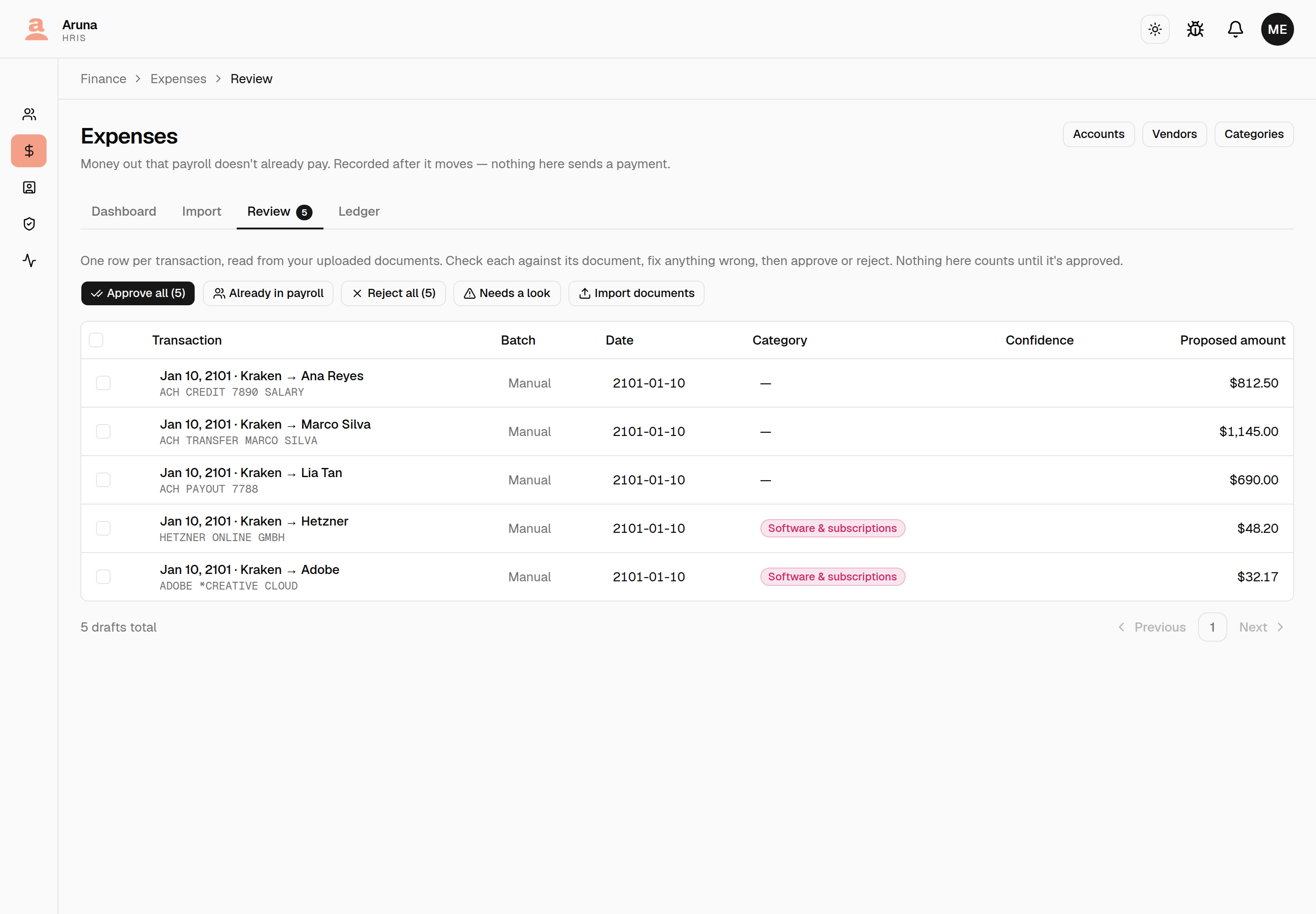
Already in payroll marks every ticked draft — or the whole filtered queue — that the matcher ties to a payout by registered bank account. Only that strongest match is applied unattended. A name-only match can be included on request; an amount-only match never can, because it is the one that arrives with a warning, and a warning nobody reads is not a decision.
Anything it cannot place is left exactly as it was, for a person.
Salaries are not offered as internal transfers
A salary says "transfer" on a statement and names no account of ours, so it looks like an internal-transfer candidate. When the payroll matcher claims a line, the transfer suggestion is withheld — two buttons doing contradictory things on one row is how the wrong one gets clicked. A descriptor someone has already confirmed as a transfer still wins.
Not covered here: importing statements and receipts.